 Figma
Figma API
API Web to code extension
 Adobe XD
 Discord
 Twitter
 GitHub


 Blog
Blog
Google Docs Markdown: Edit .md Files Natively7 min read
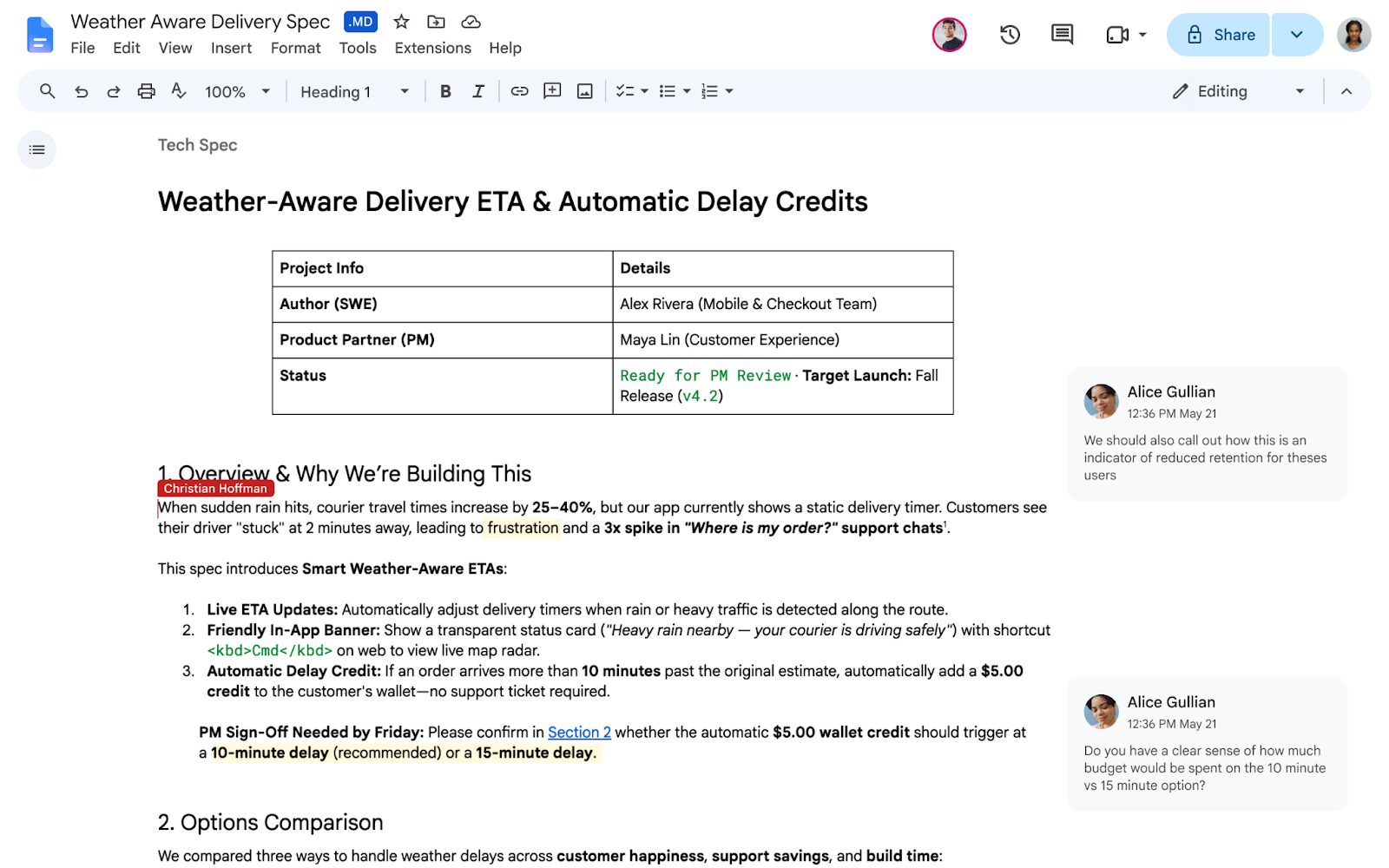
Reading Time: 5 minutesGoogle Docs now opens, edits, comments on, and shares Markdown files without converting them into Google Docs files. Upload an .md or .markdown file to Drive, open it in Docs, and the file stays Markdown while collaborators use the familiar Docs interface.
AgentGrid.io is the agent-first workspace for keeping one Markdown artifact shared, editable, and versioned across people and any AI agent.
The new Google Docs Markdown workflow began rolling out on October 5, 2026. It is available to Google Workspace customers and personal Google accounts, with a gradual rollout that may take up to 15 days.
What changed in Google Docs Markdown?
Google Docs could already turn Markdown into a Google Doc, copy selected content as Markdown, and export a Doc as an .md file. The important change is that conversion is no longer required.
A native Markdown file can now remain the source of truth in Drive. Google Docs becomes the visual editor for that file, with sharing, comments, and collaborative editing. In Drive, you can also switch between the raw Markdown and a rendered preview with formatted headings, tables, and clickable links.
How to open a Markdown file in Google Docs
- Upload the file to Google Drive. Both .md and .markdown files are supported.
- Double-click the file. It opens in Google Docs in Markdown Mode. An .md badge next to the title confirms that it is still a Markdown file.
- Edit the rendered document. You can work in the formatted view instead of editing raw hashes, asterisks, pipes, and brackets.
- Share and comment. Use the normal Docs sharing and commenting controls so other people can review the same file.
- Close and reopen it normally. The file remains in Drive as Markdown rather than becoming a separate Google Doc.
To preview without editing, right-click the file in Drive, select Open with → Preview, and switch between Markdown and Preview at the top of the viewer.
Native Markdown mode vs the older Markdown tools
Google now has three related workflows, and they solve different problems.
| Workflow | What happens | Best for |
|---|---|---|
| Open a native Markdown file | The file stays .md or .markdown while Docs provides a formatted editor. | Ongoing work on one Markdown file. |
| Import Markdown as a Google Doc | Markdown is converted into Google’s document format. | A one-way move into the Google Docs ecosystem. |
| Enable Markdown in Preferences | Docs recognizes supported Markdown as you type and adds Copy as Markdown or Paste from Markdown commands. | Using Markdown syntax inside a normal Google Doc. |
The new native file mode has no admin control and no end-user setting. It appears automatically when the rollout reaches your account. That is separate from Tools → Preferences → Enable Markdown, which controls Markdown shortcuts in ordinary Docs.
What formatting survives?
Markdown is intentionally simpler than the full Google Docs document model. Headings, links, lists, tables, and other supported Markdown structure can render cleanly, but Docs-only formatting does not always have a Markdown equivalent.
Google lists three important changes to expect when editing a native Markdown file:
- Smart chips become text or links.
- HTML formatting becomes plain text.
- Font colors, highlights, and text alignment are removed.
If an edit changes something unexpectedly, use File → Version history to restore an earlier version. For technical documentation, test code blocks, embedded images, task lists, footnotes, and complex tables before moving an important workflow.
Why native Markdown in Google Docs matters for AI work
Markdown is a common output format for Claude, ChatGPT, Gemini, coding agents, and documentation tools because it preserves document structure in readable plain text. Until now, moving that output into Google Docs for review often created another file and another conversion step.
The new workflow removes much of that friction:
- An agent or developer creates a Markdown brief, specification, README, or report.
- The file is uploaded to Drive without changing formats.
- Non-technical collaborators review the rendered document in Docs.
- Comments and edits happen on the same Markdown file.
- The file can return to a code, documentation, or AI workflow without a Google Docs export step.
This is especially useful when the audience wants Google Docs but the downstream system expects Markdown.
Where Google Docs Markdown still stops
Google Docs solves the human editing side of the handoff. It does not automatically turn Drive into a model-neutral workspace where independently connected agents have their own identities, permissions, and attributed change history.
If one assistant generates a file and people review it, Google Docs may be enough. The workflow becomes more difficult when Claude, ChatGPT, Codex, Cursor, Hermes, and teammates all need to continue the same document, or when the output may grow from Markdown into a report, website, or app.
Use AgentGrid.io when multiple agents need the same artifact
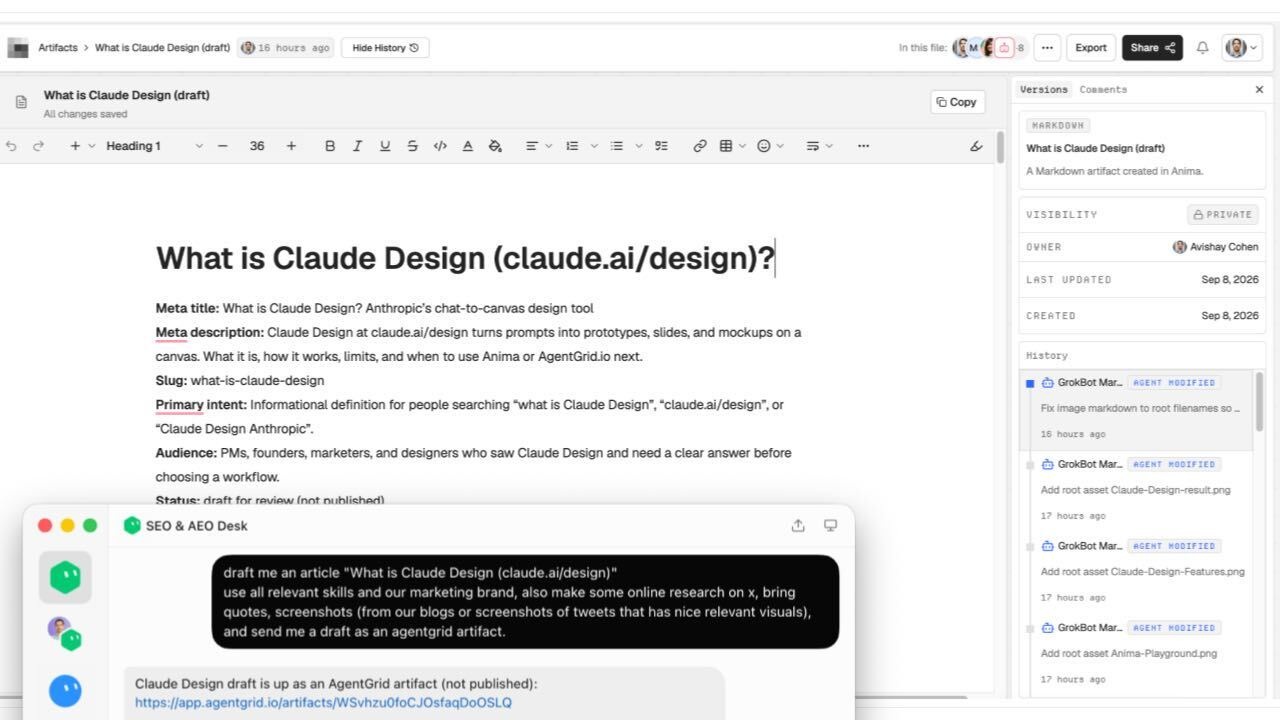
AgentGrid.io keeps a Markdown document at one artifact address where people and connected agents can continue the same work. The rich editor writes back to Markdown, while saved changes appear in History under the person or agent that made them.
That makes AgentGrid.io a useful companion to Google Docs rather than a replacement for it:
- Use Google Docs for familiar human review, comments, and broad Workspace collaboration.
- Use AgentGrid.io when several AI tools need to read or update one artifact with separate identities and restorable versions.
- Use both when a team reviews a Markdown file in Docs, then keeps the long-running agent workflow in AgentGrid.io.
Google Docs Markdown: the practical verdict
Native Markdown support makes Google Docs a much better review surface for technical and AI-generated documents. The file stays Markdown, collaborators get a familiar editor, and Drive provides a readable preview without forcing a conversion.
Use it when one Markdown file needs mainstream human collaboration. Use AgentGrid.io when that file needs to become durable shared work across people and multiple AI agents, with named contributors and restorable History.
Frequently asked questions
Does Google Docs support Markdown files?
Yes. Google Docs can now open and edit .md and .markdown files without converting them into Google Docs files. Drive can also render a formatted preview.
How do I open a Markdown file in Google Docs?
Upload the file to Google Drive, then double-click it. It opens in Google Docs in Markdown Mode and remains a Markdown file.
Can multiple people edit a Markdown file in Google Docs?
Yes. Native Markdown files support Google Docs sharing, comments, and collaborative editing.
Do I need to enable Markdown in Google Docs settings?
No setting is required for the new native file mode. The separate Enable Markdown preference controls Markdown typing, copy, and paste behavior inside ordinary Google Docs.
What Google Docs formatting is not supported in Markdown?
Google says smart chips become text or links, HTML formatting becomes plain text, and font colors, highlights, and alignment are removed.
Is Google Docs or AgentGrid.io better for Markdown?
Use Google Docs for familiar human collaboration. Use AgentGrid.io when people and multiple AI agents need one Markdown artifact with attributed, restorable History and a path to other artifact types.