 Figma
 API
 Web to code extension
 Adobe XD
 Discord
 Twitter
 GitHub


 Blog

Canva Brush: What It Is, How to Use It, and How to Turn Designs Into Code10 min read
Reading Time: 7 minutesCanva Brush is Canva’s new AI model for editing designs, announced on October 29, 2026. Canva Craft, which launched a week earlier, generates images. Brush works on a design that already exists: it reads the layout, then applies the change you ask for, whether that is one line of copy or every slide in a deck. It starts with Canva Pro subscribers inside Canva AI, with wider availability “coming soon,” and Canva says it is up to 69% faster and 46% cheaper per edit task than its previous design agent.
This guide is for designers, marketers and founders who edit a lot in Canva and want to know what Brush changes, how to switch it on, how to prompt it so it changes only what you meant, and what to do when the finished design has to become a real website or app. For the generation side, see our guide to Canva Craft.
When a Canva design is ready to ship as a page, Anima Playground turns an image or a Figma link into a working, responsive app you can keep editing with AI.
Design Directly in Code with AI
Design with AI: Describe a screen or turn Figma designs to code.
What is Canva Brush?
Canva describes Brush as a vision-language model for design, built by Canva Research, the company’s 160-person AI lab. “Vision-language” means it takes in both the picture of the page and your words. Canva says it sees your design, understands how it is put together, and makes the change you asked for. The hard part, in Canva’s telling, is not generating a design but editing one: the model has to know what to change and also what must stay exactly as it is, or a simple request turns into a pile of changes you never asked for.
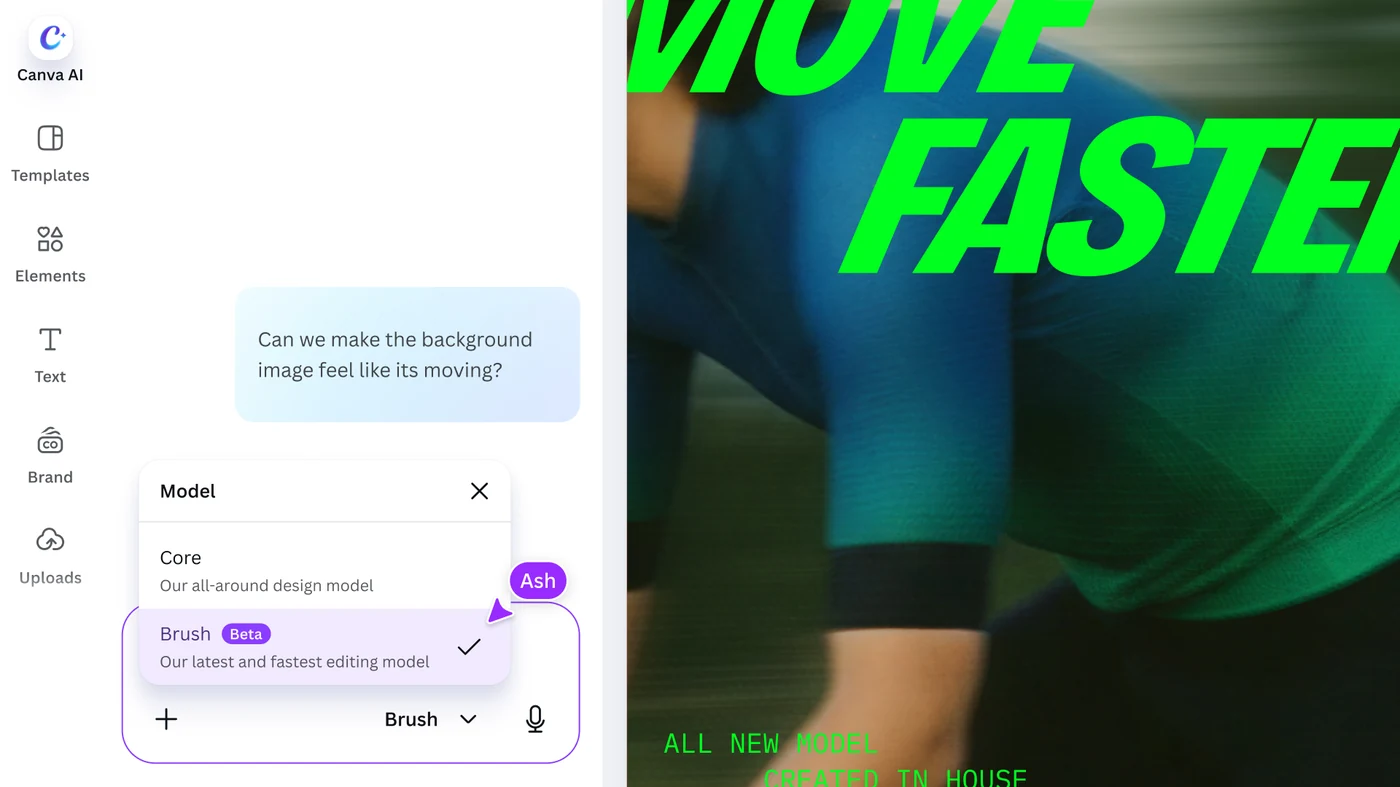
Under the hood, Canva says Brush uses an agentic loop. It writes and runs code to adjust design elements, then inspects the page to decide its next step. Everything it makes remains a normal Canva design, so text, images, colors and layouts stay editable by hand. In the product, the model menu in Canva AI lists Core, “our all-around design model,” and Brush, tagged Beta, “our latest and fastest editing model.”
How is Canva Brush different from Canva Craft?
They solve different halves of the same job, and Canva built them to work together.
| Canva Craft | Canva Brush | |
|---|---|---|
| What it does | Generates images from a prompt, planning the composition before it renders | Edits an existing design: copy, styling, layout, and formats |
| Launched | October 22, 2026 | October 29, 2026 |
| Where you use it | Dream Lab on the Canva homepage, and the Canva Connect API in preview | Canva AI, inside a design or from an attached or linked design |
| Who gets it | All Canva users | Canva Pro subscribers first, wider availability promised |
| What you get | Up to four images per prompt | Changes applied to the design, still fully editable |
Canva’s own line is that Craft generates the image and Brush refines the design around it. In practice, you would generate a hero image with Craft, drop it into a layout, and then use Brush to restyle the page, change a headline across the deck, or resize it for another channel.
How do you use Canva Brush in Canva AI?
- Open the design. Open an existing design in the editor, or attach or link to a design in Canva AI.
- Choose the model. In Canva AI, open the model menu and select Brush. Canva says to do this so Brush powers your full editing experience.
- Describe one change. Write what to change and, just as important, what to leave alone.
- Review what changed. Look at every page, especially text and spacing.
- Take over by hand when it is faster. You can keep directing through Canva AI or switch back to the editor at any moment.
Canva suggests three starting jobs: restyle an image or design, such as changing the color scheme, the weather or the vibe; make one change across a multi-page design; and remix a design for another channel, such as turning a presentation slide into an Instagram graphic. Canva says Brush did particularly well on restyling and on adapting designs to different formats in its internal testing.
How should you prompt Brush so it changes only what you meant?
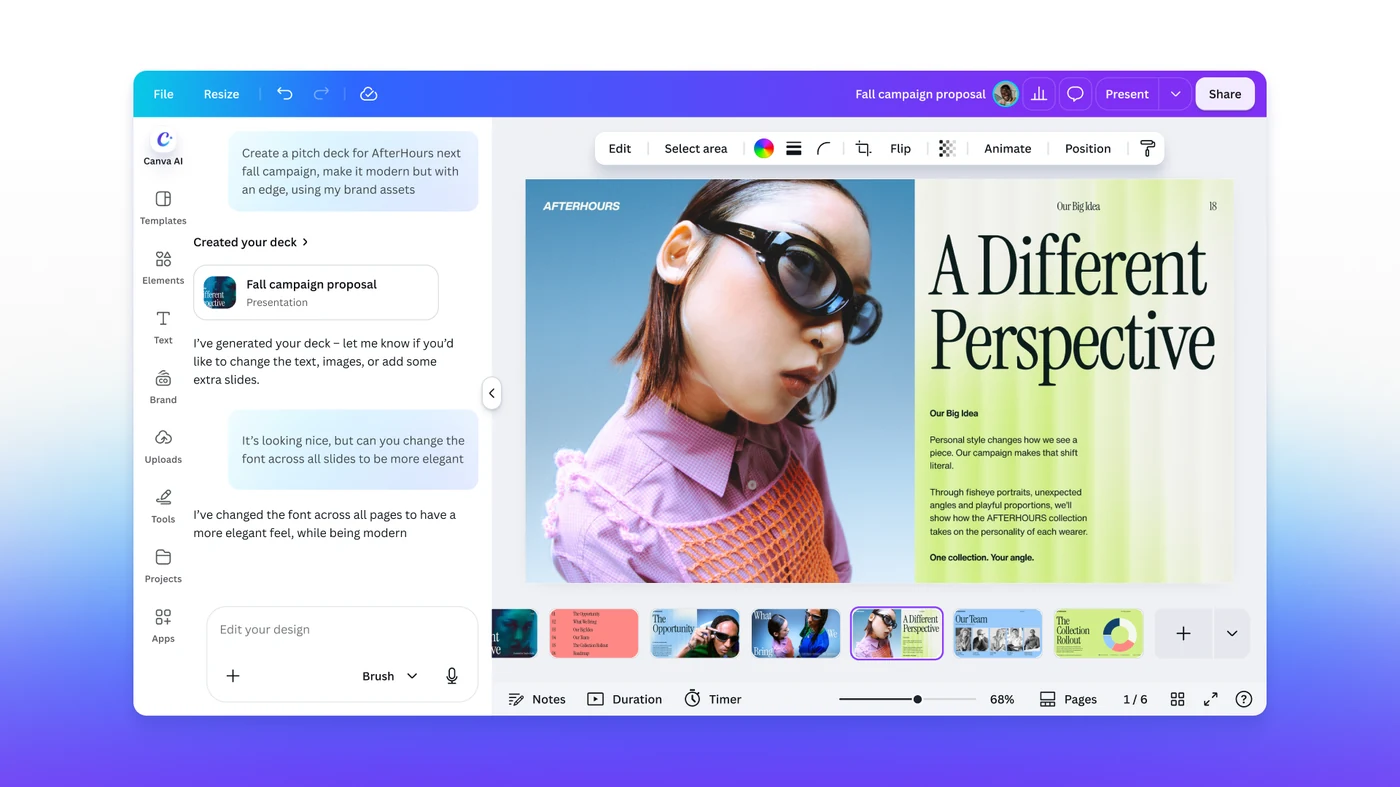
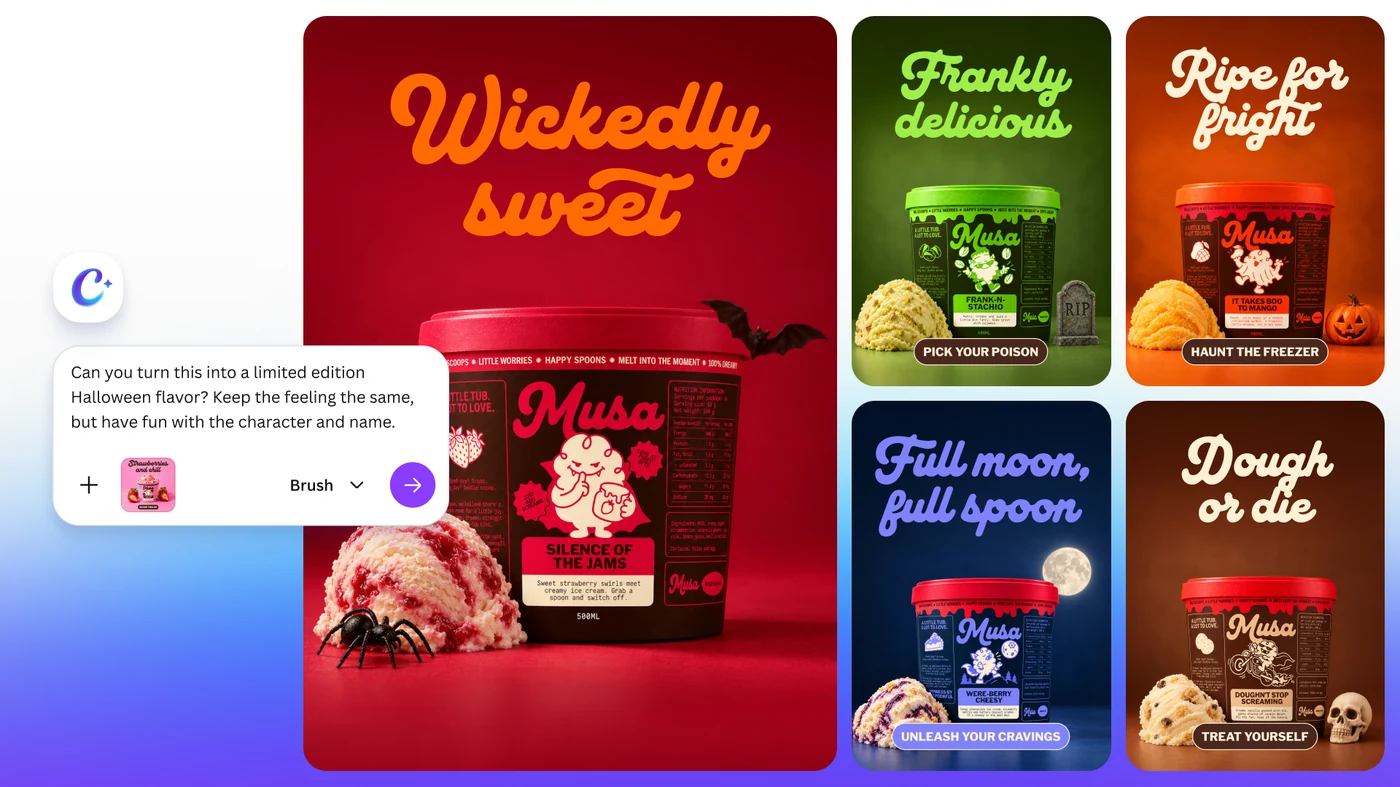
Canva’s own explanation of why editing is hard is also the best prompting advice: the model has to know what to keep. Its example prompts do this in plain language. One launch image shows “can you change the font across all slides to be more elegant”. Another asks to turn a product design into a limited edition Halloween flavor, “keep the feeling the same, but have fun with the character and name.” I would write every edit as four short lines.
That template is my suggestion, not Canva’s. The reason to try it is that it turns a vague request into a bounded one, and it gives you a list to verify. Canva says Brush matched or exceeded the quality of its previous setup on most editing tasks in internal testing, which is a good sign and also a reminder that “most” is not “all.” For anything with legal text, prices or dates, read the result.
How much faster and cheaper is Canva Brush?
Canva says that at launch Brush is up to 69% faster for general design editing tasks and 46% lower in cost per edit task, compared with Canva’s previous design agent. Canva presents the cost saving as the reason it can offer a stronger Canva AI experience to more people. The launch chart shows the two comparisons without absolute values, so there is no number of seconds or cents to quote.
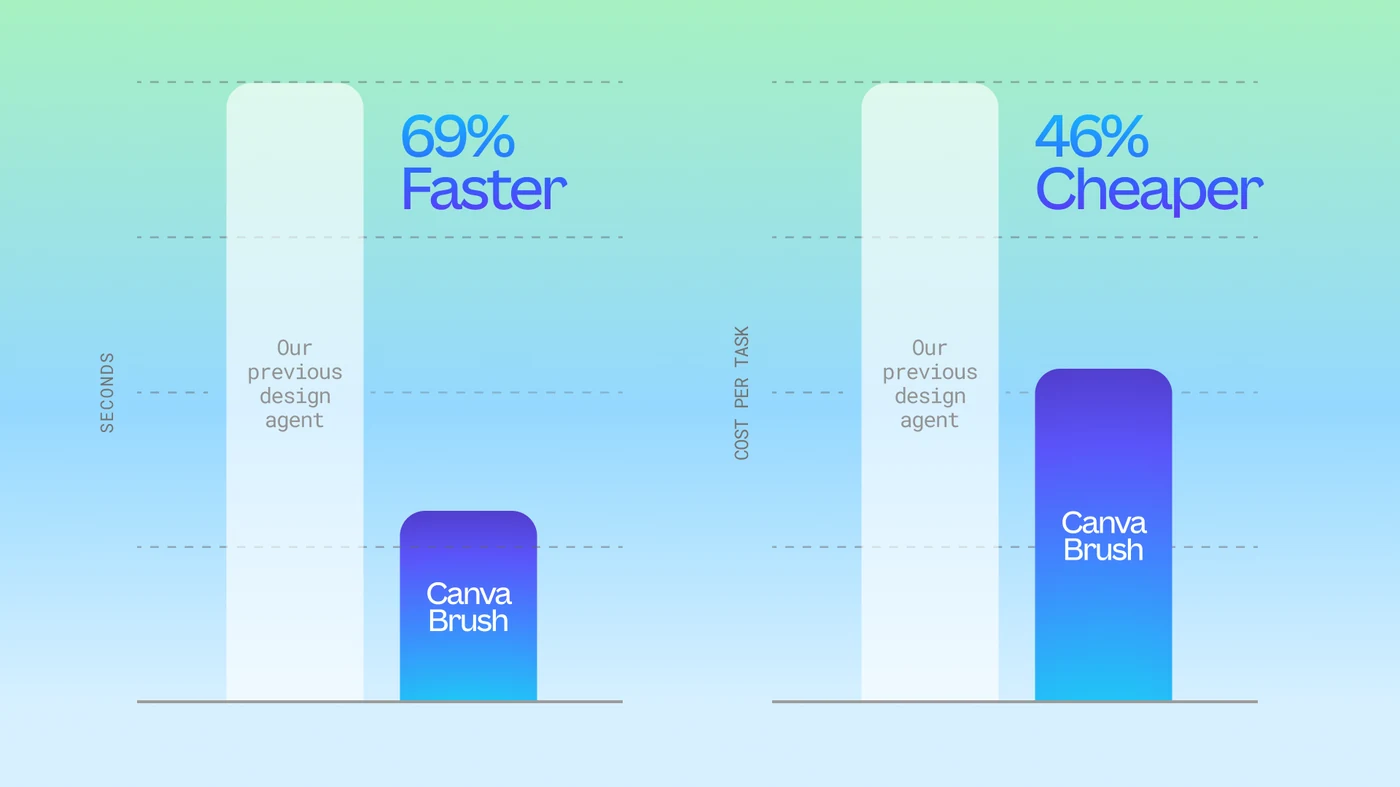
Read these as Canva’s measurements against its own earlier agent. They don’t compare Brush to any other company’s model, and they don’t tell you how often an edit will be right the first time.
What can’t Canva Brush do yet?
- It is not for everyone yet. Pro subscribers get it first. Canva has not given a date for other plans.
- It is the first version. Canva lists Brand Kit support, the ability to reference attachments, and better handling of image-heavy layouts as work in progress.
- It lives in Canva AI. Canva’s post describes Brush in the Canva editor and Canva AI. It does not mention the Canva connector that Claude and ChatGPT use, so don’t assume Brush edits are available there.
- It edits Canva designs. The result is a Canva design. Nothing in the announcement turns it into code or a website.
How do you turn a Canva design into code?
This is the gap between a finished design and a live page. Brush gets the design right. Someone still has to build it. If the design is going on a website, an app screen or a landing page, here is the route I would take with Anima Playground.
- Finish the edit in Canva. Check every page, then use Share, Download and pick PNG for the page you want to build. Canva’s help center lists the other file types too.
- Upload the image to Anima Playground. Drag it into the prompt box, or use the image icon in chat.
- Say what it is. Tell Anima whether the picture is a landing page, a dashboard or a mobile screen, and what should be clickable.
- Generate, then refine by chat. Anima rebuilds the layout as responsive HTML or React, with text and image assets separated, so you can preview it, ask for changes, and publish or export the code.
Be clear about what this is. Anima works from the picture, because the common Canva downloads, such as PNG, JPG and PDF, are flat images or documents. It reads the layout, text, assets and style from the image and rebuilds them, and you should expect to refine the first version, as with any image-to-code workflow. If the design also lives in Figma, paste the Figma link into the same box and Anima works from the real layers instead. Our image to code guide covers how to prepare a clean image, and the guide to replicating a full website shows the same prompt box on a bigger job.
When should you use Brush, Craft or Anima?
- Use Brush when the design exists and needs a change: a rewrite across a deck, a new color direction, a resize for another channel.
- Use Craft when you need a new image: a hero, a poster, a social card with text in it.
- Use Canva’s editor by hand for pixel-level work, brand-critical details, and anything Brush gets slightly wrong. Brand Kit support in Brush isn’t there yet.
- Use Anima Playground when the design must become a working page or app, not a file you export.
If you try Brush this week, start with a design that has repeated elements, such as a deck or a set of social posts, and run one bounded edit across all of it. That is where Canva says it is strongest, and it is the fastest way to see if the model respects what you told it to keep.
Frequently asked questions
Canva Brush is a vision-language model for design, built by Canva Research and announced on October 29, 2026. It looks at an existing design, understands how it is put together, and makes the changes you ask for, from one line of copy to every slide in a deck. Everything it produces stays an editable Canva design.
Not at launch. Canva says Brush is powering supported design edits in Canva AI for Canva Pro subscribers starting October 29, 2026, with expanded availability coming soon. Canva has not given a date or a plan list for the rest.
Open an existing design in the editor, or attach or link a design in Canva AI. Then select Brush from the model dropdown in Canva AI. The model menu labels it Brush, in Beta, as the latest and fastest editing model, next to Core, the all-around design model. You can keep directing it in chat or take over in the editor at any point.
Craft generates images. It launched on October 22, 2026 and runs in Dream Lab. Brush edits designs. It launched a week later and runs inside Canva AI. Canva's own summary is that Craft generates the image and Brush refines the design around it.
Yes, that is one of Canva's headline examples. Its launch material shows a deck where a single request changes the font across all slides, and Canva describes asking for a sweeping update across a multi-page design in one prompt instead of changing each header by hand.
Brush edits designs and does not produce a website or app. To get code, download the design as an image from Canva, upload it to Anima Playground, and Anima generates responsive HTML or React you can preview, refine by chat, publish or export. If the design also exists in Figma, paste the Figma link instead to work from the real layers.