
 Figma
Figma API
API Web to code extension
 Adobe XD
 Discord
 Twitter
 GitHub
'/%3E%3Cpath%20fill='%23b2b2b2'%20d='M241%20382q0%2016%2017%2026%2017%2011%2042%2011t42-11q16-11%2017-26V269H241'/%3E%3Cpath%20fill='%239f7e00'%20d='M241%20379q0%2014%208%2023%209%209%2021%209%2014%200%2021-9%209-9%209-23V269h-59'/%3E%3Cpath%20d='M241%20339v-70h59v110q0%2014-9%2023l-6%205v-68h-15v72q-8%200-14-4v-68zm59%2040c0%2022%2015%2032%2029%2032%2021%200%2030-18%2030-32v-40h-59'/%3E%3Cpath%20fill='%239f7e00'%20d='M266%20277v5h2v12h-3v-5h2v-5h-9v5h2v5h-4v9h3v18h-5v10h34v-10h-5v-18h3v-9h-4v-5h2v-5h-9v5h2v5h-3v-12h2v-5zm42%20101q0%2010%206%2017%206%206%2015%207%2010-1%2016-7%206-7%206-17v-29h-43'/%3E%3Ccircle%20fill='%230044ad'%20cx='329.5'%20cy='372'%20r='6'/%3E%3Cellipse%20fill='%230044ad'%20cx='300'%20cy='340'%20rx='16'%20ry='21'/%3E%3C/svg%3E)


'%3E%3Cpath%20stroke='%23000'%20stroke-width='4'%20d='m-35-37-13%2020m5%203%2013-20m5%203-13%2020m63%2042%206-9m1-2%206-9m5%203-6%209m-1%202-6%209m5%203%206-9m1-2%206-9m-96%200%2013%2020m5-3-6-9m-1-2-6-9m5-3%2013%2020m63-42-6-9m-1-2-6-9m5-3%2013%2020m5-3-6-9m-1-2-6-9'/%3E%3Ccircle%20r='24'%20fill='%23cd2e3a'/%3E%3Cpath%20fill='%230047a0'%20d='M0%200a12%2012%200%201%201%2020%2013%2024%2024%200%201%201-40-26A12%2012%200%201%200%200%200'/%3E%3C/g%3E%3C/svg%3E)


'%3E%3Ccircle%20r='92'/%3E%3Ccircle%20fill='%23fff'%20r='80'/%3E%3Ccircle%20r='16'/%3E%3Cg%20id='c'%3E%3Cg%20id='b'%3E%3Cpath%20id='a'%20d='m0-80%203%2048L0-8-3-32M21-77%2011-30%202-8%205-32M40-69%2019-26%204-7%2013-29'/%3E%3Cuse%20href='%23a'%20transform='scale(-1)'/%3E%3C/g%3E%3Cuse%20href='%23b'%20transform='rotate(45)'/%3E%3C/g%3E%3Cuse%20href='%23c'%20transform='rotate(90)'/%3E%3C/g%3E%3C/svg%3E)


'/%3E%3C/svg%3E)


'/%3E%3C/svg%3E)
'/%3E%3C/g%3E%3Cuse%20href='%23b'%20transform='rotate(45%20140%20300)'/%3E%3Cpath%20d='m299%20285%2046%2015-46%2015%2028-39v48M59%20510l-36%2032%2010-47%2020%2043-42-24m22-409L23%2058l36%2032-48-4%2042-24'/%3E%3C/svg%3E)


'/%3E%3C/svg%3E)
 Blog
Blog
Grok Bot Team Bots: How to Set Up a Shared Bot Your Whole Team Can Use11 min read
Reading Time: 8 minutesGrok Bot can now be one Bot that your whole team uses. You build it once, give it apps, skills and files, share it, and every teammate gets a private chat with it in the app or in Slack. SpaceXSI, the company behind Grok Bot, called these Team Bots in its September 26, 2026 changelog and calls them Shared Bots in its docs and its October 27 sales post. They are the same thing.
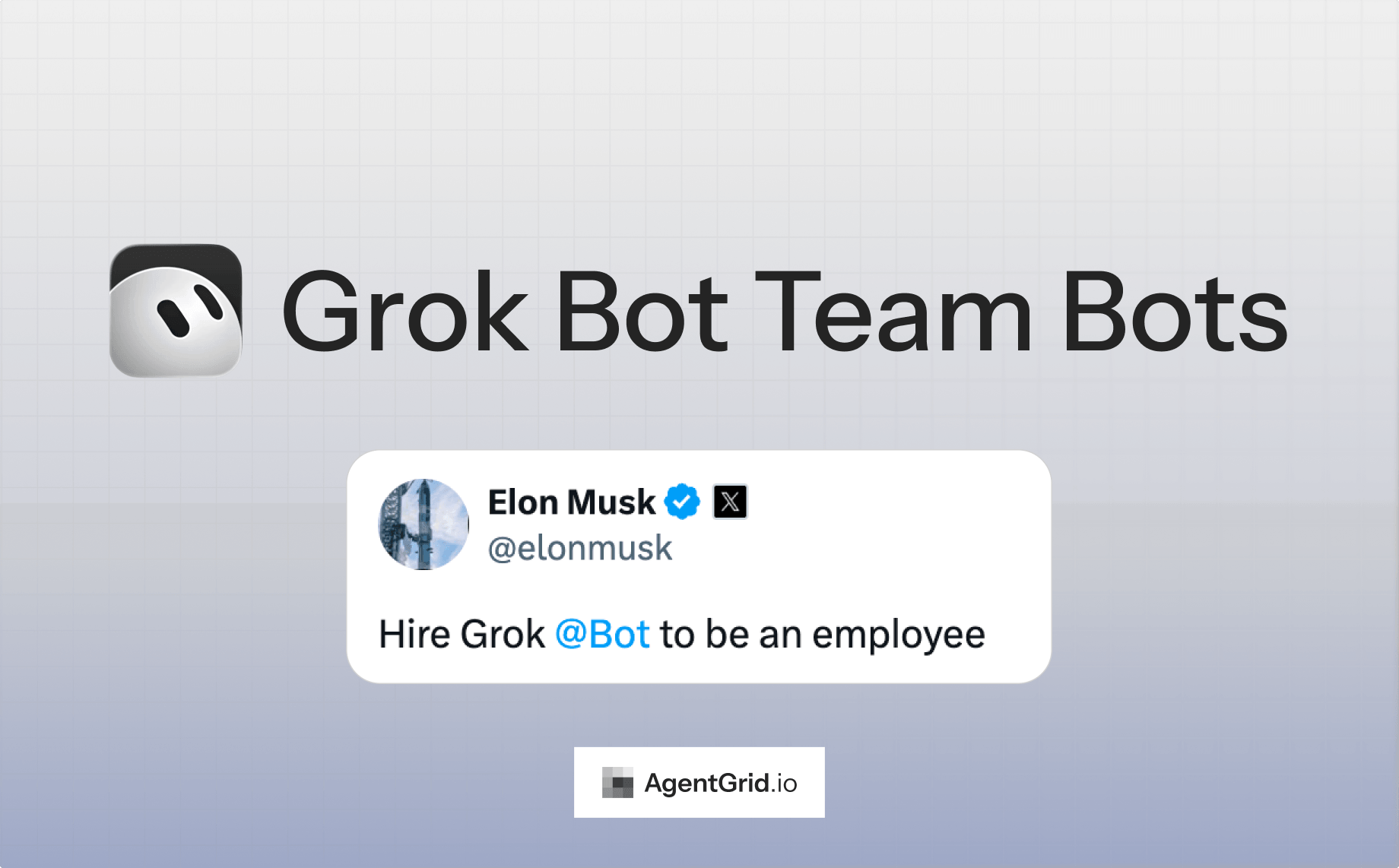
The idea reached a wider audience on October 30, when Elon Musk wrote on X: “Hire Grok @Bot to be an employee.” This guide is for the team lead or ops owner who has to turn that sentence into a job description: what to hand a Bot, what it can see, who can approve what, and where its work ends up. For how Grok Bot builds a single report or dashboard, read our guide to Grok Bot Pages. This one is about roles, permissions and rollout.
What is a Shared Bot, and what happened to Team Bots?
A Shared Bot is a Bot that runs in the cloud and that several people use. The docs compare sharing it to sharing a doc: with everyone on the team, or only with certain people and groups. Sharing does not make a copy, and each person’s chat with it stays private. A Bot that runs on your own computer can’t be shared.
The naming moved over a month. The September 26 changelog said Team Bots. The October 27 changelog says the admin page now reads Shared Bots, with Manage Shared Bots and Create Bot, and the docs page is titled Shared Bots. They are the same feature. One more wrinkle: the September changelog described a Publish to Team step that makes a team copy, while the current docs say sharing does not duplicate the Bot. Follow the docs, and look at the Share menu in your version of the app.
What did SpaceXSI’s own sales team build?
The best description of a Shared Bot doing a job is the one SpaceXSI published about its own sales team on October 27. Individual reps had built their own Bots to research accounts and manage pipelines. The team then pulled the best of that into Shared Bots, each with one role, maintained by the people who know the job. Their pitch for it: improve a Bot once and everyone who uses it benefits without updating their own setup.
| Shared Bot | The job, as SpaceXSI describes it | The limit it describes |
|---|---|---|
| Account Intel Bot | Identifies prospects, prepares meeting briefings, reads the Gong transcript afterward, updates Salesforce and drafts a follow-up email. Reps can schedule these workflows. | The follow-up email is a draft for the rep to review. |
| Quote Bot | Generates several proposals side by side, submits quotes for approval, tracks status, and generates the order form in Ironclad once a quote is approved. | Shows a preview and asks for confirmation before changing anything in Salesforce. Works with the rep’s own permissions. |
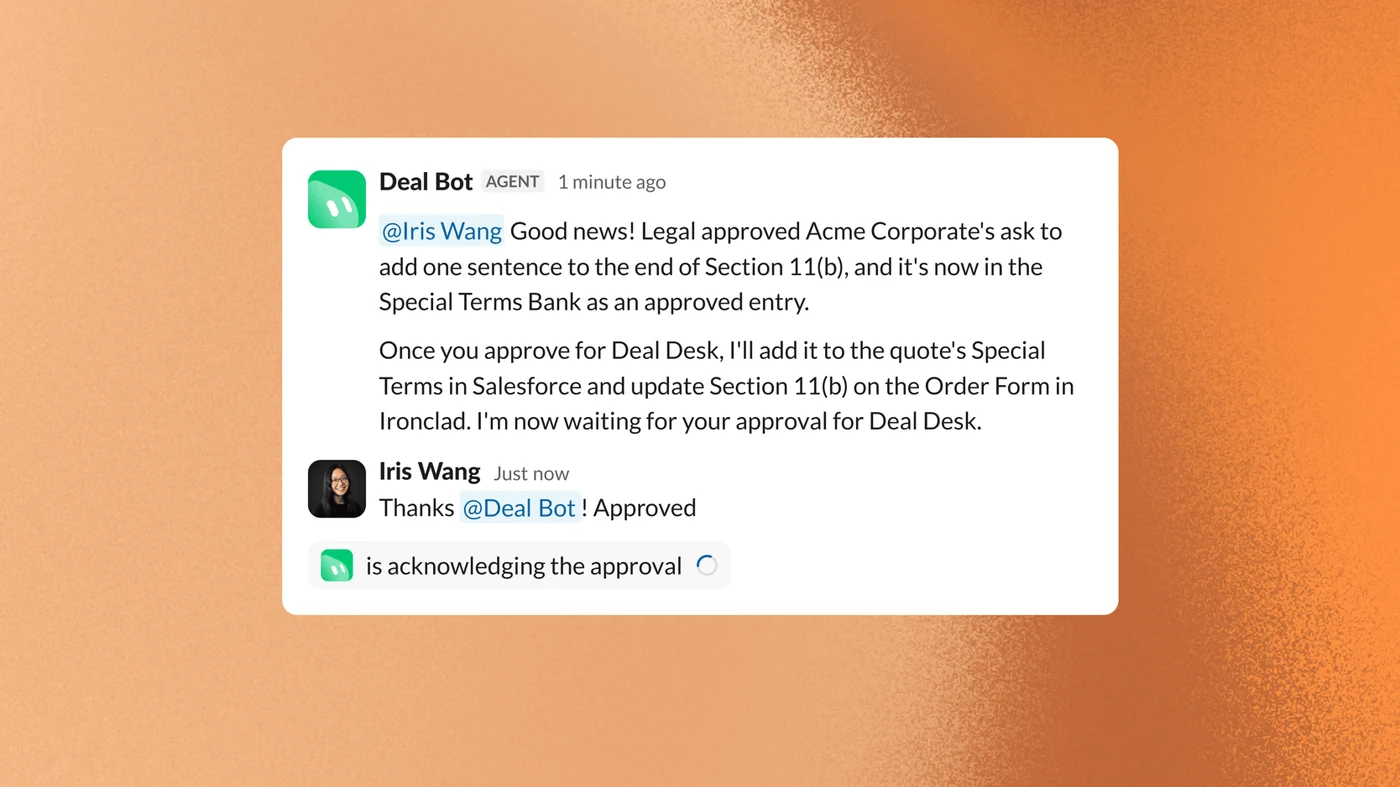
| Deal Bot | Helps the Deal Desk review non-standard terms, checks requests against approved policies, triages Slack requests and checks whether Legal has drafted similar terms. | Prepares a recommendation and asks a Deal Desk specialist to approve. Every Salesforce approval is stamped with the decision, rationale and the person it supported. |
SpaceXSI also mentions a Competitive Intel Bot and a Sales Training Bot, and says people across Sales still build many individual Bots for their own work.
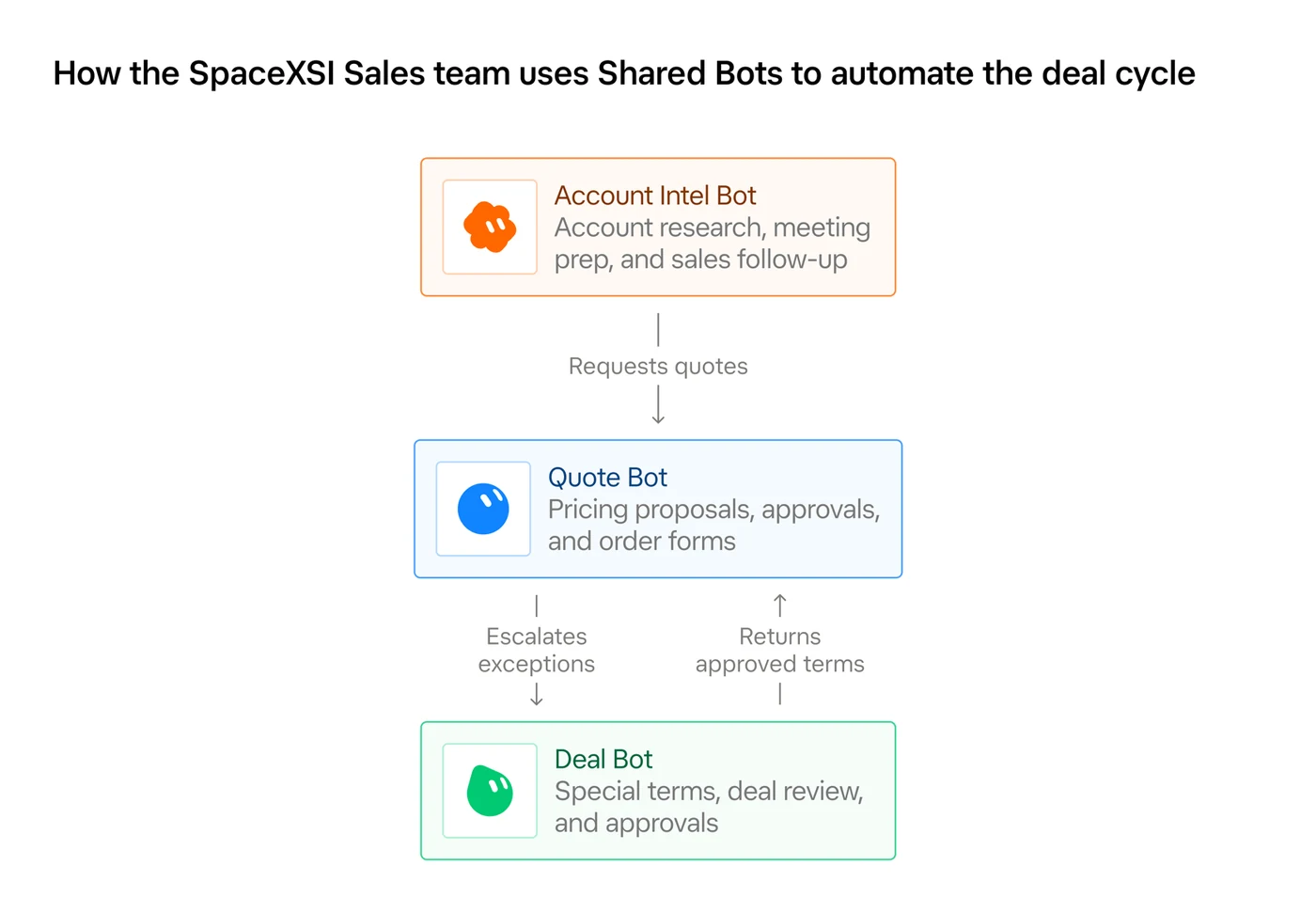
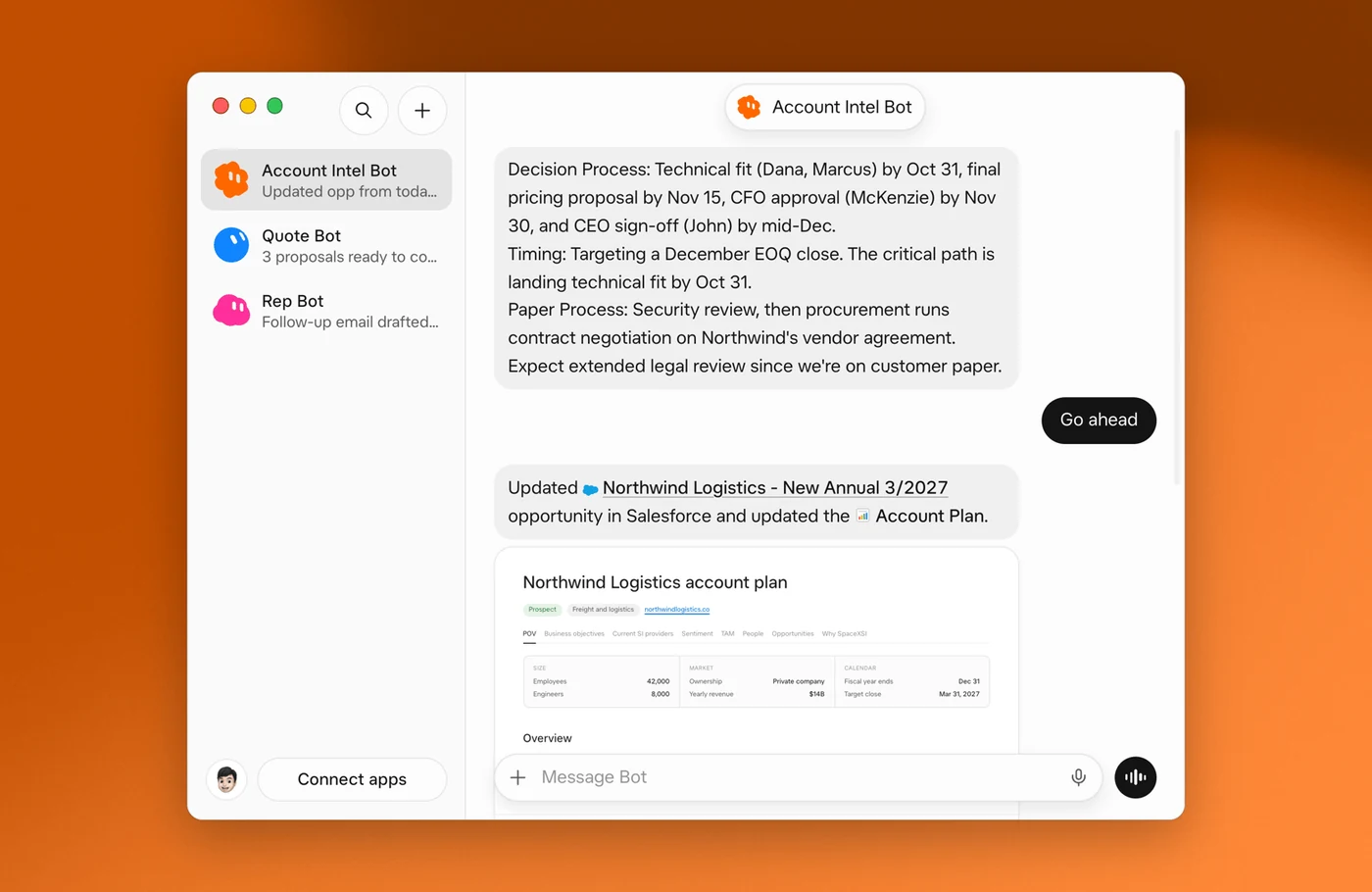
What I take from the post is less the list of Bots than the list of things the Bots are not allowed to do. SpaceXSI says Shared Bots “act with each user’s permissions, with additional restrictions on sensitive actions”, that they have rate limits to prevent unintended changes at scale, and that certain actions are reserved for specialist Shared Bots. Its example is the clearest rule in the post: “A sales rep, for example, cannot use Quote Bot to approve their own discount.” Human review is required whenever the criteria for a decision can’t be clearly defined, and whenever a Shared Bot prepares a customer-facing message. SpaceXSI says it expects to give the Bots more responsibility as it measures the quality of their work.
The post gives no numbers on time saved or error rates, so treat it as a design pattern, not a result.
What can a Shared Bot see and do?
The Shared Bots docs answer the questions an IT or security lead will ask first. This is the model as the docs state it today.
| Question | Answer in the docs |
|---|---|
| Who can use it? | Everyone on the team, or only people and groups you invite. Collaborators chat with it. Managers can also change its instructions, skills, memory and apps. The owner and Managers can always use it. |
| Can the owner read my chats? | No. Each person’s chat is private. The Bot can save things it learns for the whole team and tells you when it does. |
| Whose apps and secrets does it use? | The ones its owner added. In your own chat it can also use your accounts after an Allow card: Allow once, Always allow or Skip. |
| What about Slack channels and group chats? | It uses only its owner’s apps and asks before using yours. A connected account always acts as the person the Bot is answering. |
| Which computer does it work on? | In your own chat it usually works on your Grok Bot computer. In a Slack DM it uses your computer. In Slack channels, threads, group DMs and group chats it uses one shared computer of its own. |
| Who answers approval cards? | The person the Bot is answering. In a Slack thread the Review an action card can be answered only by the person who asked. |
| Whose usage pays? | The usage of the person it is answering. |
| What can admins control? | Manage Shared Bots shows who can use each Bot and can auto-add a Bot to members’ sidebars. The changelog also lists admin limits on who can share Bots and Pages, and a switch for messaging between Bots. |
Two details are easy to miss. First, apps, secrets, skills and files you attach work in every teammate’s chat, so the docs tell you to add only keys and files you are happy for everyone with access to use. Second, when a Bot posts in Slack it records who asked for each message, and anyone in the thread can ask it who requested a post. That is the audit trail you want before a Bot writes in a channel on its own.
How do you set up a Shared Bot for one job?
- Pick one narrow job. SpaceXSI’s Bots each own one step of the deal cycle. “Handle sales” is too wide. “Flag deals with no next step in 14 days” is a role.
- Create the Bot. Choose + in the sidebar, then Create a Bot, name it, and tell it what it should help the team with. A sentence is enough to start.
- Follow its setup cards for apps, secrets, skills and files. Put your business rules in a skill or a file so everyone works from one source and you can update it once.
- Write down what it must not do. Put the limits in its instructions and enforce the important ones with permissions. Use the brief below as a starting point.
- Share it narrowly first. Choose People you invite and add two or three teammates. Add Managers only for people who should change how it works.
- Connect Slack once the Bot behaves. The owner or a Manager chooses Bring to your team’s Slack, then Connect. Each teammate links their Slack account before the Bot acts for them.
- Widen access to the team after a week of real use. Admins can then auto-add it to everyone’s sidebar.
This brief is an example I wrote to show the shape, not a template from SpaceXSI. The point is that the last four lines are about limits and handoffs. A Bot with a clear “cannot do” list is easier to trust than one with a clever prompt.
Where does a Shared Bot’s work end up?
Inside Grok Bot, the output is a Page: a report, memo or dashboard the Bot builds and keeps up to date. For teams, the changelog adds that a team Page appears in the Library under every Bot that published it, Page owners can share a Page with the whole organization or another team, and admins can limit who may share Pages with everyone. A shared Page has a title bar with a PDF download and, for visitors, a Try Grok Bot button.
That covers a team that works entirely in Grok Bot. It gets thinner in three situations: the reviewer works in Claude or ChatGPT, you need a record of which Bot or person changed which line, or the result should be a page with its own URL. The changelog describes Page sharing and PDF download. It does not describe handing a Page to another vendor’s assistant to edit.
That is the gap AgentGrid.io fills. It is a shared workspace where people and AI assistants create, edit and share documents, apps and files. AgentGrid.io’s docs describe connecting Grok Bot from its command-capable environment with npx @animaapp/cli@latest login. A human confirms the code and approves the agent’s name, team and which of read, write, share and publish it gets. After that, the Bot’s work lands in the team’s workspace under its own identity, and History labels each change with that name. The Bot’s capabilities are fixed after approval, and publishing needs both the publish capability and an explicit human request.
In practice, the weekly summary from the example brief becomes a markdown artifact. The sales lead comments on a row, Claude rewrites the executive paragraph, and the Bot updates the table next Monday in the same artifact, with every change attributed. Our guide to publishing a website with Grok Bot walks through the publish step.
What should you watch out for?
- Naming. Team Bots, Shared Bots and the dashboard wording all appear in current material. Search for both.
- Plans and access. The docs say Shared Bots are for members of a team who have Grok Bot, and they tie team membership to a Cursor team and dashboard. Check what your plan includes before you promise a rollout.
- Usage lands on the asker. A popular Bot spends every teammate’s own allowance. Tell people before you make it the front door for the whole company.
- One owner can delete it for everyone. Only the owner can delete a Shared Bot, and deleting removes it, with teammates’ chats and routines on it, for the whole team. It can’t be undone.
- Evidence is the vendor’s own. The sales post describes SpaceXSI’s internal use and publishes no outside results.
When should you use a personal Bot, a Shared Bot, or AgentGrid.io?
- Personal Bot for work that is yours alone: your inbox, your calendar, your research.
- Shared Bot when several people need the same expertise and the same rules, and you want to update both once.
- AgentGrid.io when the Bot’s output has to be reviewed by people outside the chat, edited by other assistants, versioned, or published.
If you try this, start with the job nobody wants to do twice, such as the Monday pipeline summary or onboarding questions. Give the Bot one job and a short list of things it must not do, then see whether two teammates use it the following week.
Frequently asked questions
Yes. The September 26, 2026 changelog introduced Team Bots, and the docs and admin page now say Shared Bots. Either way it is one Bot that a whole team uses, with its own apps, skills and files, where each teammate has a private chat with it in the app or in Slack.
Open the Bot, click its name at the top of the chat, and choose Share. Under Who has access pick your team, or People you invite. Add people or groups as Collaborators, who can chat with it, or Managers, who can also change its instructions, skills, memory and apps. Check the Bot's apps, secrets, skills and files first, because they work in every teammate's chat.
No. The docs say each person's chat with a Shared Bot is private, and the owner and Managers can't read it. The Bot can save things it learns for the whole team, and it tells you when it does. What it remembers about working with you stays between you and the Bot.
It uses the apps and secrets its owner added. In your own chat it can also use your accounts after asking you with an Allow card. In Slack channels, threads and group chats it uses only the owner's apps and asks before using yours. A connected account always acts as the person the Bot is answering.
Yes. The owner or a Manager opens the Bot's details, finds Bring to your team's Slack, and chooses Connect. A Slack workspace admin may need to approve the app. Each teammate then links their Slack account under Settings, General, Shared Bots before the Bot will act for them.
The docs say a Shared Bot reply uses the Grok Bot usage of the person it is answering, in the app, in Slack and in group chats. The owner's usage pays for the owner's own messages and for Slack posts from apps or workflows that aren't linked to an account.