 Figma
Figma API
API Web to code extension
 Adobe XD
 Discord
 Twitter
 GitHub
'/%3E%3Cpath%20fill='%23b2b2b2'%20d='M241%20382q0%2016%2017%2026%2017%2011%2042%2011t42-11q16-11%2017-26V269H241'/%3E%3Cpath%20fill='%239f7e00'%20d='M241%20379q0%2014%208%2023%209%209%2021%209%2014%200%2021-9%209-9%209-23V269h-59'/%3E%3Cpath%20d='M241%20339v-70h59v110q0%2014-9%2023l-6%205v-68h-15v72q-8%200-14-4v-68zm59%2040c0%2022%2015%2032%2029%2032%2021%200%2030-18%2030-32v-40h-59'/%3E%3Cpath%20fill='%239f7e00'%20d='M266%20277v5h2v12h-3v-5h2v-5h-9v5h2v5h-4v9h3v18h-5v10h34v-10h-5v-18h3v-9h-4v-5h2v-5h-9v5h2v5h-3v-12h2v-5zm42%20101q0%2010%206%2017%206%206%2015%207%2010-1%2016-7%206-7%206-17v-29h-43'/%3E%3Ccircle%20fill='%230044ad'%20cx='329.5'%20cy='372'%20r='6'/%3E%3Cellipse%20fill='%230044ad'%20cx='300'%20cy='340'%20rx='16'%20ry='21'/%3E%3C/svg%3E)


'%3E%3Cpath%20stroke='%23000'%20stroke-width='4'%20d='m-35-37-13%2020m5%203%2013-20m5%203-13%2020m63%2042%206-9m1-2%206-9m5%203-6%209m-1%202-6%209m5%203%206-9m1-2%206-9m-96%200%2013%2020m5-3-6-9m-1-2-6-9m5-3%2013%2020m63-42-6-9m-1-2-6-9m5-3%2013%2020m5-3-6-9m-1-2-6-9'/%3E%3Ccircle%20r='24'%20fill='%23cd2e3a'/%3E%3Cpath%20fill='%230047a0'%20d='M0%200a12%2012%200%201%201%2020%2013%2024%2024%200%201%201-40-26A12%2012%200%201%200%200%200'/%3E%3C/g%3E%3C/svg%3E)


'%3E%3Ccircle%20r='92'/%3E%3Ccircle%20fill='%23fff'%20r='80'/%3E%3Ccircle%20r='16'/%3E%3Cg%20id='c'%3E%3Cg%20id='b'%3E%3Cpath%20id='a'%20d='m0-80%203%2048L0-8-3-32M21-77%2011-30%202-8%205-32M40-69%2019-26%204-7%2013-29'/%3E%3Cuse%20href='%23a'%20transform='scale(-1)'/%3E%3C/g%3E%3Cuse%20href='%23b'%20transform='rotate(45)'/%3E%3C/g%3E%3Cuse%20href='%23c'%20transform='rotate(90)'/%3E%3C/g%3E%3C/svg%3E)


'/%3E%3C/svg%3E)


'/%3E%3C/svg%3E)
'/%3E%3C/g%3E%3Cuse%20href='%23b'%20transform='rotate(45%20140%20300)'/%3E%3Cpath%20d='m299%20285%2046%2015-46%2015%2028-39v48M59%20510l-36%2032%2010-47%2020%2043-42-24m22-409L23%2058l36%2032-48-4%2042-24'/%3E%3C/svg%3E)


'/%3E%3C/svg%3E)

Grok Bot Pages: What They Are, How the Library Works, and Limits12 min read
Reading Time: 8 minutesGrok Bot Pages are reports, memos, dashboards and trackers that a Bot builds for you and keeps in its Library. You ask in chat, the Bot posts a Page card, and you open a styled document with tables, charts and filters instead of a long reply you have to scroll through. This guide is for people who already use Grok Bot and want to know what Pages can do, how sharing and the Library work, and where a Page stops being the right home for the work.
Grok Bot Pages are excellent when one Bot owns it. If Claude, ChatGPT and other teammates all need to edit the same file – AgentGrid.io is the place to share artifacts with other agents or persons, full version history and access control.
What is a Grok Bot Page?
Pages shipped in Grok Bot v0.75.2 on October 22, 2026. The release notes describe them as reports, memos and dashboards “that you edit together or have the Bot keep up to date.” The Grok Bot docs go a little further: a Page is a styled report, dashboard or tracker that can hold interactive components such as charts, heat maps, flow charts and tables.
The useful way to think about it is as the Bot’s publishing format. A chat reply is gone once the thread moves on. A Page has a title, a layout and a place in the Library, so you can come back to it next week and it still makes sense.
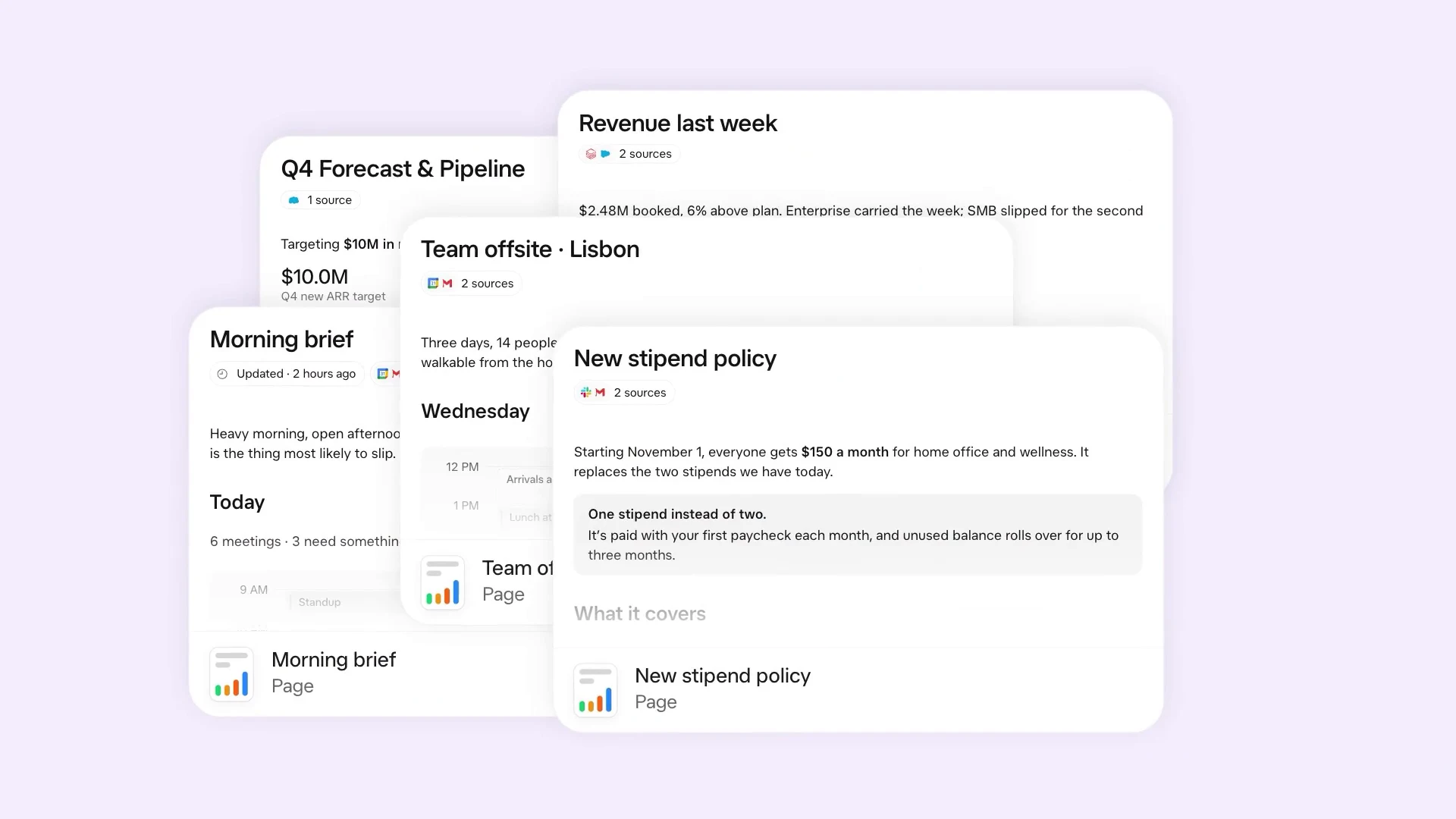
Good first Pages are the ones the docs suggest: a summary of this week’s support tickets by topic, a 30-day dashboard of signups, trials and conversions, or a launch tracker with owners and statuses. Each one has a clear audience and data that changes on a schedule.
How do you create a Grok Bot Page?
- Ask for a Page in chat. Say what the Page is for, who will read it and what must be on it. Name the sources if the Bot has connectors for them.
- Open the card. The Bot replies with a Page card. On desktop the Page fills the window and the chat stays beside it, so you can keep talking while you read.
- Check the numbers before anything else. A clean layout makes a wrong figure look more credible, not less. Ask the Bot to list its sources on the Page.
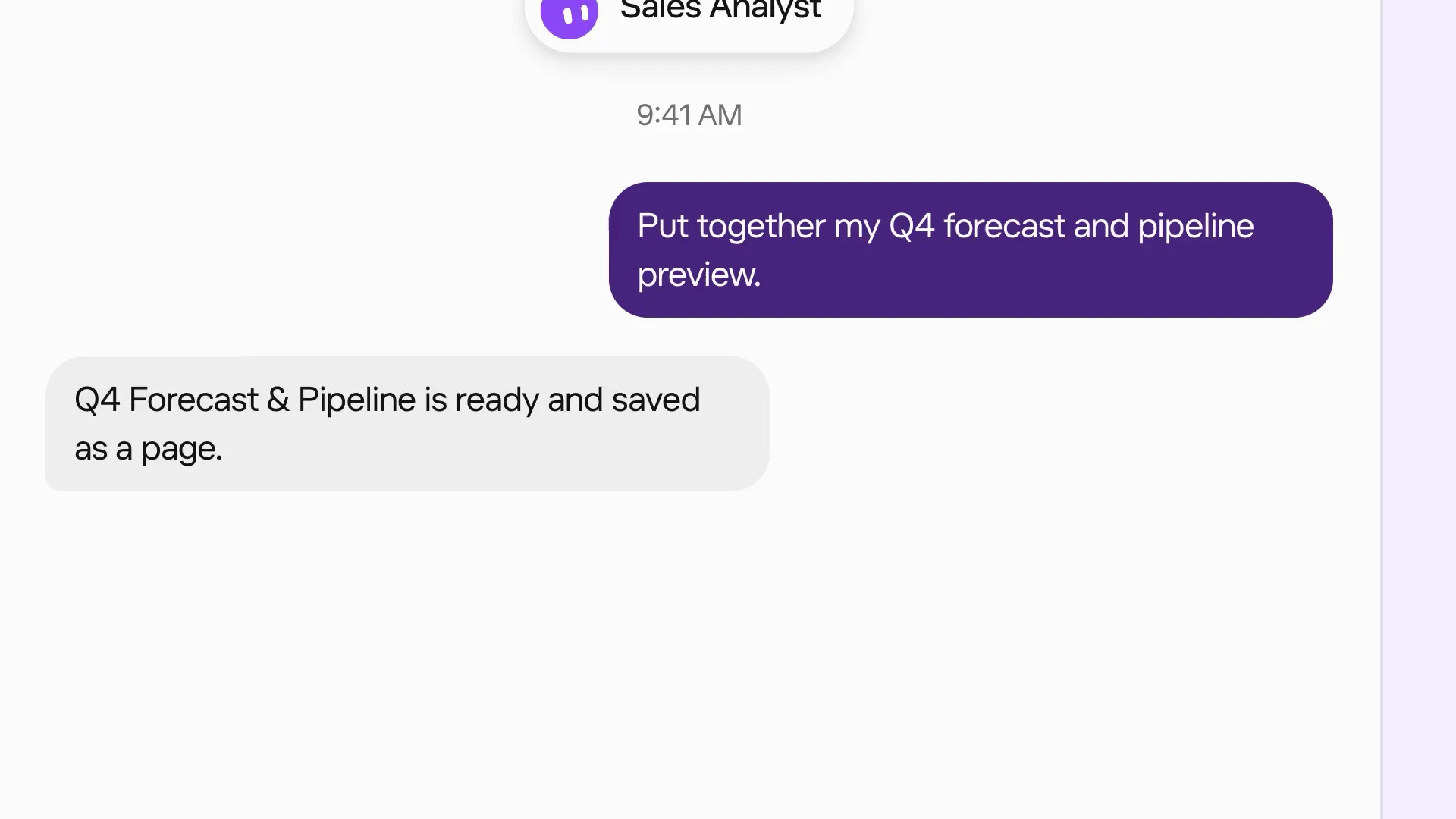
A prompt that works better than “make me a dashboard”:
How do you change a Page?
You change a Page by talking to its Bot. The docs say you can open a Page and chat with your Bot to configure changes, and that is the main editing path. Ask it to add a column, split a chart by region or rewrite the summary, and it updates the same Page.
One detail catches people out. Filters, tabs and switches on a Page change what you are looking at, not the Page itself. Flip a filter, close the Page, and the next viewer sees it the way the Bot built it. If a view matters, ask the Bot to make it the default.
To rename a Page, click its title. Since v0.70.2 the new name shows everywhere the Page appears.
How do you keep a Page up to date automatically?
This is where Pages earn their place. The docs say Bots can update or create Pages on Routines, so a Page can become a standing report instead of a one-off.
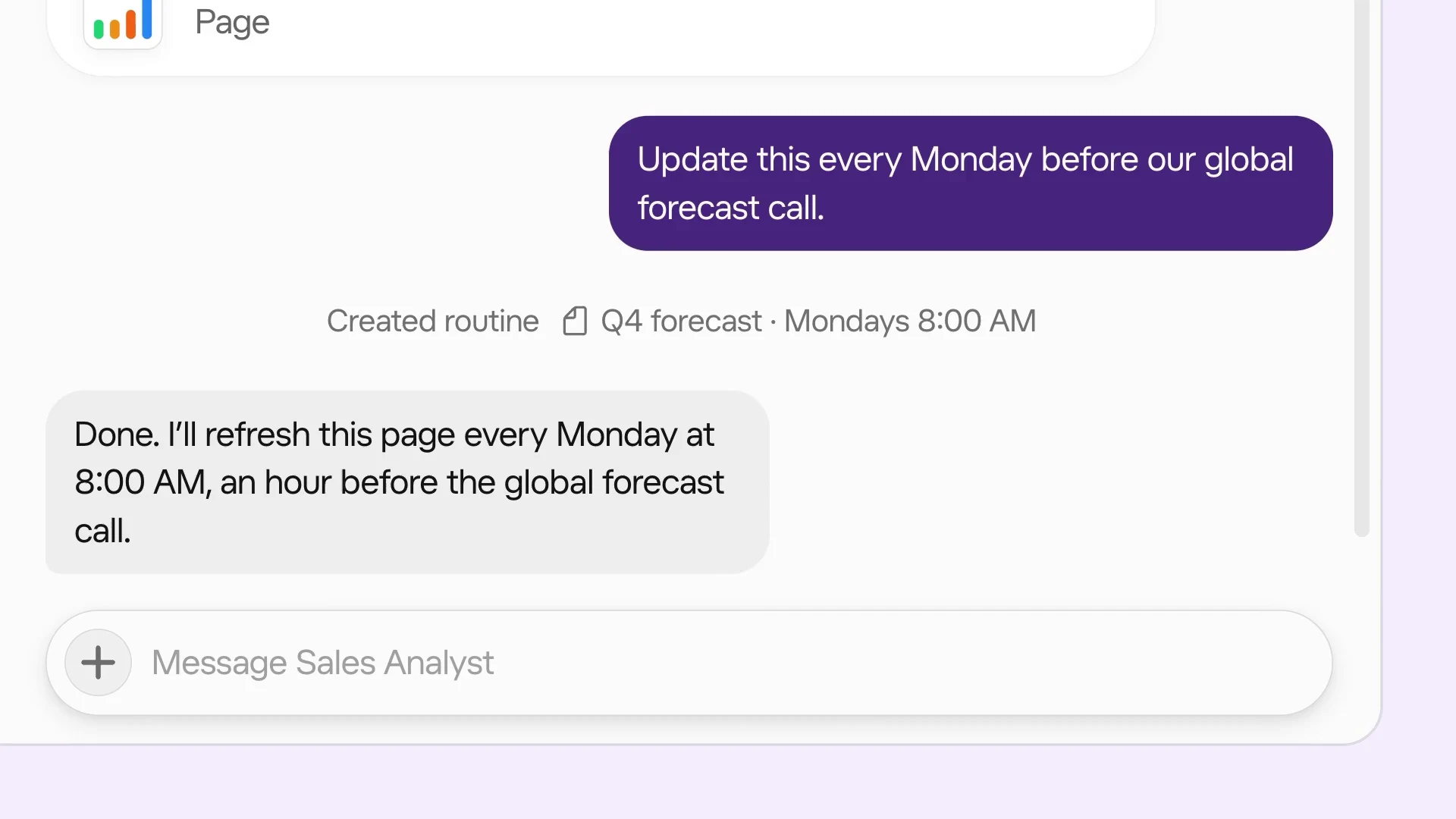
In the launch video the user types “Update this every Monday before our global forecast call” and the Bot creates a routine for Mondays at 8:00 AM. Two habits make this reliable:
- Ask the Bot to print the refresh time and data sources on the Page, so a reader can tell a stale Page from a fresh one.
- Tell the routine what to do when a source fails. “Keep last week’s numbers and add a warning” is better than a silent half-update.
How does sharing a Grok Bot Page work?
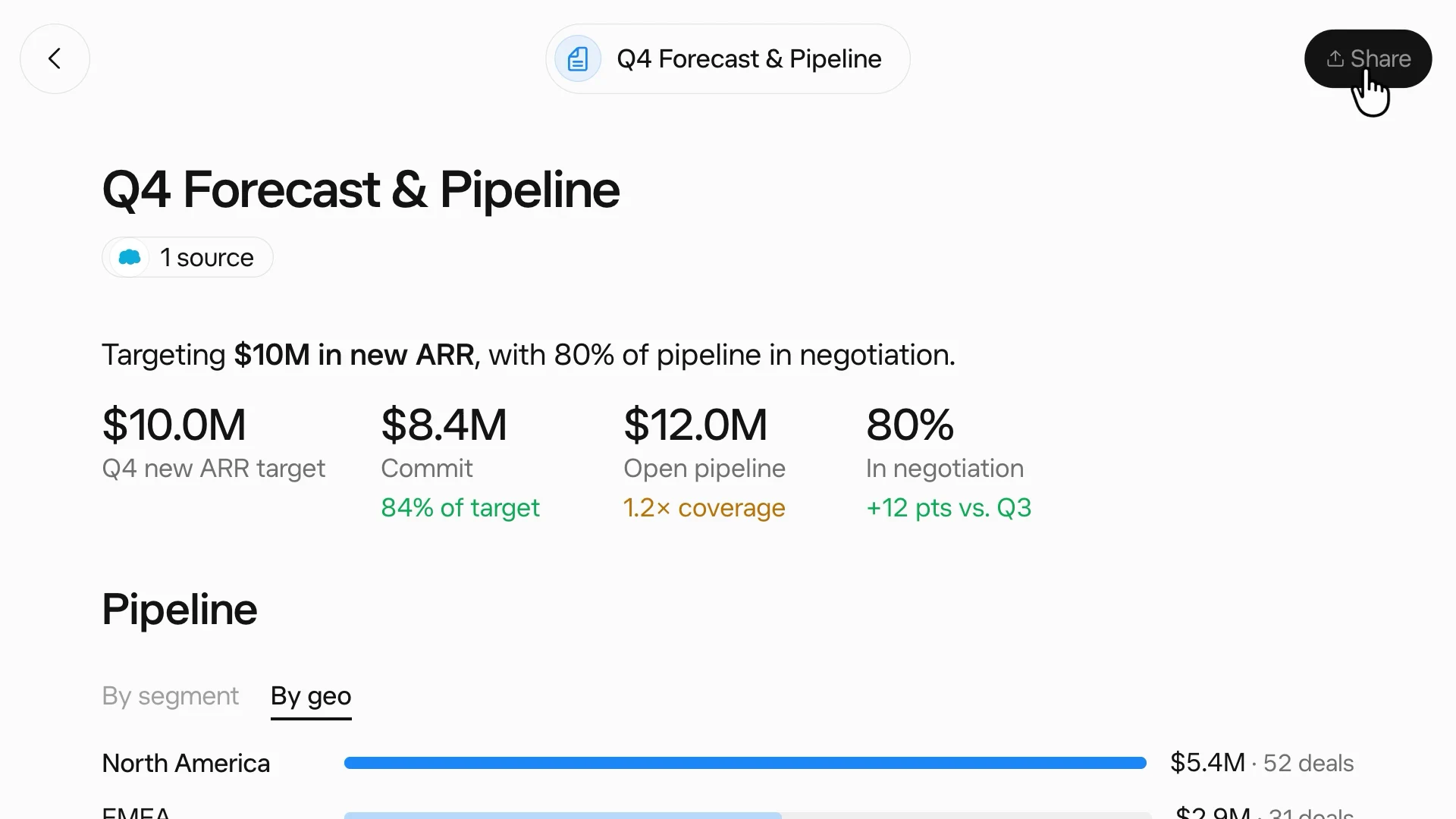
A new Page is private to you. Open it, click Share, choose who can view it, then copy the link. The options depend on your plan.
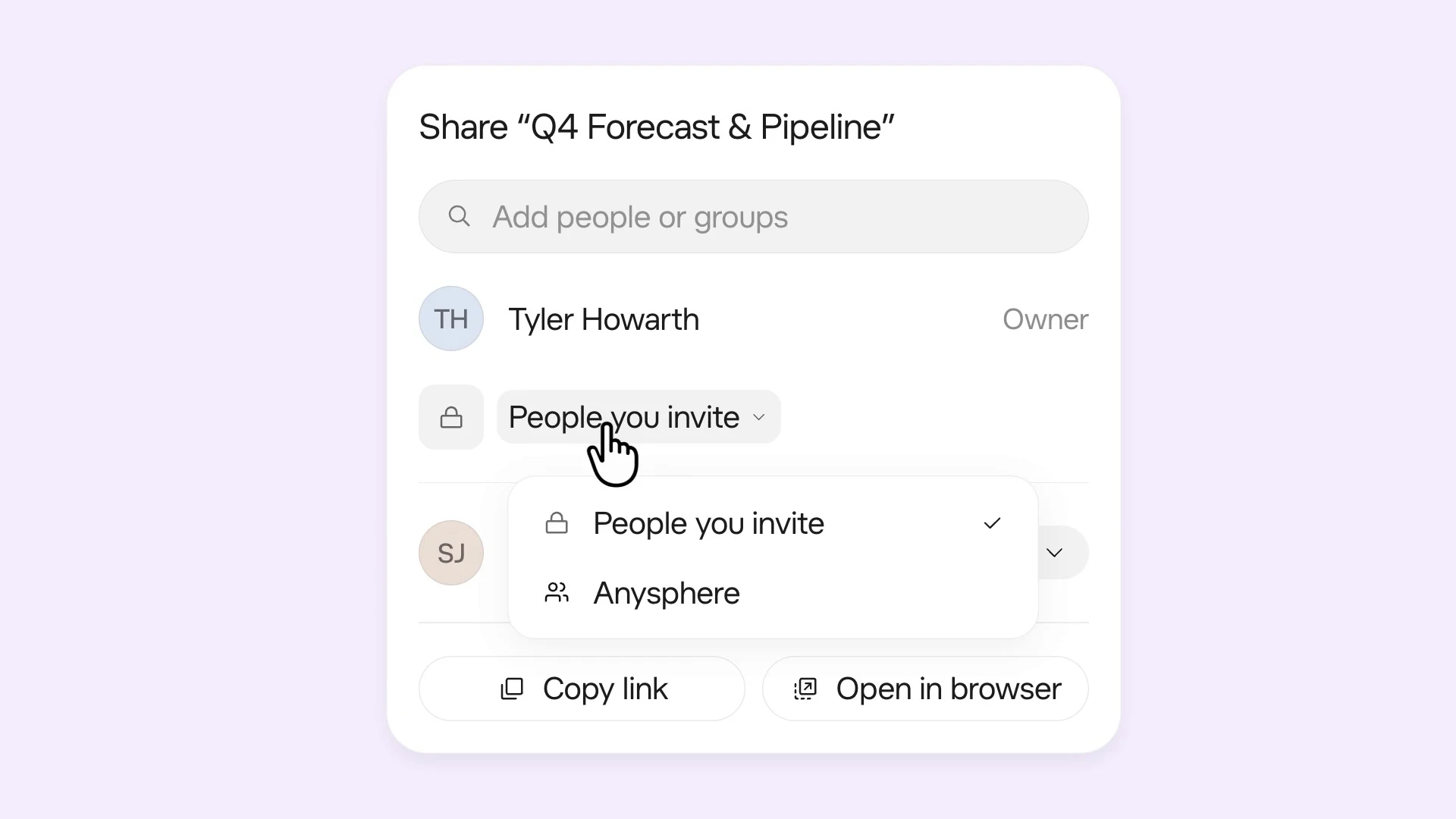
| Account type | Who you can share with | Worth knowing |
|---|---|---|
| Personal account | Only you, or anyone with the link | A public link opens without sign-in, so check the Page for private data first |
| Teams | People you invite, your team, another team or the whole organization, or anyone with the link | Admins can limit who can share Pages with everyone on the team |
| Enterprise | Specific users, groups or teams | Public sharing is not part of the Enterprise option set |
The Grok Bot dashboard has a Pages section that lists every Page you have shared, and you can unshare or delete them there. If you ever posted a public link by mistake, that is the place to clean it up. Shared Pages also get a title bar with a Download button that saves a PDF, which is handy for anyone who needs a copy outside Grok Bot.
What is the Grok Bot Library?
The Library is the list of everything a Bot has made and shared with you: Pages, files and links. Open it from the Bot’s details pane. Items are grouped into Today, This week and Older, and hovering over a row shows who sent it, when, and who can see a Page.
Three Library habits save time:
- Pin the Pages you return to. Pinned items stay at the top and sync across your devices.
- Use search. Cmd+K finds past Pages without scrolling the Library.
- Keep Bots focused. The Library belongs to one Bot, so a Sales Bot’s Library stays readable while a catch-all Bot’s turns into a junk drawer.
Where do Grok Bot Pages stop?
Pages are a strong product for what they are built to do. The limits show up when the work stops belonging to one Bot.
- The Bot is the editor. Changes go through the Bot that owns the Page. Current help material says people you share with can read it and use its controls, and only the Bot changes it. A teammate cannot open the Page and rewrite the summary in place.
- Other agents cannot edit it. Claude, ChatGPT or a coding agent cannot open a Grok Bot Page and change it. If you want their help, you are copying content out.
- Rollout and plan differences. Sharing options differ between self-serve, Teams and Enterprise accounts, so check yours before you promise a stakeholder a link.
- It is a Page, not a website. PDF download is the export path. If the report needs to become a public page on your own domain, that is a different job.
None of this is a flaw for a weekly forecast. It matters for a board memo that legal, finance and a second agent all have to touch before Friday.
When should a Page become a shared AgentGrid.io artifact?
Move the work when the next step needs someone other than the Bot to change it. A practical pattern:
- Let Grok Bot draft. The Page is a good first draft: it pulls the data and finds the structure.
- Ask Grok Bot to share the content on AgentGrid.io. Invite Grok Bot to your AgentGrid.io workspace with an invite link, then ask it to put the report there as a document or HTML artifact. This creates a separate artifact. It does not sync back into the Grok Bot Page, so decide which copy is the source of truth from here on.
- Bring in the next editor. A teammate pins comments on the passages that need work. Claude tightens the narrative or ChatGPT reworks the table, and each change is attributed in the version history.
- Publish when it is approved. Share the artifact link with reviewers, or publish it as a live page when it is ready for a public audience.
If the end product is a website rather than a report, the steps are the same as in our guide on how to publish a website with Grok Bot.
Grok Bot Pages vs other AI pages
Every major assistant now has its own version of a saved, shareable document. The difference is who can change it.
| Tool | Best for | Who edits |
|---|---|---|
| Grok Bot Pages | Reports and dashboards one Bot builds and refreshes on a routine | The Bot, on your instructions |
| ChatGPT Space pages | Documents that start in ChatGPT and stay with a ChatGPT team | People with edit access, each with their own ChatGPT |
| Claude artifacts | Interactive HTML made in a Claude conversation | Claude and collaborators, inside Claude |
| AgentGrid.io | Work that passes between several agents and people before it ships | Any connected agent or person with access, with attributed version history |
Use a Grok Bot Page when one Bot owns the data and the update schedule. Use ChatGPT or Claude’s own format when the whole team lives in that assistant. Use AgentGrid.io when the honest answer to “who edits this next?” is a different agent or a person outside the Bot’s chat. My read: most teams will use both, with the Page as the live operational view and the AgentGrid.io artifact as the reviewed version people sign off on.
Frequently asked questions
What are Grok Bot Pages?
Grok Bot Pages are styled reports, memos, dashboards and trackers that a Bot builds from a chat request. They can include tables, charts and interactive controls, and they are saved in the Bot’s Library so you can reopen, share and update them.
Can I edit a Grok Bot Page myself?
You change a Page by asking its Bot in the chat panel beside it. Filters and switches on the Page change only your view and are not saved. You can rename a Page by clicking its title.
Can Grok Bot update a Page automatically?
Yes. Ask the Bot to refresh the Page on a schedule, for example every Monday at 8 AM, and it creates a routine that updates the same Page.
Who can see a Grok Bot Page I share?
Only you until you share it. Self-serve plans can share publicly by link, Teams can also share with people, a team or the organization, and Enterprise plans share with specific users, groups or teams. Shared Pages are listed on the dashboard, where you can unshare or delete them.
Can Claude or ChatGPT edit a Grok Bot Page?
No. A Grok Bot Page is edited through its Bot. To have Claude, ChatGPT and teammates work on the same content, ask Grok Bot to share it on AgentGrid.io as a separate artifact and continue there.
Start with the Page, ship from the shared artifact
Ask Grok Bot for the Page, let a routine keep it fresh, and move the content to AgentGrid.io when someone besides the Bot needs to edit it. If you are also following OpenAI’s always-on agents, our OpenAI Dots guide covers how the same handoff works on the ChatGPT side.