 Figma
Figma API
API Web to code extension
 Adobe XD
 Discord
 Twitter
 GitHub
'/%3E%3Cpath%20fill='%23b2b2b2'%20d='M241%20382q0%2016%2017%2026%2017%2011%2042%2011t42-11q16-11%2017-26V269H241'/%3E%3Cpath%20fill='%239f7e00'%20d='M241%20379q0%2014%208%2023%209%209%2021%209%2014%200%2021-9%209-9%209-23V269h-59'/%3E%3Cpath%20d='M241%20339v-70h59v110q0%2014-9%2023l-6%205v-68h-15v72q-8%200-14-4v-68zm59%2040c0%2022%2015%2032%2029%2032%2021%200%2030-18%2030-32v-40h-59'/%3E%3Cpath%20fill='%239f7e00'%20d='M266%20277v5h2v12h-3v-5h2v-5h-9v5h2v5h-4v9h3v18h-5v10h34v-10h-5v-18h3v-9h-4v-5h2v-5h-9v5h2v5h-3v-12h2v-5zm42%20101q0%2010%206%2017%206%206%2015%207%2010-1%2016-7%206-7%206-17v-29h-43'/%3E%3Ccircle%20fill='%230044ad'%20cx='329.5'%20cy='372'%20r='6'/%3E%3Cellipse%20fill='%230044ad'%20cx='300'%20cy='340'%20rx='16'%20ry='21'/%3E%3C/svg%3E)


'%3E%3Cpath%20stroke='%23000'%20stroke-width='4'%20d='m-35-37-13%2020m5%203%2013-20m5%203-13%2020m63%2042%206-9m1-2%206-9m5%203-6%209m-1%202-6%209m5%203%206-9m1-2%206-9m-96%200%2013%2020m5-3-6-9m-1-2-6-9m5-3%2013%2020m63-42-6-9m-1-2-6-9m5-3%2013%2020m5-3-6-9m-1-2-6-9'/%3E%3Ccircle%20r='24'%20fill='%23cd2e3a'/%3E%3Cpath%20fill='%230047a0'%20d='M0%200a12%2012%200%201%201%2020%2013%2024%2024%200%201%201-40-26A12%2012%200%201%200%200%200'/%3E%3C/g%3E%3C/svg%3E)


'%3E%3Ccircle%20r='92'/%3E%3Ccircle%20fill='%23fff'%20r='80'/%3E%3Ccircle%20r='16'/%3E%3Cg%20id='c'%3E%3Cg%20id='b'%3E%3Cpath%20id='a'%20d='m0-80%203%2048L0-8-3-32M21-77%2011-30%202-8%205-32M40-69%2019-26%204-7%2013-29'/%3E%3Cuse%20href='%23a'%20transform='scale(-1)'/%3E%3C/g%3E%3Cuse%20href='%23b'%20transform='rotate(45)'/%3E%3C/g%3E%3Cuse%20href='%23c'%20transform='rotate(90)'/%3E%3C/g%3E%3C/svg%3E)


'/%3E%3C/svg%3E)


'/%3E%3C/svg%3E)
'/%3E%3C/g%3E%3Cuse%20href='%23b'%20transform='rotate(45%20140%20300)'/%3E%3Cpath%20d='m299%20285%2046%2015-46%2015%2028-39v48M59%20510l-36%2032%2010-47%2020%2043-42-24m22-409L23%2058l36%2032-48-4%2042-24'/%3E%3C/svg%3E)


'/%3E%3C/svg%3E)

Figma Make: What It Is, How It Works, Credits, and Limits (2026)12 min read
Reading Time: 8 minutesFigma Make is Figma’s AI prompt-to-app tool. You describe what you want, or start from a Figma design, and it builds a working prototype or web app that you can preview, refine in chat, edit in code and publish. It sits inside Figma as a dedicated Make file, so it can use your designs and libraries as context. It is aimed at designers, product managers and anyone who needs to turn an idea into something people can click.
Facts checked against the Figma Make page and Figma help center on November 1, 2026. Plans, credits and features change often, so confirm current details in Figma before you buy.
This guide explains what Figma Make is, how it works step by step, which features matter, who can use it, how AI credits work, how to publish and export, and where its limits are. If you are choosing between tools, our Figma Make vs Anima Playground comparison covers alternatives.
What Is Figma Make?
Figma describes Figma Make as an AI-driven, prompt-to-app tool that lets you bring ideas and existing Figma designs to life as functional prototypes, web apps and interactive UI. You work in a chat next to a live preview, and everything you build is code-backed, so you can switch between the preview, point-and-click edits and the code itself.
Figma introduced Make at Config 2025, and it has grown from a single-component idea into a full product with plan mode, a code editor, backends, publishing and integrations. It is separate from Figma Design: you create a Make file the same way you create other Figma files, using the Make button in your drafts.
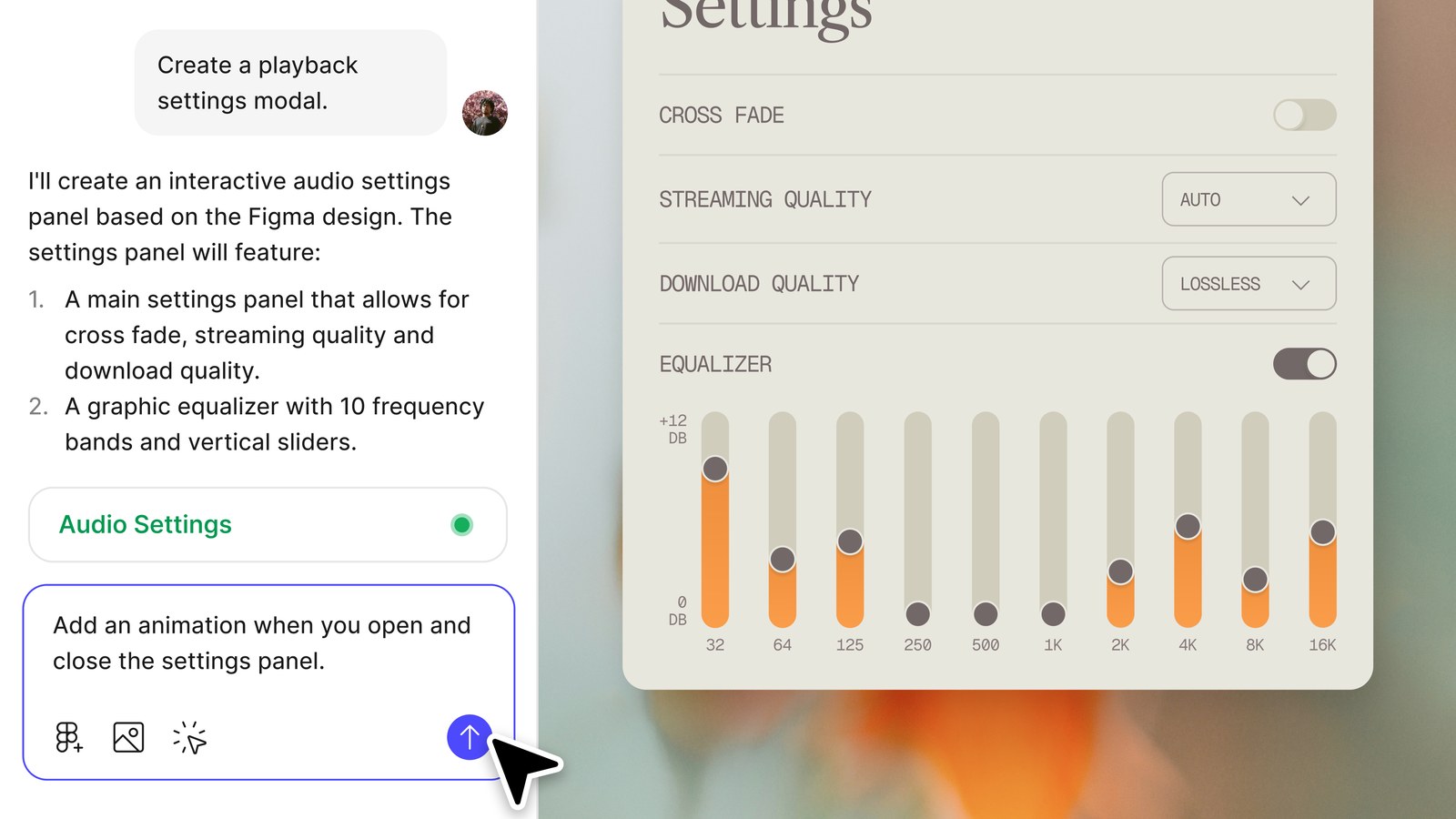
What can you build with Figma Make?
- A clickable prototype of a flow or feature to test with users.
- An interactive version of an existing Figma design, with transitions and logic.
- A small web app or internal tool, with a backend for data and sign-in.
- A landing page or microsite you can publish to a public URL.
How Figma Make Works, Step by Step
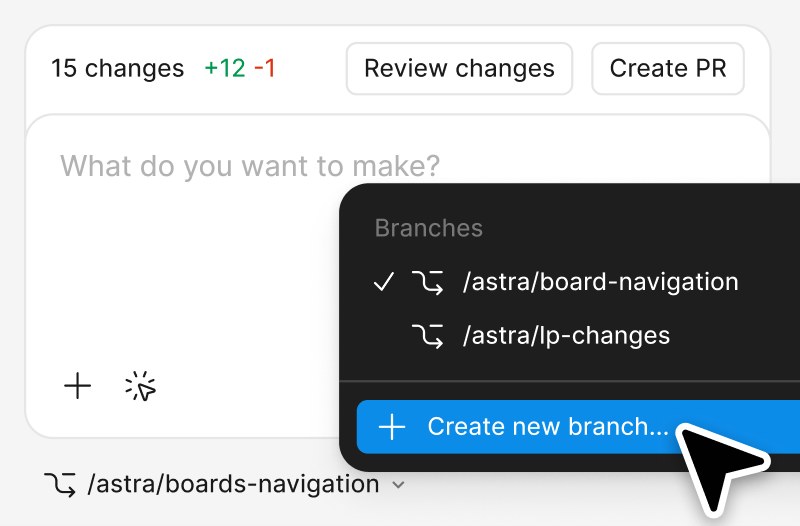
- Create a Make file. In the Figma file browser, open your drafts and click Make in the upper-right corner. You can also start from a template or by cloning a GitHub repository.
- Write a prompt. Describe what you want to build in the chat. You can type or dictate. Be specific about the user, the main task and the screens.
- Add context. Attach Figma designs or paste frames into the chat, bring style context from a Figma library (paid plans), add a backend, connect tools through MCP connectors, or let Make search the web or fetch a URL.
- Plan first if you want control. On paid plans, plan mode generates a structured plan you can edit before any code is written.
- Review the preview. Make builds the app and shows it live. Click through it the way a user would.
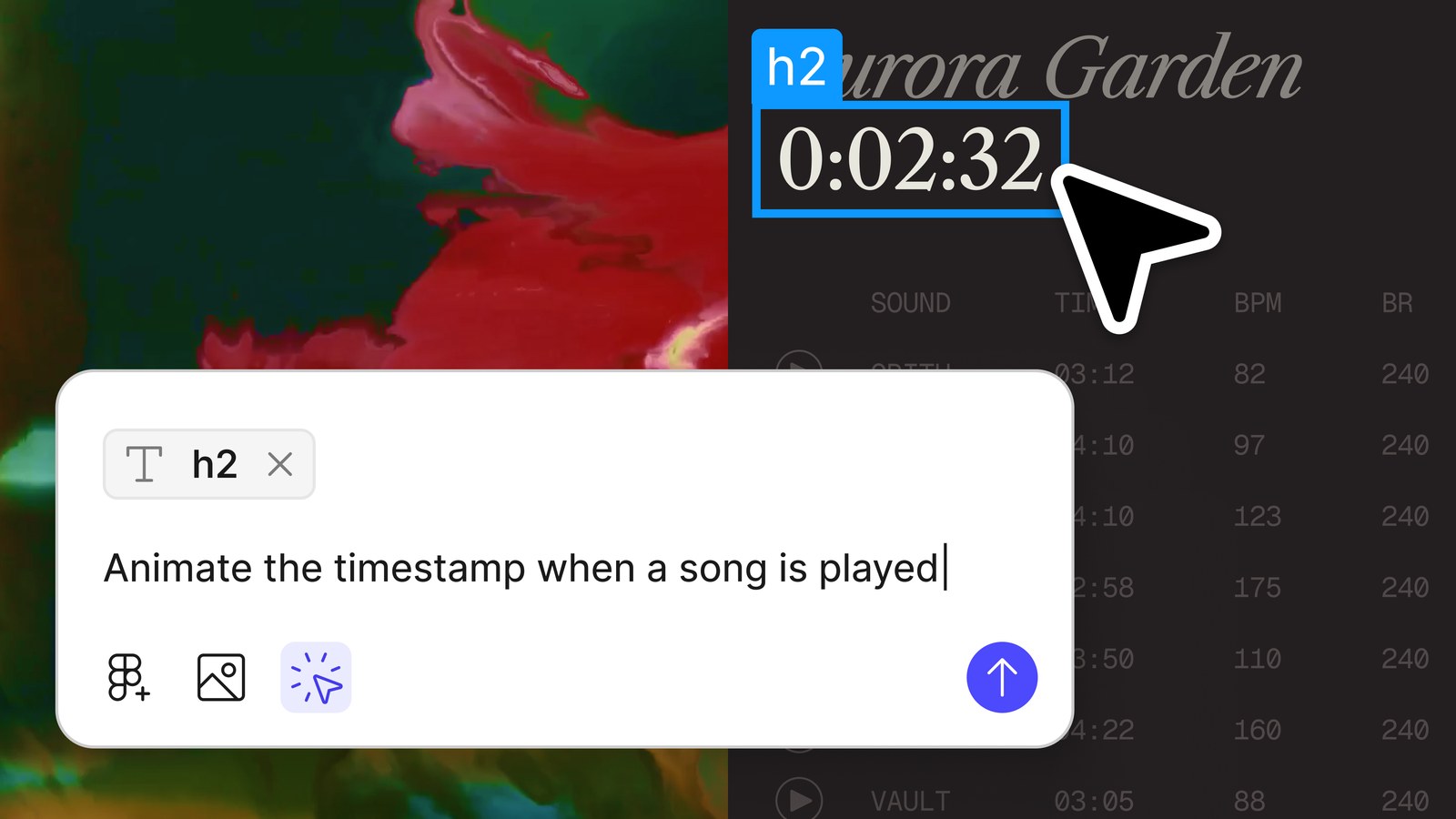
- Refine. Keep chatting, use point and edit to change specific elements, add annotations and send them together, or open the code editor and change the code directly.
- Share or publish. Share the file for feedback with comments, copy the preview back to Figma Design as layers, publish it to a public URL, or download the code.
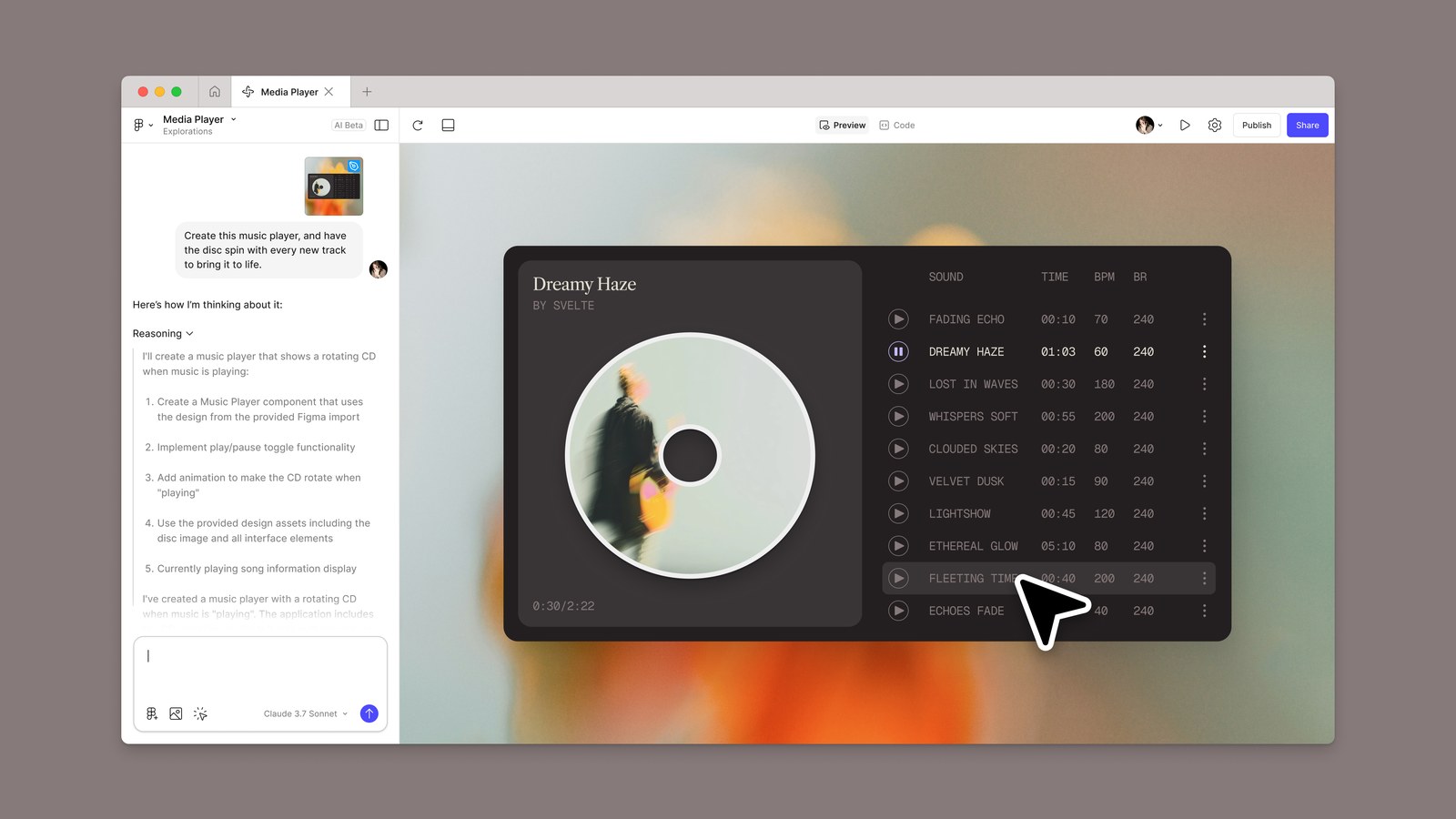
One practical tip from Figma’s docs: attach a frame or a component rather than pasting a link to your Figma file. Make does not read a design from a URL, and a pasted link can lead to unexpected output.
Key Figma Make Features
| Feature | What it does |
|---|---|
| Plan mode | Creates an editable plan before generation starts, so you can clarify intent first. |
| Attachments | Lets you attach designs, images, videos, audio, text files and PDFs to guide the model. |
| Point and edit | Click an element in the preview to restyle it, swap it or prompt a change. |
| Annotations | Select several elements, describe the changes and send them to the model at once. |
| Code editor | View and edit the generated code, add your own files and add guidelines Make follows. |
| Make kits | Sync npm packages, library styles and guidelines to generate higher-fidelity prototypes. |
| MCP connectors | Pull context from external tools such as documents and tasks. |
| Version history | Preview, favourite or restore any earlier version, AI or manual. |
| Comments and mobile | Collect feedback on a prototype and view it on a phone. |
| Templates and custom skills | Reuse a proven workflow or package your own instructions for Make. |
Figma Make vs Figma Code Layers vs Figma Sites
These three get confused. Figma Make works in a dedicated file where you build and publish an app. Code layers let you explore interactive ideas next to your designs on the Figma Design canvas; see our guide to Figma code layers and Specs. Figma Sites is for publishing websites designed in Figma. Pick Make when the output should behave like an app, and code layers when you want an interactive element beside your static design.
Who Can Use Figma Make, and What Do AI Credits Cost?
Figma Make is available on Starter (with limitations), Professional, Organization, Enterprise, Education (higher education and bootcamp users) and Government plans. Your seat decides what you can do:
| Seat | What you can do in Figma Make |
|---|---|
| Full | Everything: create Make files in folders and teams, share, publish, use the code editor and export code. |
| Dev | Try Make in drafts and export code. |
| Collab and View | Try Make in drafts. |
Make runs on AI credits. Every seat includes credits, they reset monthly and they cannot be shared or rolled over. As of Figma’s documentation in October 2026:
| Plan (Full seat) | AI credits per month |
|---|---|
| Starter | 500 (plus a daily limit of 150) |
| Professional | 3,000 |
| Organization | 3,500 |
| Enterprise | 4,250 |
How many credits a prompt uses depends on the model you choose and the task. Figma’s own examples, based on its default model in February 2026, put a small change such as updating fonts at roughly 30 or more credits and making an attached design interactive at roughly 75 or more. Choosing a lighter model for small edits and using plan mode for big builds helps your credits last.
Publishing, Backends and Getting Your Work Out
Publish
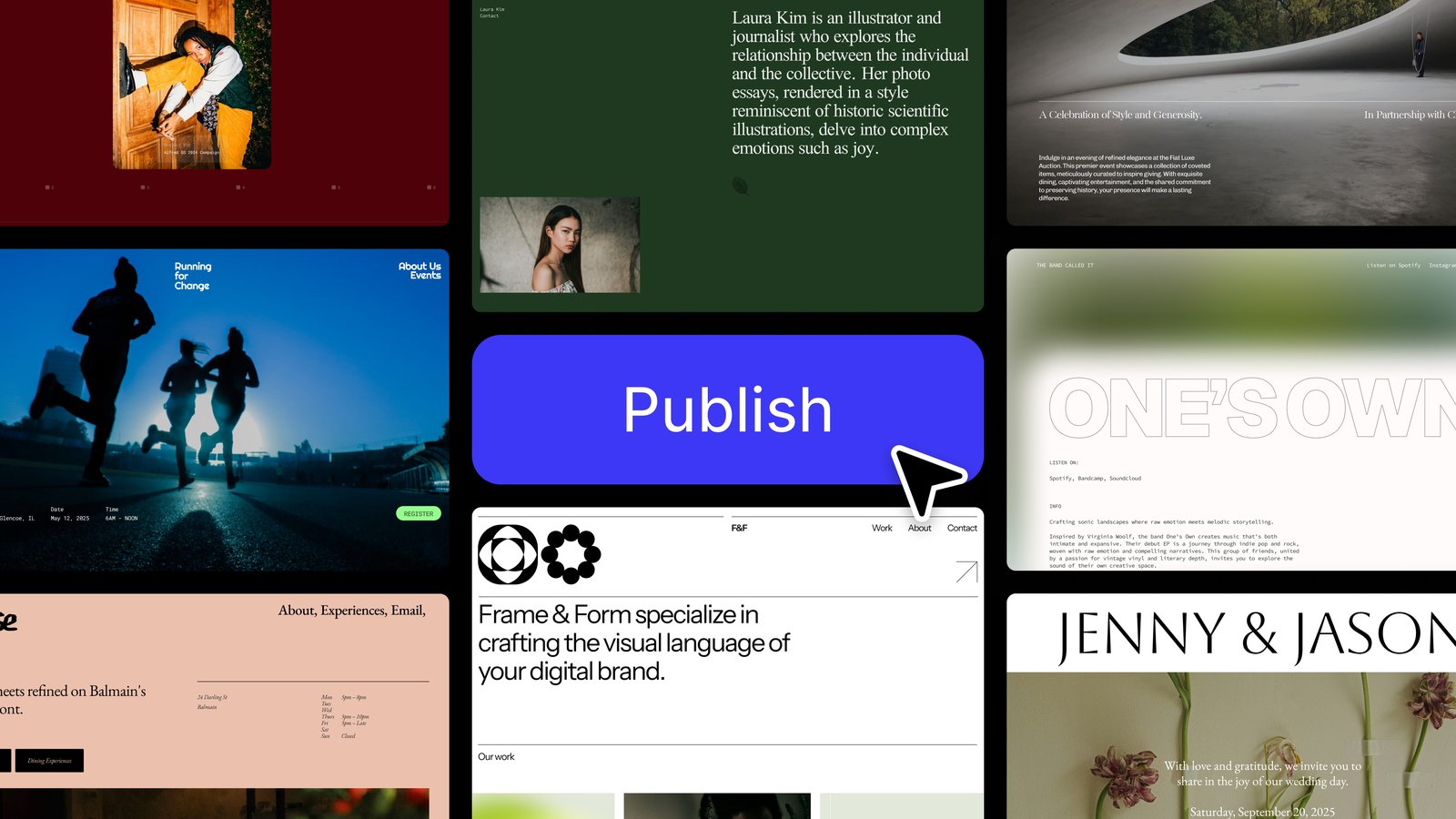
Click Publish, set a title and Make gives you a public URL that looks like three-random-words.figma.site. You can connect a custom domain on supported plans. Published apps are hosted on Amazon Web Services with routing through Cloudflare, they are not indexed by search engines by default, and Make has no built-in analytics dashboard, although you can add a Google Analytics ID in settings.
Backend
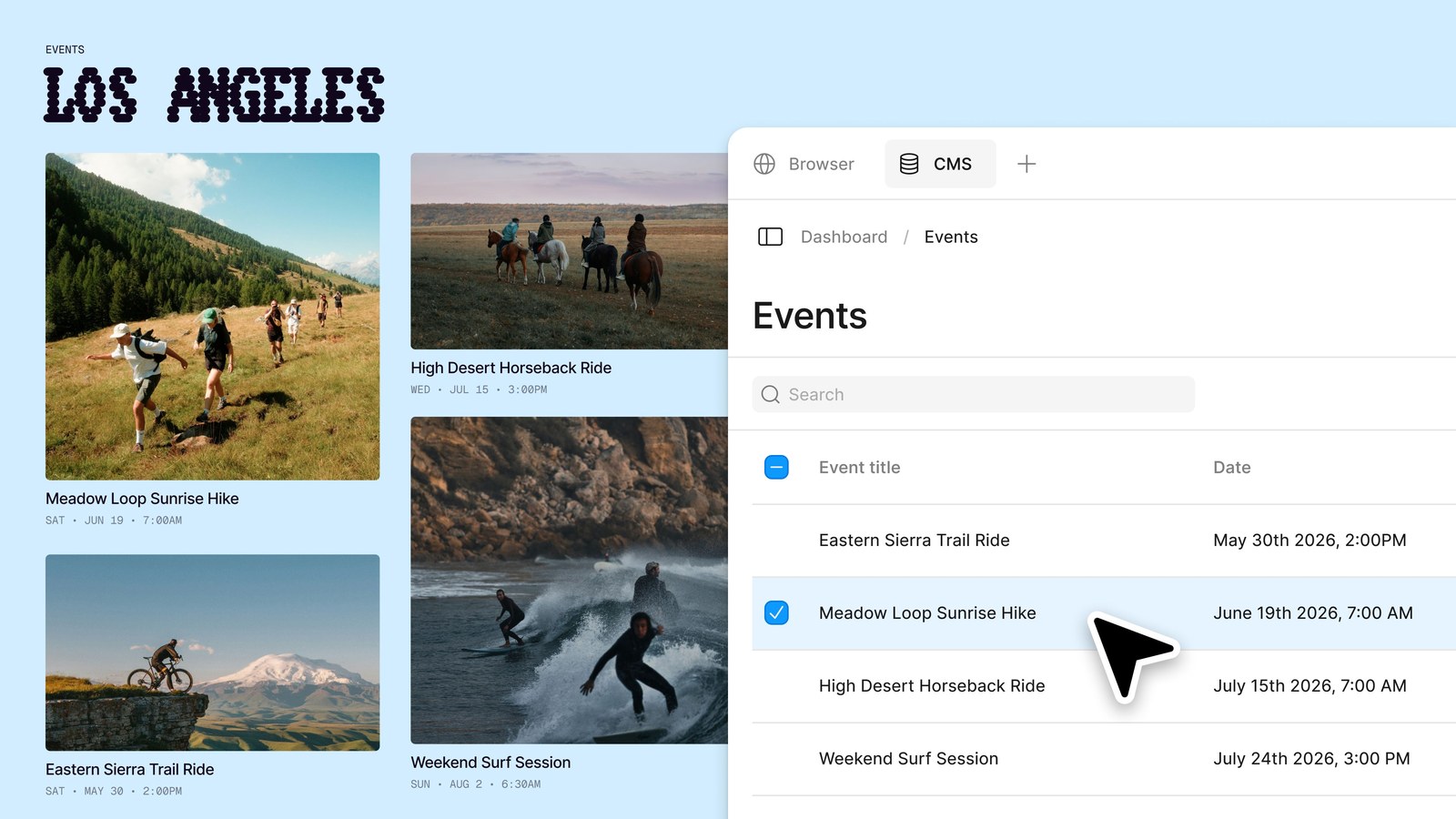
To store data and support sign-in, you can ask Make to create a Payload-powered backend with a database, file storage, authentication and an admin panel, or connect your own Supabase project from the Make settings.
Export code
Users with a Full or Dev seat can download all files in a Make file as a ZIP from File actions in the Files tab. Treat the download as a prototype codebase: run it locally, review it and refactor before you build on it.
Move the design back to Figma
On paid plans you can copy the current preview as design layers and paste them into Figma Design. The layers are editable, but they are a snapshot. They are not interactive, not linked to the Make file and not tied to your design system automatically.
Figma Make Limits to Know Before You Start
- Most features need a Full seat on a paid plan, and credits can run out quickly on large builds.
- It is built for prototypes and simple apps. Production software still needs engineering review, tests, security and maintenance.
- Changes you make to copied layers in Figma Design do not flow back to the Make file.
- If you ask the model to use Supabase and the integration is not connected, it can generate mock code instead of a working connection.
- SEO controls and analytics are minimal for published sites.
- You cannot hand it a Figma link and expect it to read the file. Attach or paste the frame.
If you need real front-end code, a website clone or an app that lives outside Figma, look at an alternative such as Anima Playground. We compare them honestly in Figma Make vs Anima Playground.
Prompt Ideas for Figma Make
Specific prompts that name the user, the task and the states produce better first results. Try these:
- “Build a three-step onboarding flow for a budgeting app. Show a progress indicator, validate each field and end on a success screen.”
- “Turn the attached pricing frame into an interactive page. Add a monthly and yearly toggle and a hover state on each plan card.”
- “Create a support dashboard for an agent who triages tickets. Include filters, an empty state and a loading state.”
- “Make a mobile checkout prototype with guest checkout, address validation and an order confirmation.”
Build a Working App with Anima Playground
Prefer a real website or app you can export and ship? Describe it, and Anima will build it.
Figma Make FAQ
What is Figma Make?
Figma Make is Figma’s AI-driven, prompt-to-app tool. It turns a prompt or an existing Figma design into a functional prototype, web app or interactive UI that you can preview, edit in chat or code, and publish.
Is Figma Make free?
Starter plans can explore Figma Make for free with limits, including 500 AI credits a month and a daily limit. Full seats on paid plans get more credits and features such as team library context, plan mode, sharing and publishing. Plans change, so check Figma’s pricing.
How do I use Figma Make?
In your Figma drafts, click Make, write a prompt in the chat, attach designs or style context if you have them, send it and refine the result with chat, point and edit or the code editor. Then share, publish or export it.
Can Figma Make export code?
Yes. Users with a Full or Dev seat can download the code of a Make file as a ZIP from the Files tab. It is best treated as a prototype codebase that you review before production use.
Can I publish a Figma Make app?
Yes. Full seats can publish to a public figma.site URL, and starter users can publish publicly only if they also publish to the Figma Community. You can add a custom domain on supported plans, and published apps are not indexed by search engines by default.
What is the difference between Figma Make and Anima Playground?
Figma Make builds prototypes and apps inside the Figma ecosystem. Anima Playground is a standalone workspace that starts from prompts, Figma designs, URLs or images and produces editable HTML or React that you can export, hand off and publish. See our comparison for details.