 Figma
Figma API
API Web to code extension
 Adobe XD
 Discord
 Twitter
 GitHub
'/%3E%3Cpath%20fill='%23b2b2b2'%20d='M241%20382q0%2016%2017%2026%2017%2011%2042%2011t42-11q16-11%2017-26V269H241'/%3E%3Cpath%20fill='%239f7e00'%20d='M241%20379q0%2014%208%2023%209%209%2021%209%2014%200%2021-9%209-9%209-23V269h-59'/%3E%3Cpath%20d='M241%20339v-70h59v110q0%2014-9%2023l-6%205v-68h-15v72q-8%200-14-4v-68zm59%2040c0%2022%2015%2032%2029%2032%2021%200%2030-18%2030-32v-40h-59'/%3E%3Cpath%20fill='%239f7e00'%20d='M266%20277v5h2v12h-3v-5h2v-5h-9v5h2v5h-4v9h3v18h-5v10h34v-10h-5v-18h3v-9h-4v-5h2v-5h-9v5h2v5h-3v-12h2v-5zm42%20101q0%2010%206%2017%206%206%2015%207%2010-1%2016-7%206-7%206-17v-29h-43'/%3E%3Ccircle%20fill='%230044ad'%20cx='329.5'%20cy='372'%20r='6'/%3E%3Cellipse%20fill='%230044ad'%20cx='300'%20cy='340'%20rx='16'%20ry='21'/%3E%3C/svg%3E)


'%3E%3Cpath%20stroke='%23000'%20stroke-width='4'%20d='m-35-37-13%2020m5%203%2013-20m5%203-13%2020m63%2042%206-9m1-2%206-9m5%203-6%209m-1%202-6%209m5%203%206-9m1-2%206-9m-96%200%2013%2020m5-3-6-9m-1-2-6-9m5-3%2013%2020m63-42-6-9m-1-2-6-9m5-3%2013%2020m5-3-6-9m-1-2-6-9'/%3E%3Ccircle%20r='24'%20fill='%23cd2e3a'/%3E%3Cpath%20fill='%230047a0'%20d='M0%200a12%2012%200%201%201%2020%2013%2024%2024%200%201%201-40-26A12%2012%200%201%200%200%200'/%3E%3C/g%3E%3C/svg%3E)


'%3E%3Ccircle%20r='92'/%3E%3Ccircle%20fill='%23fff'%20r='80'/%3E%3Ccircle%20r='16'/%3E%3Cg%20id='c'%3E%3Cg%20id='b'%3E%3Cpath%20id='a'%20d='m0-80%203%2048L0-8-3-32M21-77%2011-30%202-8%205-32M40-69%2019-26%204-7%2013-29'/%3E%3Cuse%20href='%23a'%20transform='scale(-1)'/%3E%3C/g%3E%3Cuse%20href='%23b'%20transform='rotate(45)'/%3E%3C/g%3E%3Cuse%20href='%23c'%20transform='rotate(90)'/%3E%3C/g%3E%3C/svg%3E)


'/%3E%3C/svg%3E)


'/%3E%3C/svg%3E)
'/%3E%3C/g%3E%3Cuse%20href='%23b'%20transform='rotate(45%20140%20300)'/%3E%3Cpath%20d='m299%20285%2046%2015-46%2015%2028-39v48M59%20510l-36%2032%2010-47%2020%2043-42-24m22-409L23%2058l36%2032-48-4%2042-24'/%3E%3C/svg%3E)


'/%3E%3C/svg%3E)
 Blog
Blog
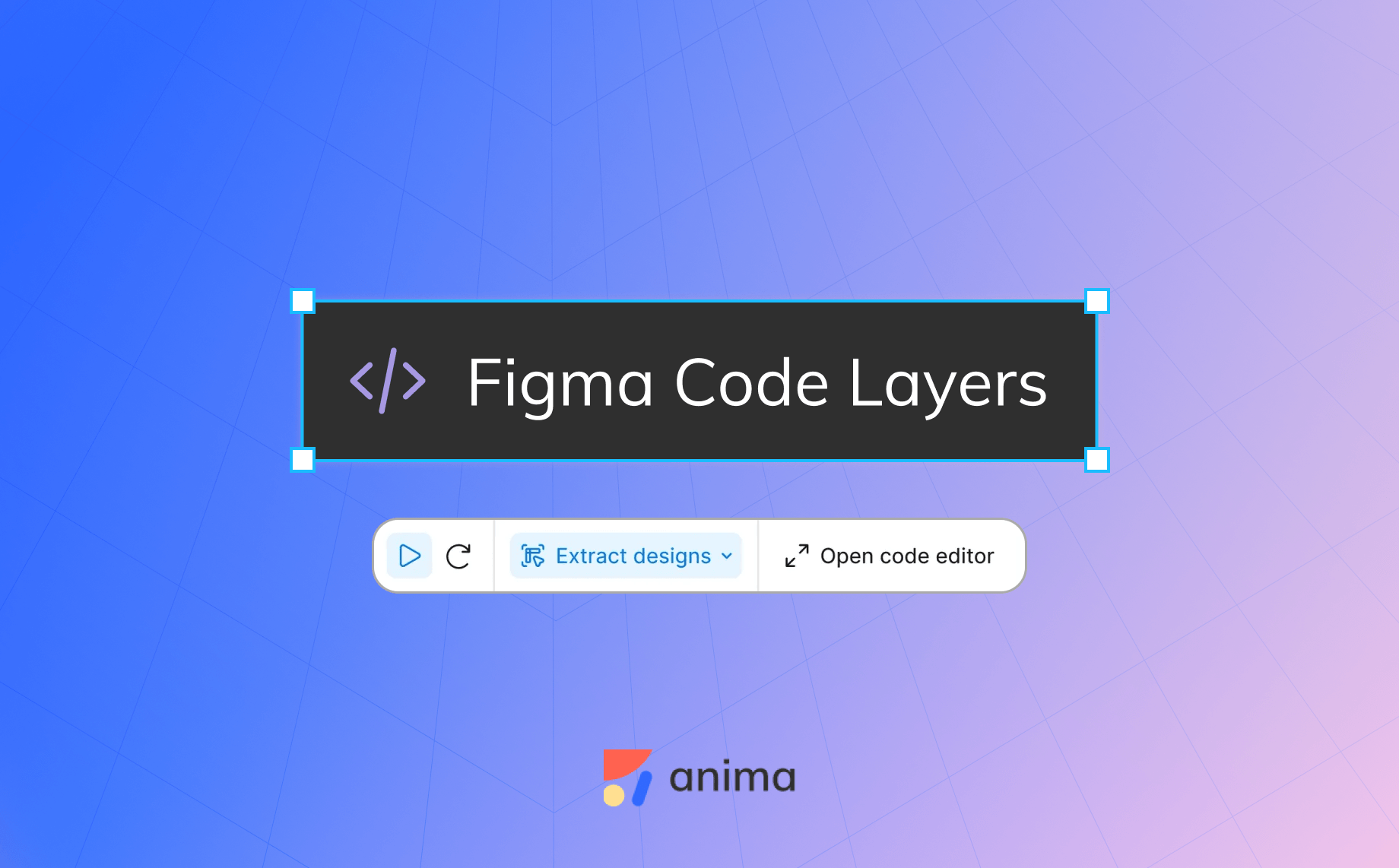
Figma Code Layers and Specs: What They Are, How They Work, and Where They Stop11 min read
Reading Time: 8 minutesFigma code layers put running code on the canvas, and Figma Specs put Markdown there too. Both entered open beta at Config India on October 15, 2026, so a design file can now hold frames, a working prototype and the written plan an agent builds from.
This guide is for designers, PMs and front-end engineers deciding whether to move prototype and spec work into Figma. It covers what each feature does, how to start, what it costs in AI credits, and where the work has to leave Figma for teammates in Claude, ChatGPT or Cursor.
In the age of AI, design is code. To design directly in code with AI, or to turn your Figma designs into code, use Anima Playground: describe a screen or start from a Figma design, then keep iterating on an editable app you can preview and publish.
Design Directly in Code with AI
Design with AI: Describe a screen or turn Figma designs to code.
What did Figma launch at Config India 2026?
Code layers and Specs were the headline, but they arrived with a set of agent features around them. Here is the current status from Figma’s help center:
| Feature | Status | Who gets it |
|---|---|---|
| Code layers | Open beta | Rolling out to all plans, edit access required |
| Figma Specs | Open beta | Paid plans (Professional, Organization, Enterprise, Education) |
| Figma MCP server updates | Available now | All plans, limits vary by plan and seat |
| Payload in Figma (backend for Make and code layers) | Available now | Rolling out to all plans |
| Guidelines for design libraries | Open beta | Professional, Organization, Enterprise |
| Code sources in libraries | Closed beta | Small group |
Both betas roll out over several weeks, so you may see them before or after the rest of your team.
What are Figma code layers?
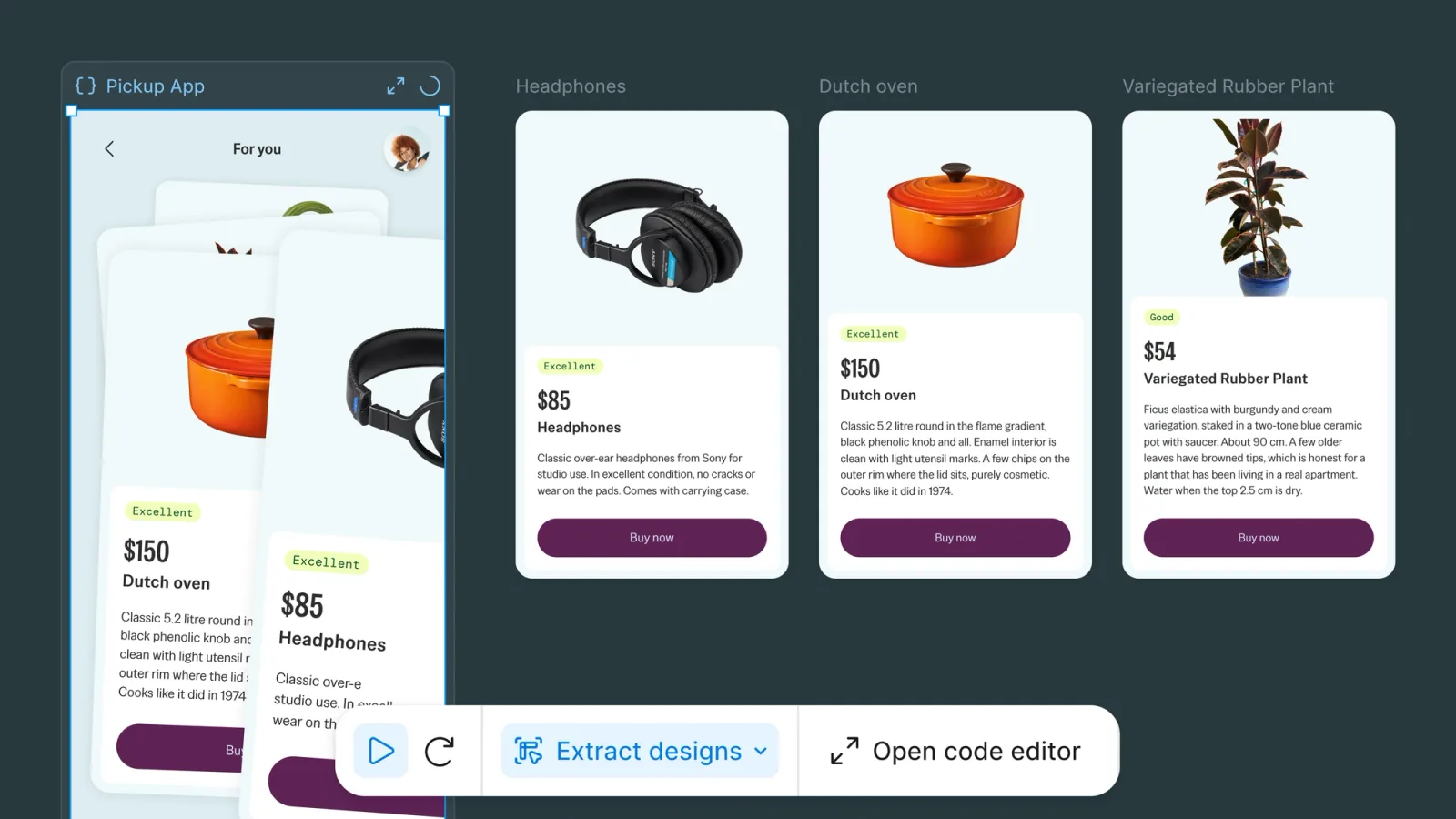
A code layer is a layer that holds real, running code. Instead of a prototype that fakes interactions with frame links, you get a working, code-backed prototype sitting on the canvas next to your designs. Teammates can click through it, comment on it, and duplicate it to try a different direction side by side.
Figma gives you four ways to start one:
- From a design. Select frames and ask the Figma agent to turn them into a code layer.
- From a live website. Capture a page with the Figma Chrome extension and paste it onto the canvas.
- From a repo. Import a supported, lightweight prototyping codebase from GitHub or a local folder. A GitHub import stays connected to that repository.
- From scratch. Add an empty code layer and prompt the agent to build.
You can also bring a prototype you built in a coding tool onto the canvas through the Figma MCP server.
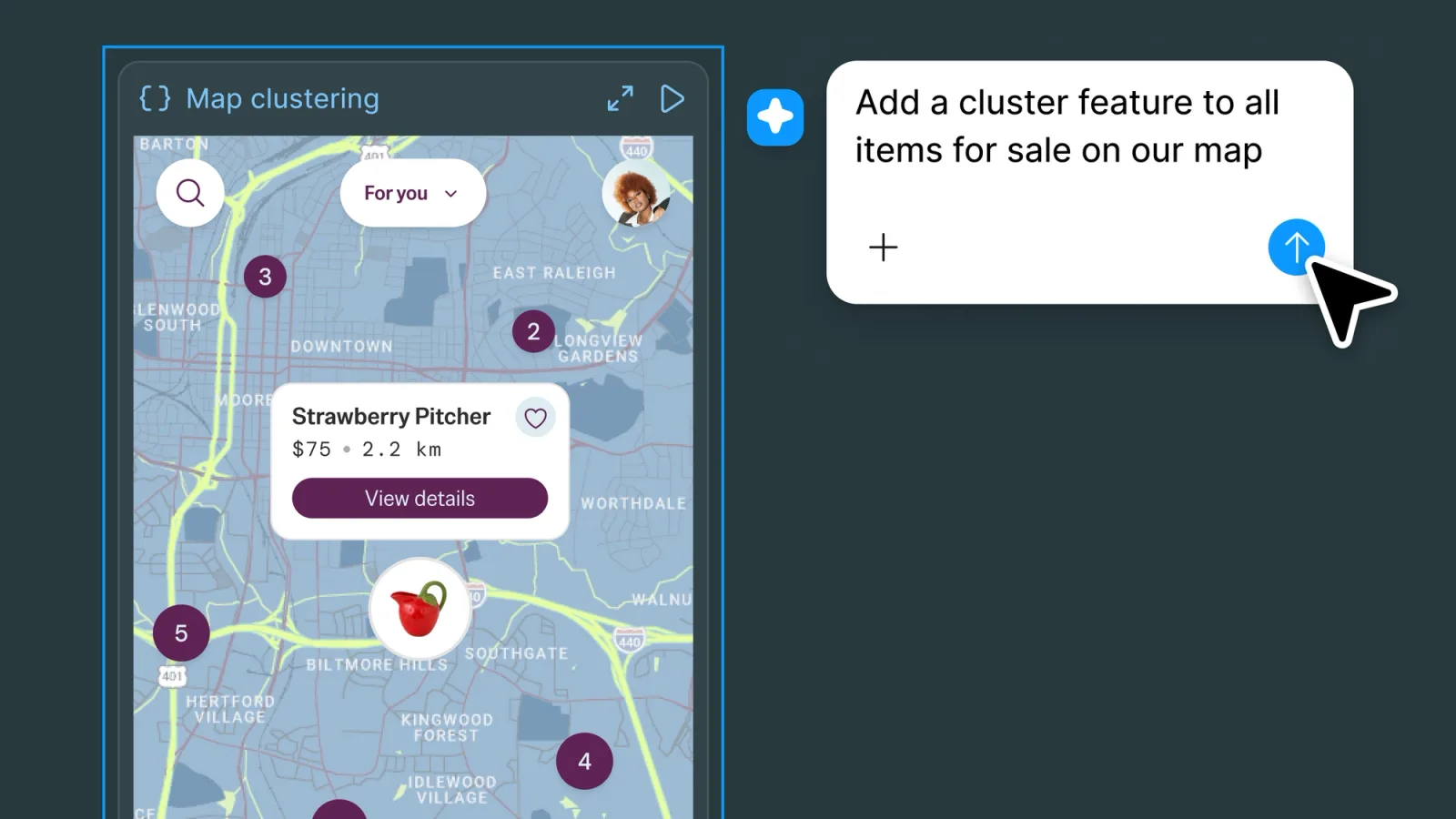
Editing happens three ways. You prompt the agent, you annotate frames to show it where a change belongs, or you open the code editor and change the code yourself. When the visual details matter more than the code, Extract designs turns screens from a code layer back into editable Figma frames. When the code is ready for engineers, you can push it to a branch and open a pull request.
What is Figma Specs?
Figma calls Specs “a native home for context.” In practice it is a collaborative Markdown document that lives either on the canvas of a Figma Design file or FigJam board, or as its own Spec file.
Getting started is quick:
- Create a standalone Spec from the file browser, or go to
figma.com/spec/new. - Inside a Design file or FigJam board, click Spec in the toolbar or press D.
- Already have a
.mdfile? Drag it onto the canvas and it becomes a spec. - Write with the Markdown you already know:
#for headings,-for bullets,[]for to-dos,>for quotes, three backticks for code. Type/for images, Figma embeds and dividers.
What makes a spec more than a Markdown file is what sits around the text. You can embed a frame, a FigJam board or any node from the canvas, so the requirement and the design it describes stay next to each other. Teammates comment on it, and the Figma agent can read and reply to those comments.
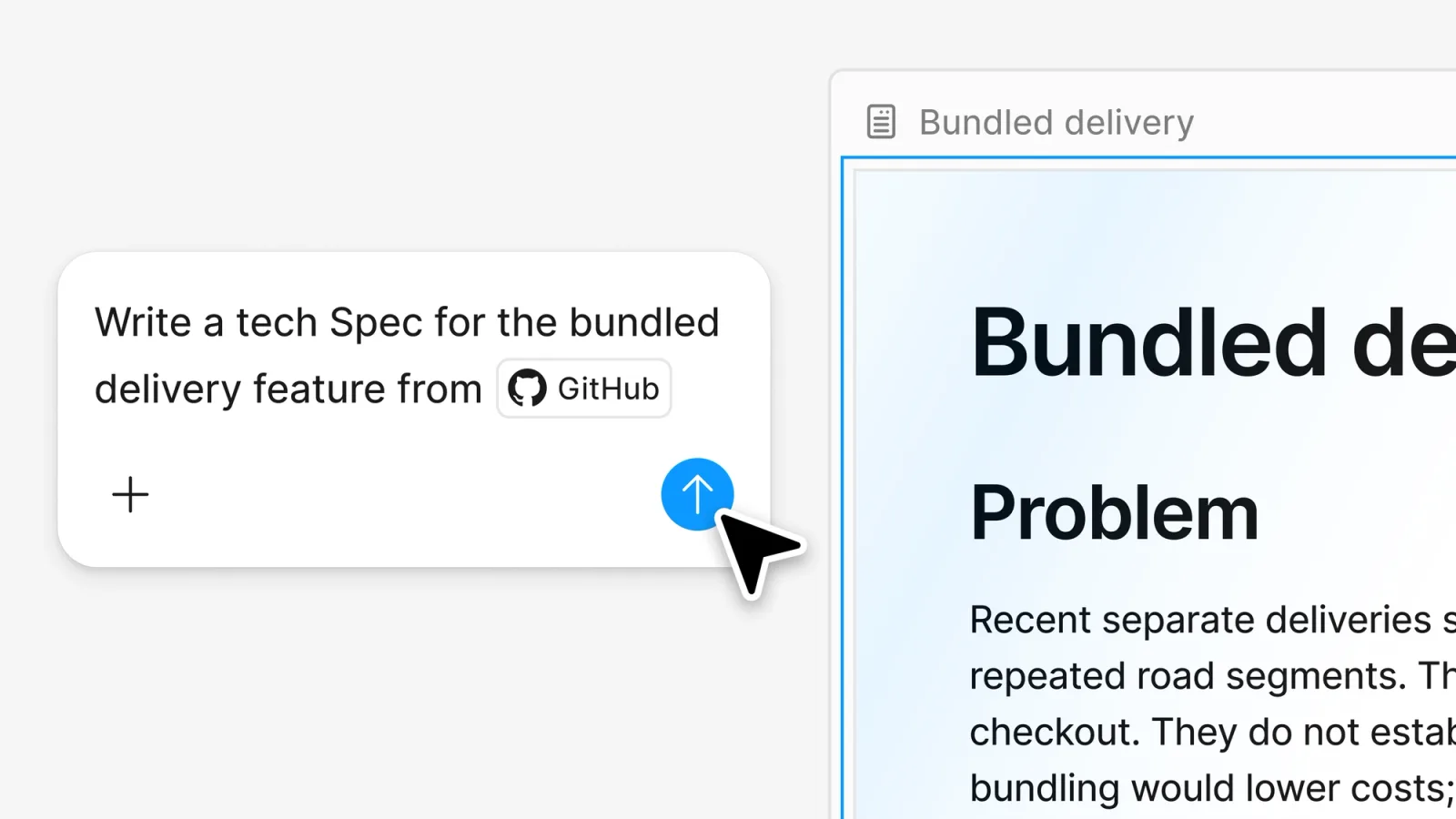
Specs also work outside Figma. Coding agents connected to the Figma MCP server can read, create and update specs using the figma-spec skill. To hand one off, you copy the spec link into your coding agent’s prompt, and the linked frames, diagrams, code layers and Code Connect snippets come with it.
Why Markdown became the hand-off format
Figma’s own launch post says it plainly: Markdown is now the de facto format for sharing context with agents. Every coding agent reads it. Most product teams already keep plans, PRDs and agent instructions in .md files.
My read is that Specs is Figma accepting that the hand-off to an agent is text, then making that text multiplayer. A local AGENTS.md or PRD never failed because of the format. It failed because only one person edited it, it drifted away from the designs, and nobody could see which version the agent used.
Inside Figma, Specs fixes that. The open question is what happens outside it. The embeds, comments and live design references are Figma features, and agents reach them through clients listed in the Figma MCP catalog. If your engineers, your PM’s ChatGPT and your marketing team’s Claude all need the same plan, you still have to decide where the shared copy lives.
A practical workflow: from PRD to code layer to pull request
Here is how the two features fit together on a real feature, using only what Figma documents today.
- Drag your PRD onto the canvas. Your existing
.mdfile becomes a spec. Nothing is rewritten, and editing it by hand uses no AI credits. - Embed the frames it talks about. Use
/to add the flows the PRD describes. Reviewers now see the requirement and the screen together. - Turn the key frames into a code layer. Select them and prompt the agent. If you already have a prototype repo, import it from GitHub instead.
- Review in one place. Collect comments on the spec and the code layer. Ask the Figma agent to reply to each open comment with a suggested fix while people weigh in on the same threads.
- Hand off the spec. Paste the spec link into Codex, Claude Code or Cursor connected to the Figma MCP server. The agent gets the Markdown plus the linked design context.
- Ship the prototype code. Push the code layer’s changes to a branch and open a pull request so engineers review before merging.
The output is a spec your coding agent can read and a working prototype your team has actually clicked through. Test the generated code like any other code. A prototype that runs is not the same as production-ready code.
If the next step is turning a Figma design into code you can run, or designing in code from a prompt, that is the job of Anima Playground.
What do code layers and Specs cost?
- Code layers use AI credits. On paid plans, generating and editing inside a code layer is free through November 4, 2026. Other agent work in the same prompt still uses credits, and after November 4 all code layer tasks use credits.
- Specs are free to write. Typing and editing a spec yourself does not use credits. Using the agent with a spec does. Hover the receipt after each prompt to see what it cost.
- Payload and guidelines add cost. Figma notes that both give the agent more context and more work, so the same prompt can use more credits.
Limits to check before you plan around them
- Rollout. Both features are open betas rolling out over weeks. Look for the Code icon in the Figma Design toolbar and the Spec option in the file browser.
- Plans. Specs needs a paid plan. Starter users get code layers but not Specs. Both need edit access to create.
- Opting out. Only Enterprise admins can turn code layers off, and only by turning off all Figma AI features.
- Repo size. GitHub import is for lightweight prototyping codebases, not a full production app.
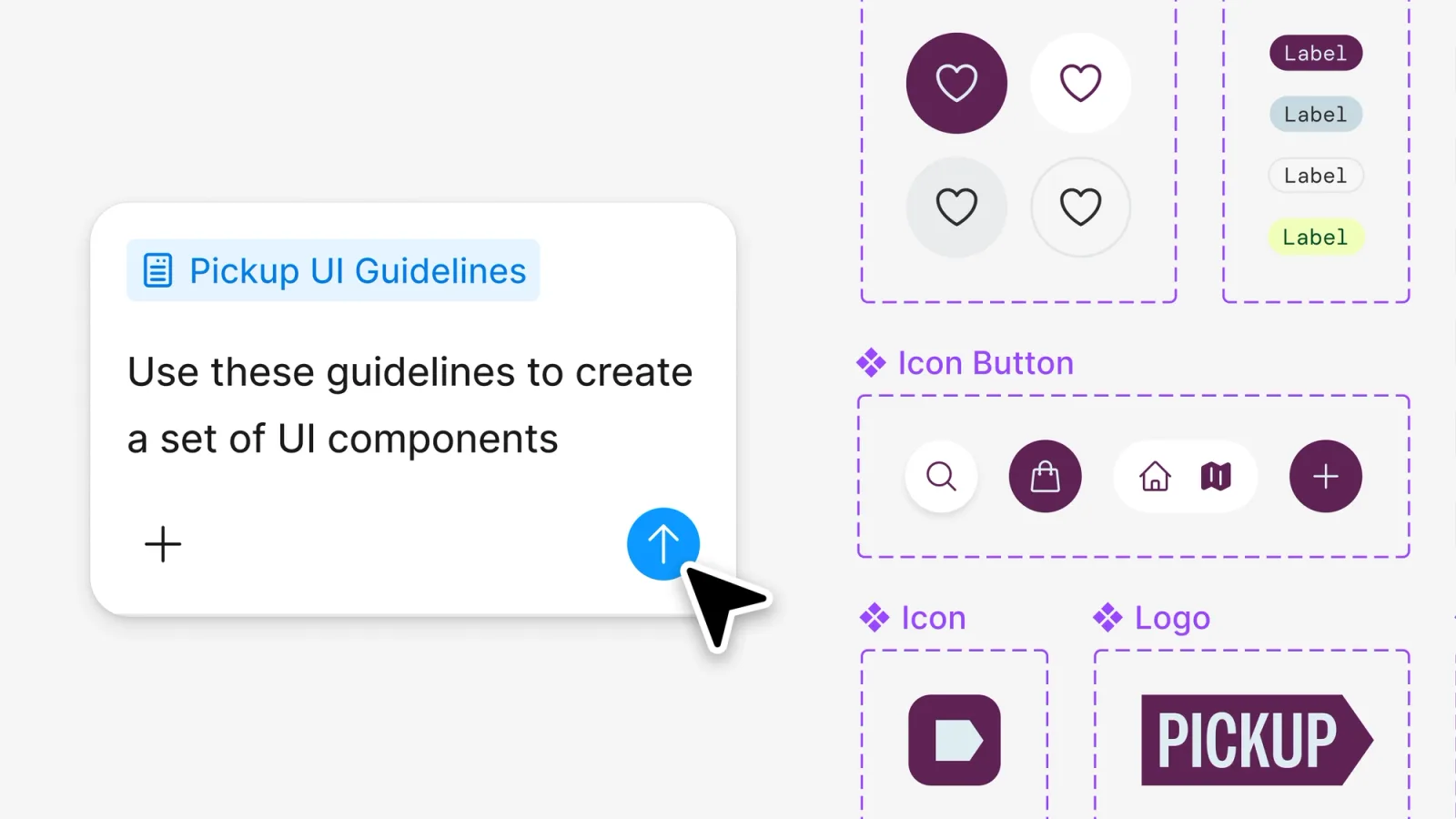
- Design system code. Connecting your real component code through code sources is still a closed beta, so code layers may not use your production components yet.
Where Figma stops, and where Anima and AgentGrid.io fit
If your whole team works in Figma, code layers and Specs are a strong default. The prototype, the plan and the comments sit in the same file, and Figma’s agent and MCP clients can work on them.
Two common situations still fall outside that file.
The idea started somewhere else. A Claude Design prototype, a ChatGPT-generated HTML page, or a live site you want to learn from. Figma’s MCP server now has an html_to_figma tool for agent-generated HTML. Anima’s Buddy, our AI design agent inside Figma, also turns HTML, Claude artifacts, images and URLs into editable Figma layers, which is useful when you want to keep designing on those layers with your design system.
The result needs to leave Figma. Your spec or prototype has to be reviewed by people outside your Figma team, edited by agents from several vendors, or published as a live link. That is the job AgentGrid.io, built by Anima, does. A Markdown artifact on AgentGrid.io is a live, autosaving document that people and connected agents such as Claude, ChatGPT, Cursor and Grok Bot can edit, with each change attributed by name in version history. An HTML artifact is a running page you can comment on and publish to a public URL when it is approved. You can also import one Figma frame into AgentGrid.io as an app artifact. That import is one-way, so later Figma edits do not sync.
The two are not competing for the same step. Figma owns the design canvas. AgentGrid.io is where the Markdown and HTML artifacts go when the work crosses tools and teams.
Try AgentGrid.io to keep a spec or prototype that every agent on your team can edit and publish.
Use each tool when
- Use Figma code layers when stakeholders need to click a working prototype next to the designs and compare directions side by side.
- Use Figma Specs when the plan should live beside the frames and be read by a coding agent through the Figma MCP server.
- Use Anima Playground when you want to design directly in code with AI, or turn a Figma design into an editable app you can preview and publish.
- Use Buddy when the starting point is outside Figma and you want editable layers on the canvas. For a fuller comparison of building in Figma versus a browser builder, see Figma Make vs Anima Playground.
- Use AgentGrid.io when the spec or prototype must be edited by people and agents across tools, reviewed with comments, and published as a live link.
Frequently asked questions
What are code layers in Figma?
A code layer is a layer on the Figma canvas that holds real, running code. You can create one from selected frames, a live website captured with the Figma Chrome extension, a GitHub prototyping repo, or a blank prompt, then click through it, comment on it, and duplicate it to compare directions.
Is Figma Specs just Markdown?
Specs uses Markdown for its text, and you can drag any .md file onto the canvas to create one. It adds Figma features around that text: embedded frames and FigJam boards, comments, and an agent that can read and reply to those comments.
Do Figma code layers cost AI credits?
Yes. On paid plans, generating and editing inside a code layer is free through November 4, 2026. Other agent work in the same prompt still uses credits, and after November 4 all code layer tasks use AI credits.
Can Claude Code, Codex or Cursor read a Figma Spec?
Yes, if they are connected to the Figma MCP server. Coding agents can read, create and update specs with the figma-spec skill, and you can paste a spec link into your prompt to pass along its linked design context.
Which Figma plans include Specs?
Specs is in open beta on paid plans: Professional, Organization, Enterprise and Education, plus Government per Figma's Config India article. It is not on the free Starter plan. Code layers are rolling out to all plans, including Starter.