
 Figma
Figma API
API Web to code extension
 Adobe XD
 Discord
 Twitter
 GitHub
'/%3E%3Cpath%20fill='%23b2b2b2'%20d='M241%20382q0%2016%2017%2026%2017%2011%2042%2011t42-11q16-11%2017-26V269H241'/%3E%3Cpath%20fill='%239f7e00'%20d='M241%20379q0%2014%208%2023%209%209%2021%209%2014%200%2021-9%209-9%209-23V269h-59'/%3E%3Cpath%20d='M241%20339v-70h59v110q0%2014-9%2023l-6%205v-68h-15v72q-8%200-14-4v-68zm59%2040c0%2022%2015%2032%2029%2032%2021%200%2030-18%2030-32v-40h-59'/%3E%3Cpath%20fill='%239f7e00'%20d='M266%20277v5h2v12h-3v-5h2v-5h-9v5h2v5h-4v9h3v18h-5v10h34v-10h-5v-18h3v-9h-4v-5h2v-5h-9v5h2v5h-3v-12h2v-5zm42%20101q0%2010%206%2017%206%206%2015%207%2010-1%2016-7%206-7%206-17v-29h-43'/%3E%3Ccircle%20fill='%230044ad'%20cx='329.5'%20cy='372'%20r='6'/%3E%3Cellipse%20fill='%230044ad'%20cx='300'%20cy='340'%20rx='16'%20ry='21'/%3E%3C/svg%3E)


'%3E%3Cpath%20stroke='%23000'%20stroke-width='4'%20d='m-35-37-13%2020m5%203%2013-20m5%203-13%2020m63%2042%206-9m1-2%206-9m5%203-6%209m-1%202-6%209m5%203%206-9m1-2%206-9m-96%200%2013%2020m5-3-6-9m-1-2-6-9m5-3%2013%2020m63-42-6-9m-1-2-6-9m5-3%2013%2020m5-3-6-9m-1-2-6-9'/%3E%3Ccircle%20r='24'%20fill='%23cd2e3a'/%3E%3Cpath%20fill='%230047a0'%20d='M0%200a12%2012%200%201%201%2020%2013%2024%2024%200%201%201-40-26A12%2012%200%201%200%200%200'/%3E%3C/g%3E%3C/svg%3E)


'%3E%3Ccircle%20r='92'/%3E%3Ccircle%20fill='%23fff'%20r='80'/%3E%3Ccircle%20r='16'/%3E%3Cg%20id='c'%3E%3Cg%20id='b'%3E%3Cpath%20id='a'%20d='m0-80%203%2048L0-8-3-32M21-77%2011-30%202-8%205-32M40-69%2019-26%204-7%2013-29'/%3E%3Cuse%20href='%23a'%20transform='scale(-1)'/%3E%3C/g%3E%3Cuse%20href='%23b'%20transform='rotate(45)'/%3E%3C/g%3E%3Cuse%20href='%23c'%20transform='rotate(90)'/%3E%3C/g%3E%3C/svg%3E)


'/%3E%3C/svg%3E)


'/%3E%3C/svg%3E)
'/%3E%3C/g%3E%3Cuse%20href='%23b'%20transform='rotate(45%20140%20300)'/%3E%3Cpath%20d='m299%20285%2046%2015-46%2015%2028-39v48M59%20510l-36%2032%2010-47%2020%2043-42-24m22-409L23%2058l36%2032-48-4%2042-24'/%3E%3C/svg%3E)


'/%3E%3C/svg%3E)

UX Pilot Review: AI Canvas, Design Agent, Figma Plugin, MCP, Pros and Cons27 min read
Reading Time: 17 minutesUX Pilot (UXPilot) is an AI product design tool that turns a prompt, a PRD or a screenshot into editable UI screens, wireframes and multi-screen flows on an AI canvas, then hands them off to Figma, code or a coding agent. Version 2.0 launched in July 2026 with its own design model, Glide, an MCP server and a redesigned interface. This review is for designers, product managers and founders deciding whether it is worth paying for.
Pricing and features reflect UX Pilot’s own pages, its terms and public user reviews as of November 2026. Plans, credits and features change often, so confirm current details on uxpilot.ai before you buy.
Our verdict in one line: UX Pilot is one of the stronger dedicated AI tools for the first draft of product UI, especially if your team lives in Figma. Credits run out quickly when you iterate, and the output still needs a designer to polish it. Below you will find the AI canvas and Design Agent, the pricing, the Figma plugin, the MCP server, a hands-on walkthrough with screenshots, what real users say, and how it compares with Google Stitch, Figma Make and Anima Playground.
In the age of AI, design is code. To design directly in code with AI, or to turn your Figma designs into code, use Anima Playground: describe a screen or start from a Figma design, then keep iterating on an editable app you can preview and publish.
UX Pilot review: quick verdict
| Area | Rating | Summary |
|---|---|---|
| AI canvas and Design Agent | Good | A design canvas with layers, auto layout, components and comments, plus an agent in the chat panel that plans, builds and edits screens and flows. Fine control is lighter than in Figma. |
| First-draft UI quality | Strong | Several design directions per prompt, hi-fi or wireframe, from text, PRD or screenshot. Output tends toward familiar SaaS patterns, so custom work needs polish. |
| Multi-screen flows | Strong | Autoflow generates connected screens from a list. Reviewers report style drift between screens on long flows. |
| Figma workflow | Strong | Nodey runs inside Figma, imports your components and generates native layers. Export from the web app needs a paid plan. |
| Developer handoff | Good | HTML, CSS and React export, GitHub sync and an MCP server for Claude, Cursor and ChatGPT. It is a design tool first, not an app builder. |
| Pricing and credits | Mixed | A real free plan (80 credits a day), but heavy iteration burns credits and reviewers complain about billing and refunds. |
| Editing control | Mixed | Section edits and chat edits work, but G2 reviewers say fine control in the browser is limited and they finish in Figma. |
Best for product teams that want fast, on-brand first drafts inside Figma. Less suited to anyone who needs a working app, not just a design, or who wants precise manual control over every layer.
What is UX Pilot?
UX Pilot is an AI design tool built for product UI: web and mobile screens, wireframes and user flows. It was founded in 2023 by Adam Fard and is based in New York. According to the company, it is not a graphic design tool or a website builder. It focuses on the product design workflow of flows, wireframes, polished UI that matches a design system, review and handoff.
You start from a prompt, a PRD, a screenshot, a website reference or your own Figma components. UX Pilot generates several design directions, connects screens into a flow, and lets you refine one section at a time. The finished work can move to Figma, to code or to an AI coding agent.
What changed in UX Pilot 2.0
UX Pilot 2.0 launched in July 2026. The company says the problem it wants to fix is sameness: general-purpose models average everything out, so AI interfaces look alike. The release added:
- Glide, a design model UX Pilot trained on a curated library of product design.
- An MCP server so Claude, Claude Code, ChatGPT, Cursor and other agents can use UX Pilot.
- Design system import from your own Figma components.
- Foresight, predicted attention heatmaps.
- A redesigned interface and simpler pricing.
UX Pilot publishes benchmarks for Glide, including a blind preference test against Claude Opus 4.8 and a Design-Value Index across four models. Those are the vendor’s own tests, not independent results, so check them against your own briefs.
UX Pilot AI Canvas and Design Agent
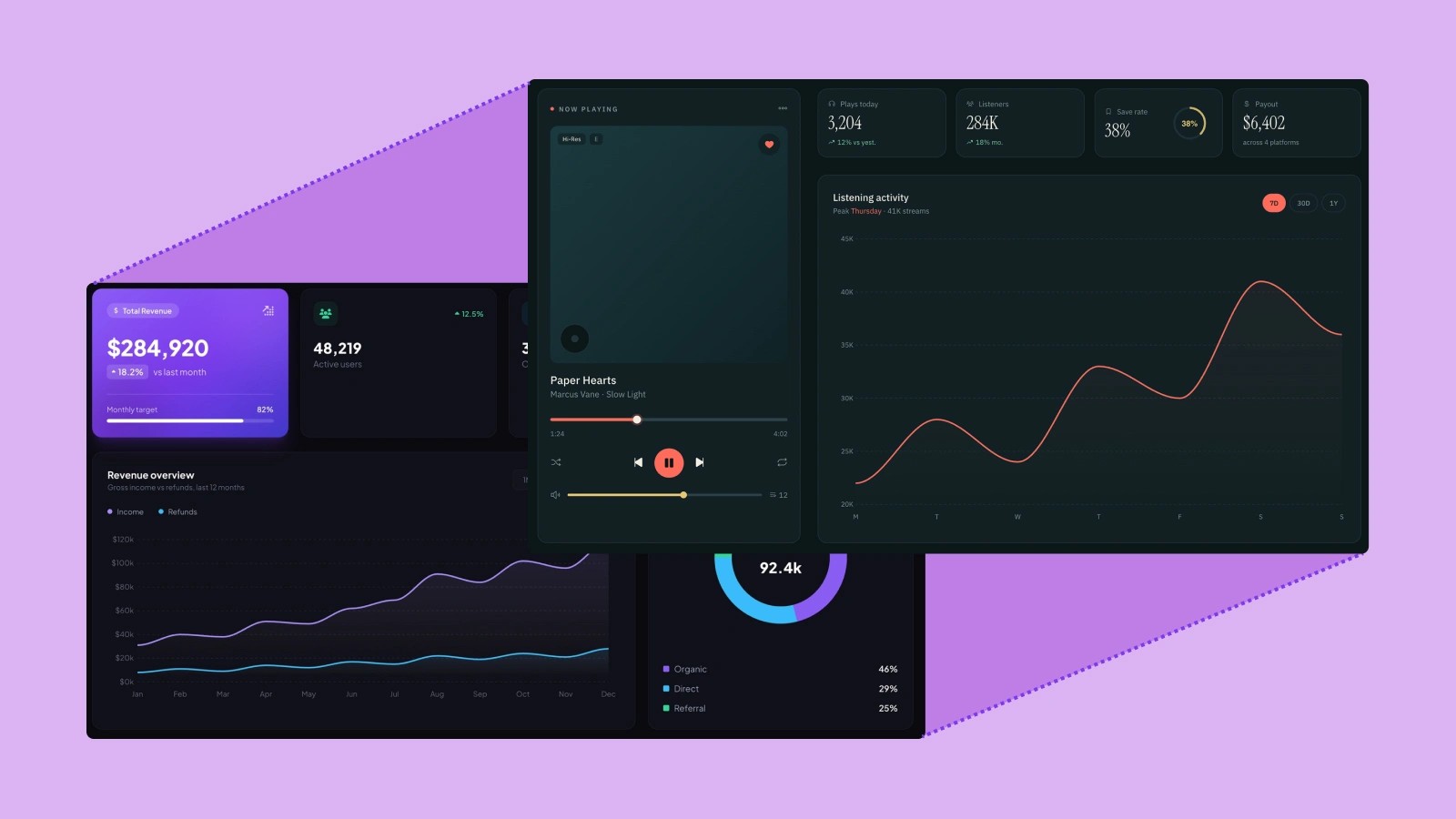
UX Pilot’s web app is built around a visual canvas with an agent beside it, not a chat window that returns one image at a time. UX Pilot describes the canvas as “a real design canvas, with AI built in”: layers, auto layout, components, vector tools, comments and live cursors, where you can select any frame to generate, edit, review or export it.
The AI canvas
Every screen you generate is a frame on an open canvas, so you can compare screens, flows and directions side by side. A toolbar along the bottom adds notes, diagrams, templates, images, imports, motion and prototypes. According to UX Pilot, the AI works on whichever frame you select:
- generate variations of a screen, a mobile version or a prototype;
- edit by prompt or by section;
- run a UX review, a predictive heatmap or an accessibility check.
For teams, the canvas has comments, live cursors and sharing, and you hand off with Copy to Figma, Copy to Webflow or Copy as HTML. UX Pilot also positions the canvas as the place where work started in Claude, ChatGPT or Cursor over MCP lands, so the team can review it visually before anyone builds it.
The Design Agent
The agent lives in the chat panel next to the canvas. It plans the work, writes a short to-do list, builds screens one at a time and reports what it did, and you steer it with follow-up prompts. You can add context first, such as notes, images, a PRD or a website to clone, and you can queue your next request while it is still working. The hands-on section below shows this on a real brief.
UX Pilot’s MCP documentation names the same agent: the start_design_agent tool creates or changes a single screen or a complete multi-screen flow from a brief, runs in the background and spends credits. A second tool checks the progress of a run and another cancels it, and screens that are already finished are kept. Nodey, covered in the Figma section below, is the same idea running inside Figma.
Design systems on the canvas
UX Pilot lets you start a design system by describing it in the chat or by importing a website URL, a Figma file (listed as beta), a GitHub repository, a local codebase or uploaded files. Tokens and usage guidance live in a DESIGN.md file that the AI follows, changes stay in draft until you publish them, and version history keeps every release.
UX Pilot features in 2026
Prompt, PRD or screenshot to UI
You can describe a screen in plain language, paste a PRD or upload a screenshot or reference. UX Pilot returns hi-fi UI or lower-fidelity wireframes and can offer four design directions from one prompt so you compare options instead of settling for the first output. If wireframes are your starting point, see our guide to wireframing tools and the explainer on what a wireframe is.
Autoflow and multi-screen flows
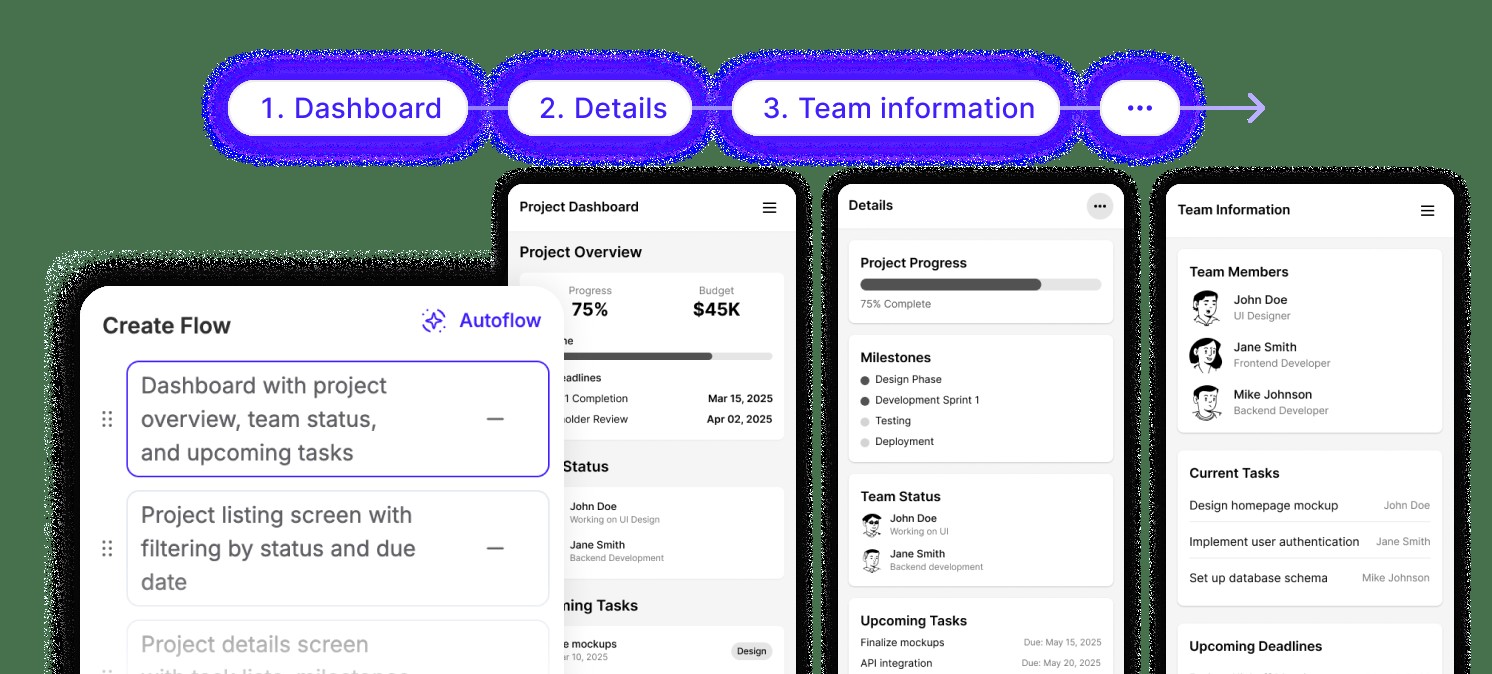
Autoflow turns a short list of screens into a connected flow, for example a dashboard, a details page and a team page. It is the fastest way to see an end-to-end journey in one go.
Section edits and chat edits
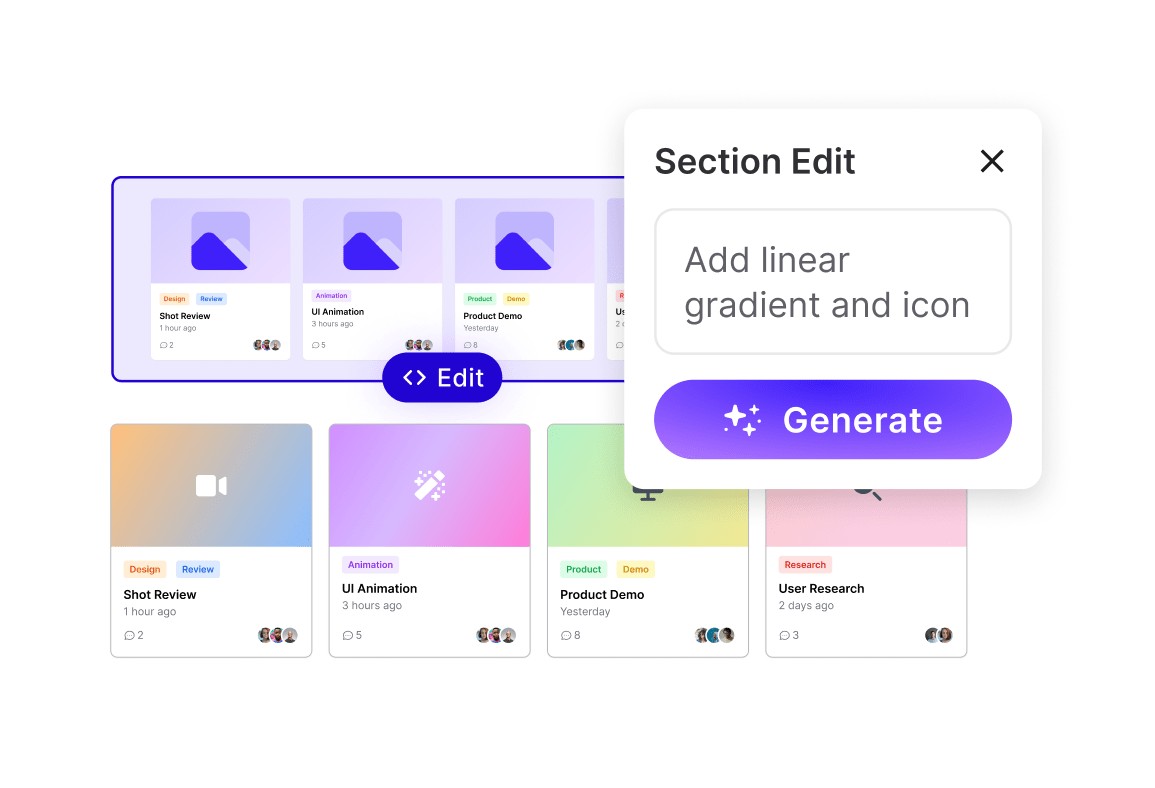
Instead of regenerating a whole screen, you can select a section and describe the change, such as adding a gradient and an icon. The rest of the screen stays as it was. Chat-based editing covers broader changes.
Design system import
On every plan you can import Figma components so generated screens use your own building blocks. Enterprise adds full design system import, AI fine-tuning on your brand system and an add-on called Design System as a Service. UX Pilot reports 95 percent or better on-brand accuracy for that service, again a vendor figure.
Export to Figma and code
Paid plans export to Figma and to code (HTML, CSS and React). UX Pilot also builds clickable and React prototypes and can publish them as hosted links. G2 reviewers say exporting the original HTML and editing it directly preserved the design more reliably than rebuilding it from a reference.
Audits and Foresight
UX Pilot can review a design for UX issues, accessibility against WCAG, persona feedback and predicted attention heatmaps. These are model predictions, not user research, so use them to spot obvious problems before real testing. For the underlying principles, read our UX basics guide.
Website cloner, motion and Labs
Paid plans include a website cloner that recreates a site’s layout from a URL as an editable design. UX Pilot also makes motion graphics and videos from a prompt or URL, and offers free browser tools for gradients, textures and effects under UX Pilot Labs.
UX Pilot pricing and credits
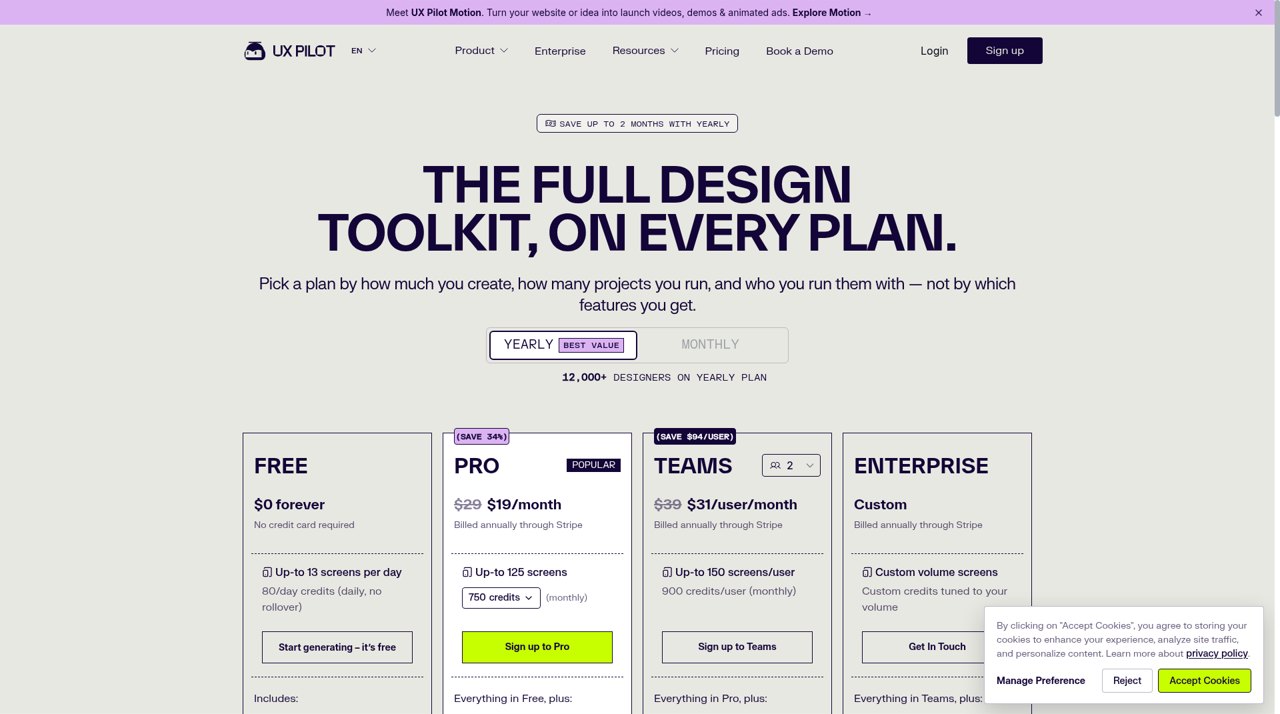
UX Pilot sells credits. Each generation, screen or edit spends them, and your plan decides how many you get. These are the plans UX Pilot listed on its own pages in October 2026:
| Plan | Price | Credits and capacity | What it adds |
|---|---|---|---|
| Free | $0, no card | 80 credits a day that do not roll over, up to 13 screens a day, 1 project | Every design feature, but no Figma or code export and non-commercial use of designs. Your first design is free |
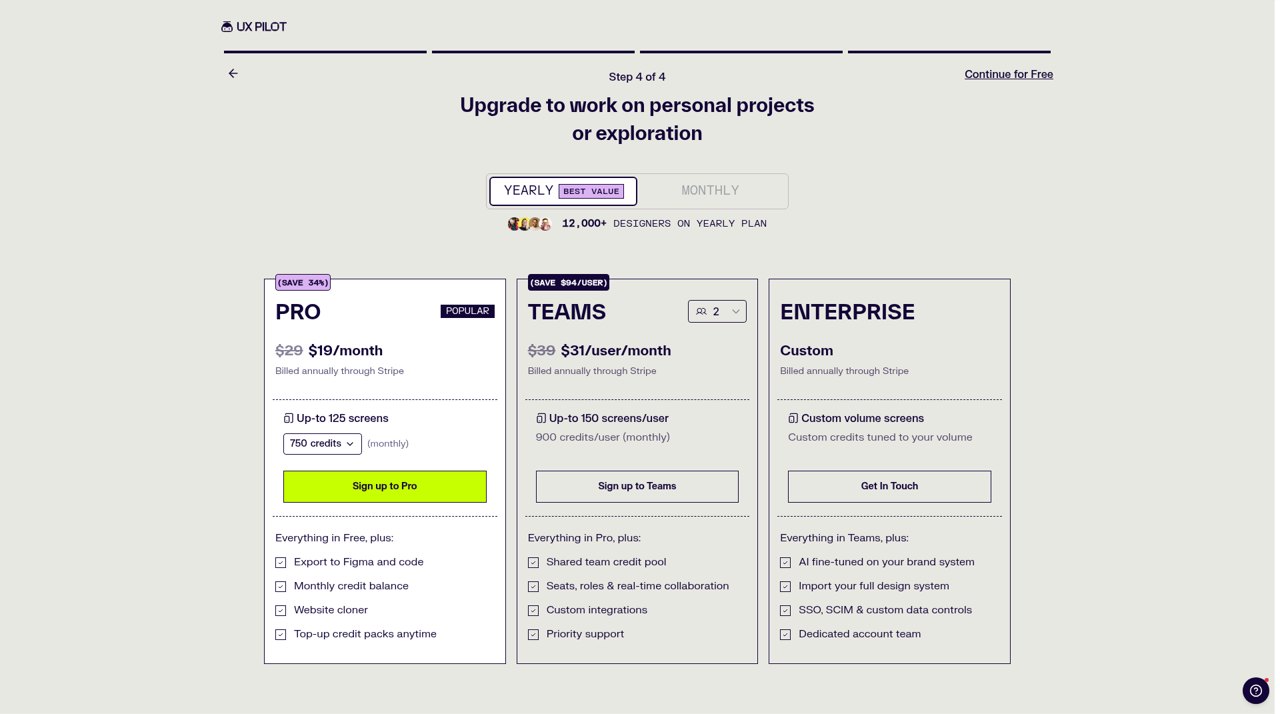
| Pro | $29 a month, or $19 a month billed yearly | 750 credits a month (the default on the plans page, which shows a credits dropdown), up to 125 screens | Export to Figma and code, website cloner, unlimited projects, credit top-ups |
| Teams | $39 per user a month, or $31 billed yearly (2 to 15 seats) | 900 credits per user a month, up to 150 screens per user | Shared credit pool, seats and roles, real-time collaboration, priority support |
| Enterprise | Custom | Custom | Fine-tuning on your brand, full design system import, API, SSO and SCIM, audit logs |
The plans page in November 2026 shows the free plan as up to 13 screens a day with 80 daily credits that do not roll over.
Three things to know before you pay:
- Older prices still circulate. Many reviews and listings, including G2 and Capterra, still show the previous Standard and Pro tiers (420 and 1,200 credits). Use uxpilot.ai for current numbers.
- Iteration is what costs you. Reviewers on Trustpilot, G2 and Hacker News say credits drain quickly when a model needs several tries. In hands-on use, one small edit to a generated screen took the free balance from 80 to 71 credits.
- Read the terms on credits and refunds. UX Pilot’s terms (last updated February 12, 2026) say plan credits roll over while you are subscribed and that credits you buy never expire, while the plans page says free credits are daily with no rollover. They also say plan credits become inaccessible if you cancel. Some reviewers describe refund disputes, so test on the free plan first.
The free plan is genuinely useful for a test drive: your first design is free and the 80 daily credits covered a three-screen design plus an edit in hands-on use, with credits to spare. Free designs are for personal, non-commercial use, so you need a paid plan for client or product work.
UX Pilot Figma plugin: how Nodey works
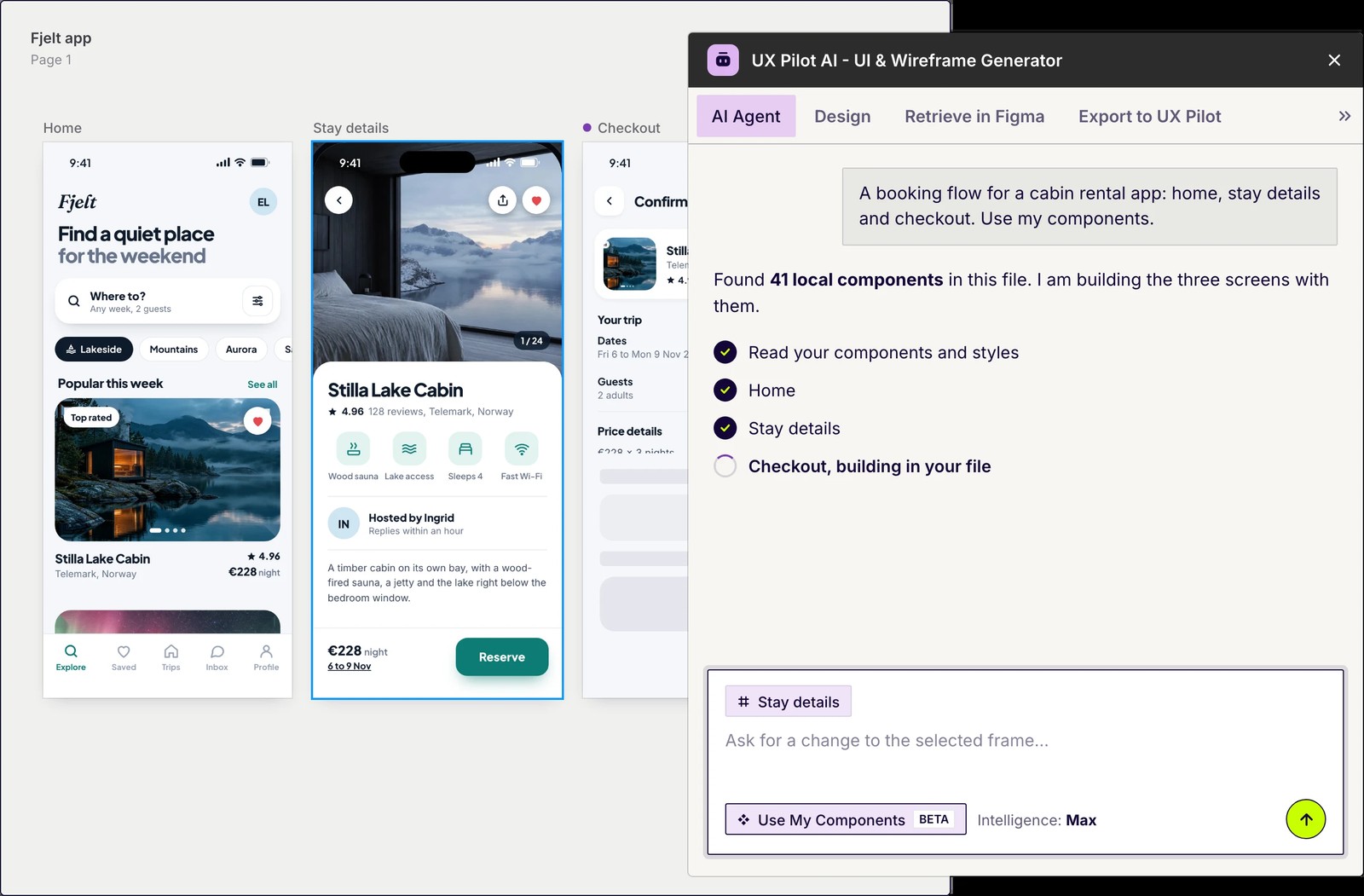
UX Pilot has two ways into Figma. The web app exports designs to Figma on paid plans. Nodey is the AI agent that runs inside Figma itself. It is free to install and uses the same UX Pilot account, so generations spend your UX Pilot credits.
- Install Nodey from the Figma Community and sign in with your UX Pilot account.
- Press Cmd+K on the canvas and type a brief, or paste a PRD or a screenshot.
- Run Simple Sync once. Nodey reads your components so later generations use them as real instances, not disconnected copies.
- Select a section, a component or a screen and ask for a change. Everything else stays put.
The output is native, editable Figma layers with auto layout and tokens intact, which is the main reason designers choose it over tools that export flat frames. The caveat from reviewers is that dense data tables and complex forms can come back with loosely grouped layers that need a few minutes of cleanup.
If you stay in Figma and want an agent there with design-system context, Anima’s Buddy, the design AI agent for Figma, is built for the same job. We compare it with other options in our Claude Design review and the Figma Make vs Anima Playground comparison.
UX Pilot MCP: design from Claude, Cursor or ChatGPT
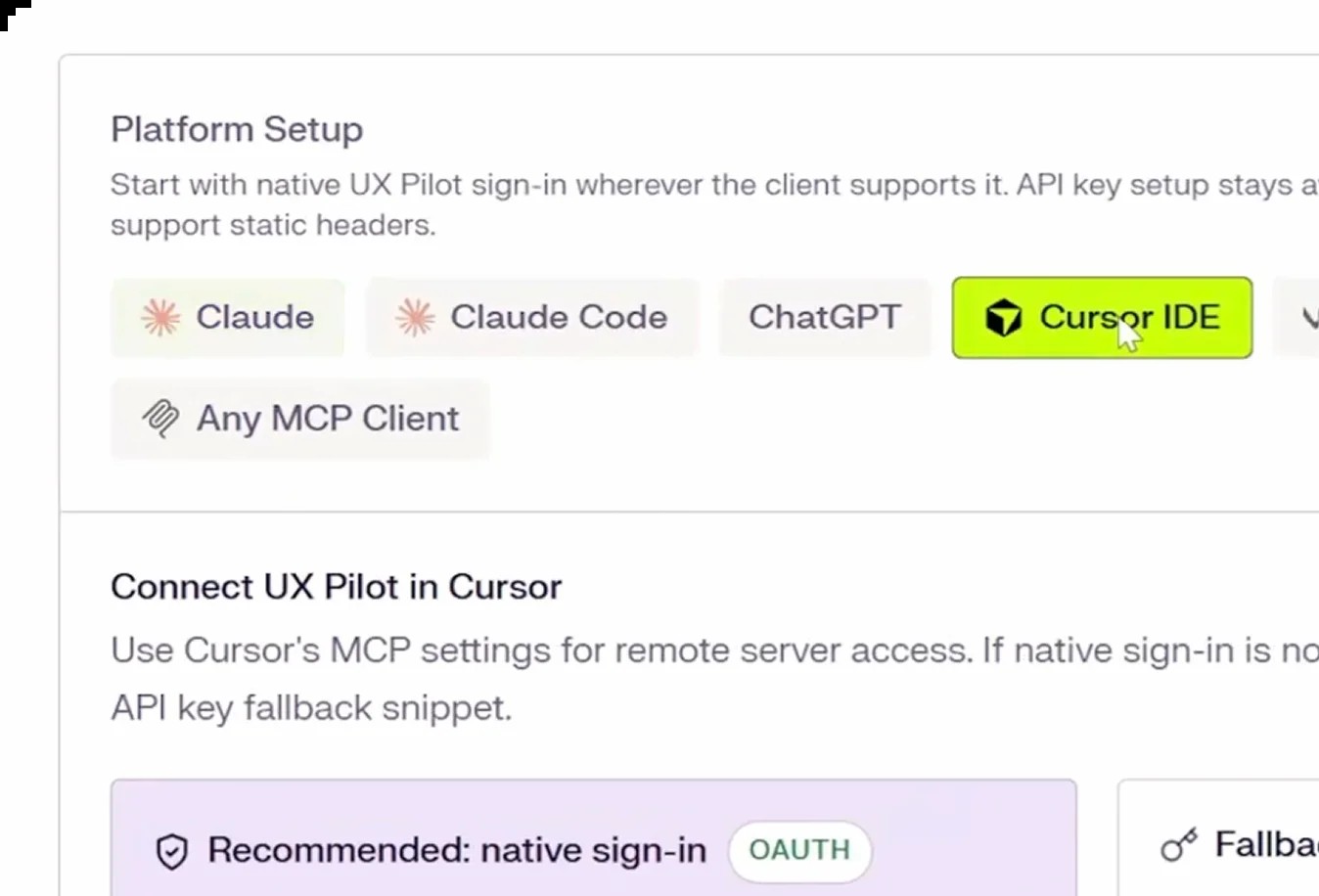
UX Pilot has an MCP server, so a coding agent can design without you opening a design tool. It works with Claude, Claude Code, ChatGPT, Cursor, Devin, VS Code with Copilot and any MCP client, and signs in with OAuth or an API key. UX Pilot lists more than 75 tools covering organizing work, importing HTML or a public URL as an editable design, review and versioning, and prototyping and publishing.
In Claude you add UX Pilot under Settings, then Connectors, sign in and ask Claude to design something. The idea is that work from the chat lands on a visual canvas where you can review it before it is built. One G2 reviewer building two native apps says their coding agent can pull designs straight from UX Pilot, though another reported a tool schema validation issue in VS Code that stopped chat until they disabled some tools.
UX Pilot hands-on: Prompting and editing with AI
To see how UX Pilot behaves in practice, this walkthrough follows one brief and one follow-up edit on the free plan. The screenshots show the whole path, from sign-up to an edited design.
Step 1: sign up and start a design
Sign-up takes a few onboarding steps. The last one, step 4 of 4, is an offer to upgrade to Pro, Teams or Enterprise, with a small Continue for Free link underneath. It is easy to miss, so look for it.
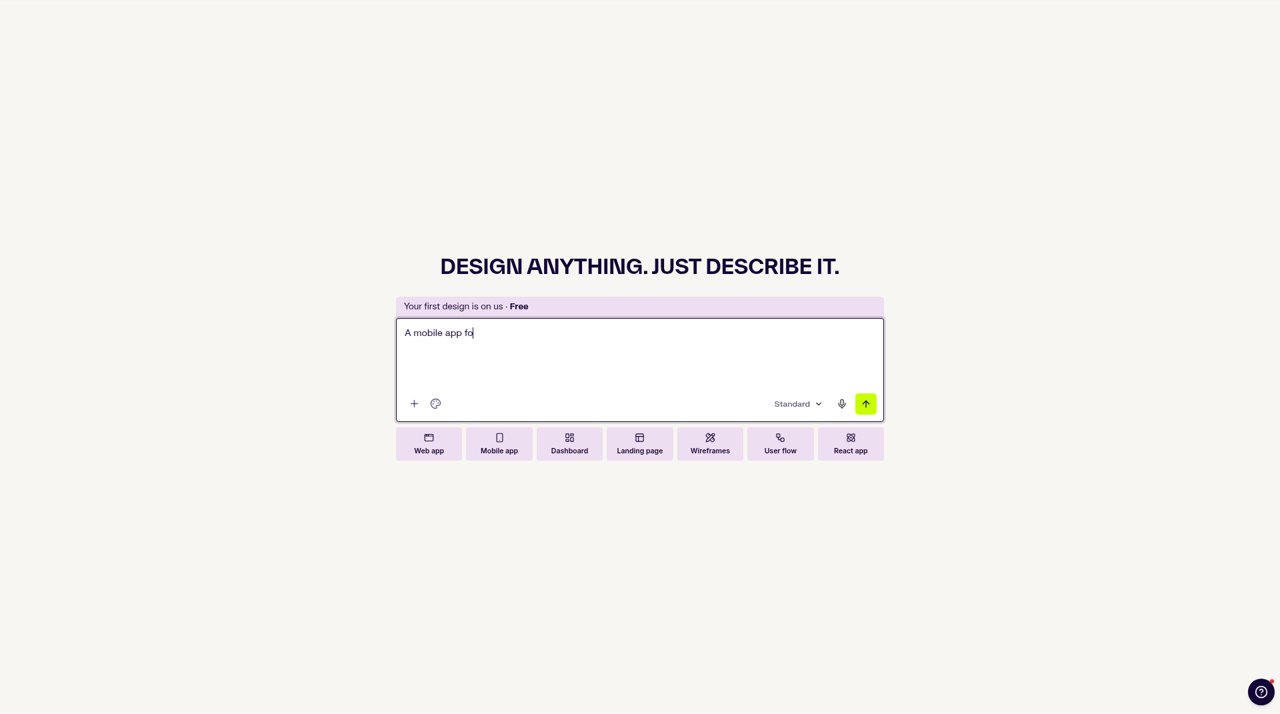
The new design screen is a single prompt box. Under it sit mode chips: Web app, Mobile app, Dashboard, Landing page, Wireframes, User flow and React app. Next to the prompt there is a model dropdown that reads Standard, and a banner says Your first design is on us.
Step 2: generate three mobile screens
Pick the Mobile app chip, leave the model on Standard and paste a brief. Here is the brief:
A mobile app for a neighborhood plant-swap community: home feed, plant detail page, and chat screen. Clean, friendly, green accent.
The prompt lands on the AI canvas: a chat panel on the left and an open canvas on the right. The credit counter at the top reads 80/80. The chat panel offers starter actions such as Plan your design, Add context, Clone a website, Connect the MCP and Upload PRD.
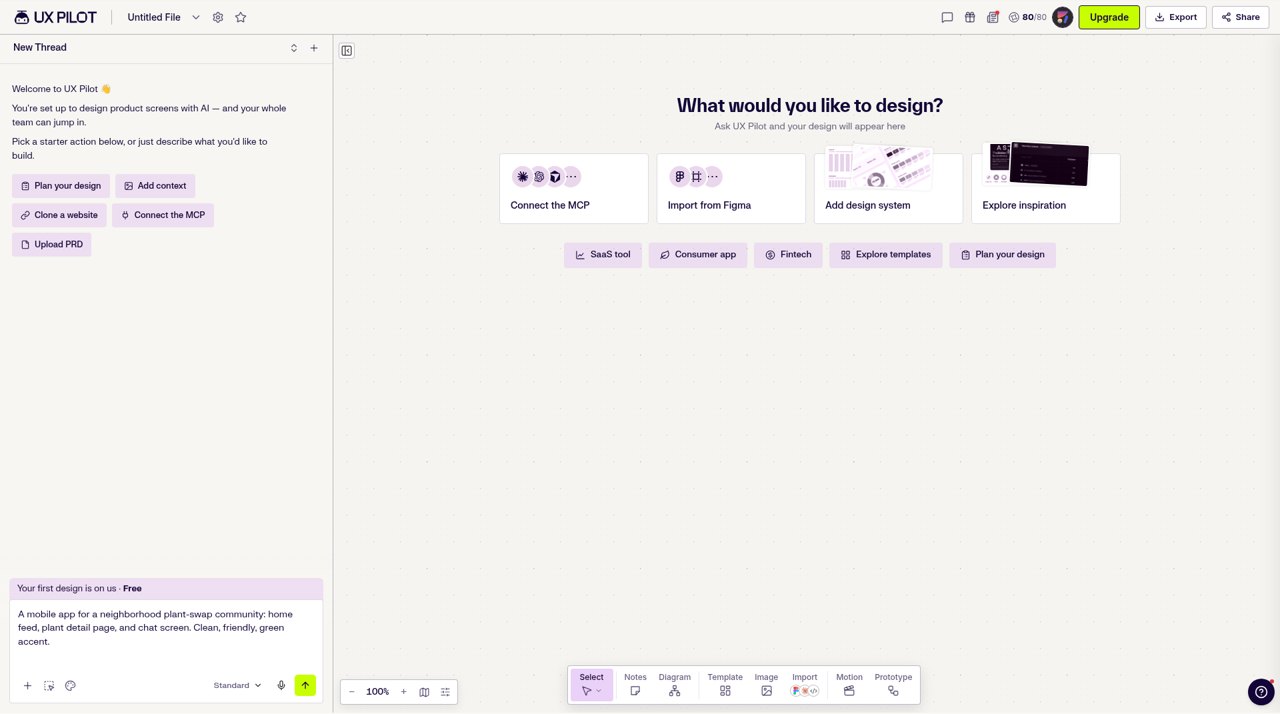
The Design Agent then writes a short to-do list in the chat, one item per screen, and builds the screens one by one. A status line shows what it is doing, and the interface offers a browser notification when the work is done.
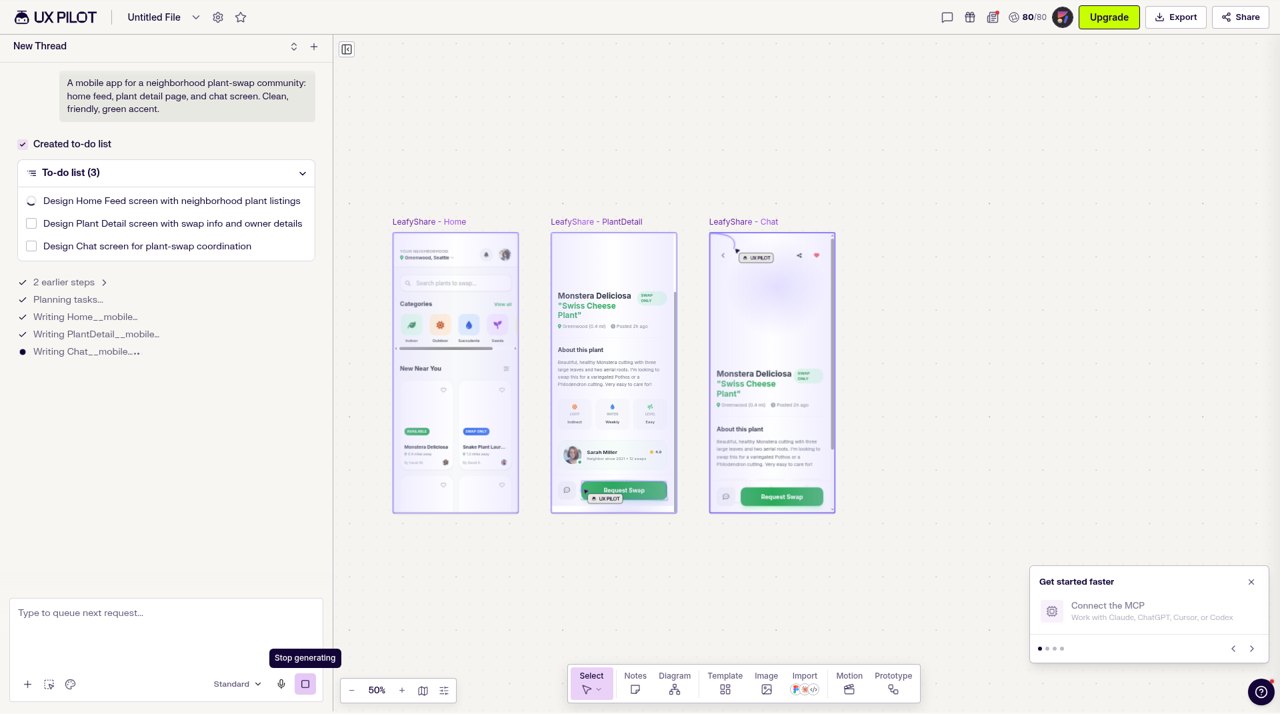
What comes out
The run finishes with three screens on the canvas, named LeafyShare – Home, LeafyShare – PlantDetail and LeafyShare – Chat. The credit counter still reads 80/80 after this first design, which matches the free first design banner. The agent summarizes its work in the chat, and the screens match that summary:
- Home: a location header, a search bar reading Search plants to swap…, a row of category icons, a New Near You section and a two-column grid of plant listing cards with photos, plus a bottom tab bar.
- Plant detail: a large hero photo of a Monstera, a title with a status tag, an About section, three care tags (light, water, difficulty), an owner card with a rating and a green Request Swap button.
- Chat: a conversation between two neighbors about a swap, a context card at the top for the plant being traded and a photo message in the thread.
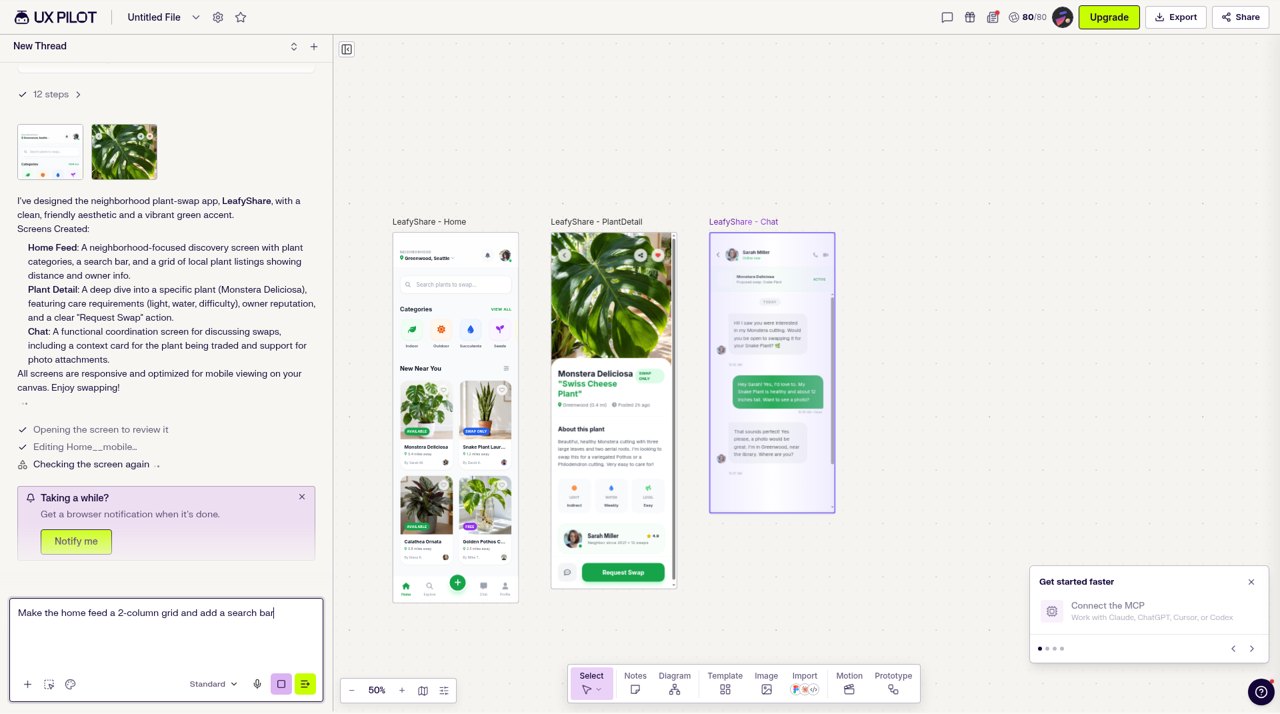
For a one-sentence brief this is a coherent first draft. The three screens share one green palette, one card style and one tab bar, and the copy is specific to a plant-swap community instead of lorem ipsum. Each screen named in the brief has the elements you would expect. Spacing and contrast are hard to judge at canvas zoom, so open the screens at full size before you decide.
Step 3: edit with a follow-up prompt
Edits go in the same chat. The follow-up prompt:
Make the home feed a 2-column grid and add a search bar
While the agent works, the Home screen on the canvas is replaced by a placeholder that reads Reading your prompt and gathering context…, while the other two screens stay visible. Only the screen being edited is regenerated. The chat box also accepts a queued request while the previous one is still running.
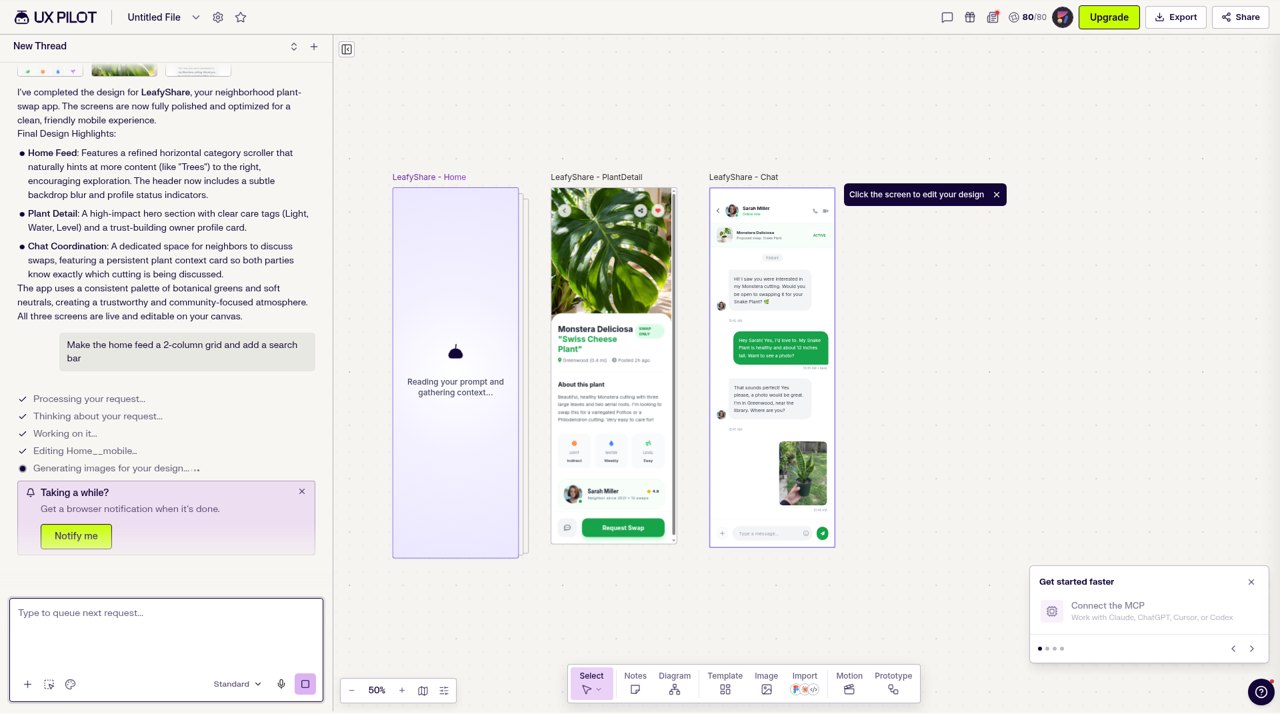
The edit finished in 33 seconds. UX Pilot reported a two-column grid with more listings and a sticky search bar, and a notification read Your design is ready: LeafyShare – Home. The credit counter dropped to 71/80, so one edit cost about 9 credits.
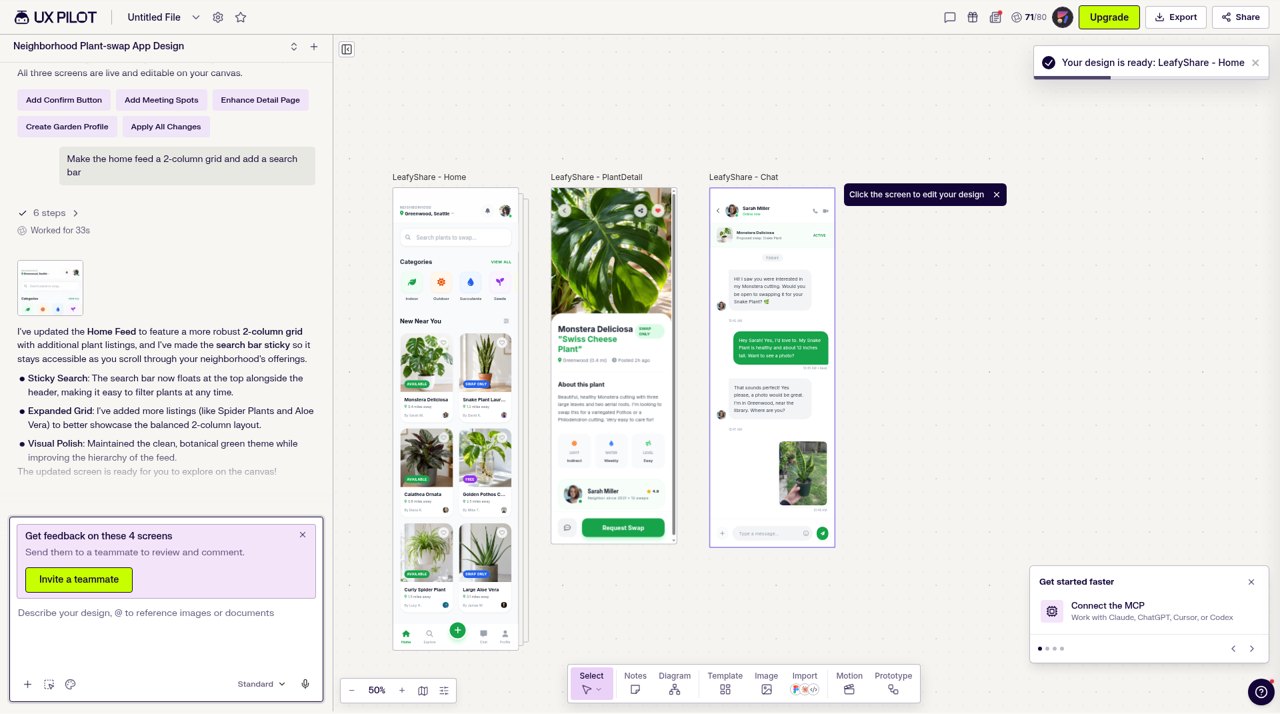
Two things to note. First, the first draft already had a two-column grid and a search bar, so the edit prompt asked for things that were mostly there. After the edit the Home screen shows six listings in view instead of four, and UX Pilot says the search bar is now sticky, which a still image cannot show. Second, the cost adds up: at about 9 credits for a small edit, the 80 daily credits on the free plan cover roughly eight edits of that size. That is one data point, and credit cost can vary with the request.
Step 4: hand off
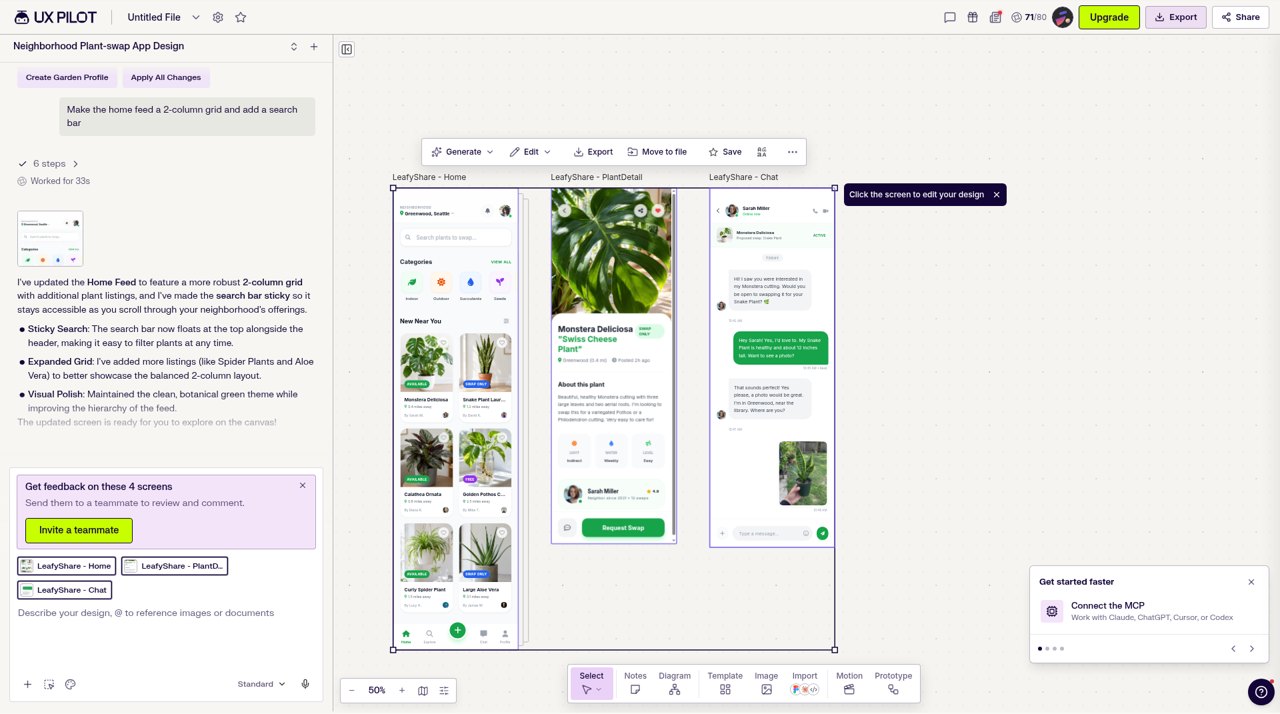
Selecting a screen on the canvas shows a small toolbar with Generate, Edit, Export, Move to file and Save, and the top bar has Export and Share buttons. UX Pilot’s plans page lists export to Figma and code under Pro, so plan on a paid plan if handoff is the point.
Takeaways
- Speed: one prompt produced three connected mobile screens, and a small edit took 33 seconds.
- Cost: the first design was free, and the edit cost about 9 of 80 daily credits.
- Friction: upgrade prompts appear during onboarding and elsewhere in the app. They are skippable.
- Next steps: the sections above cover Autoflow, wireframe mode, the Nodey plugin and the MCP server.
What users say about UX Pilot
UX Pilot holds 4.3 out of 5 on G2 from 132 reviews, with 63 percent giving five stars. The pattern in the written reviews is consistent:
- Praised: speed from requirements to a first layout, structured wireframes, multi-screen flows, and clean Figma export with auto layout intact.
- Criticized: limited fine editing in the browser, credits running out while iterating, a tendency toward standard SaaS grid patterns, loosely grouped layers after export, and style drift between generated versions.
- Trustpilot reviews follow the same split, with strong praise for output quality and recurring complaints about stability, lost work, and billing and refund disputes.
One G2 reviewer, a designer, says dense enterprise data tables and multi-step modals can come back with loosely grouped layers. A developer reviewer says UX Pilot gives them several directions to choose from and keeps new pages consistent with their existing style. Both are single reports, not defect rates.
UX Pilot pros and cons
| Pros | Cons |
|---|---|
| An AI canvas with a Design Agent that plans, builds and edits screens | Agent edits spend credits: about 9 for a small edit in hands-on use |
| Several design directions from one prompt | Credits drain fast when you iterate, and refunds are disputed in some reviews |
| Autoflow builds connected multi-screen flows | Style can drift across screens in long flows |
| Nodey generates native Figma layers and reuses your components | Web app export to Figma and code needs a paid plan |
| MCP server works with Claude, Cursor and ChatGPT | Fine control in the browser is limited, so most teams finish in Figma |
| Free plan with 80 credits a day and no card | Free designs are non-commercial only |
| Audits, heatmaps and a GitHub design PR review agent | Outputs are design-first. You do not get a working, deployable app |
UX Pilot vs Google Stitch vs Figma Make
These three tools overlap but start from different places. UX Pilot is the most design-system and Figma oriented, Stitch is free and tied into Google’s developer tools, and Figma Make builds interactive prototypes inside Figma.
| UX Pilot | Google Stitch | Figma Make | |
|---|---|---|---|
| Starts from | Prompt, PRD, screenshot, URL, Figma components | Prompt, image, URL, code, voice | Prompt, Figma design, repo |
| Price | Free (80 credits a day), Pro $19 to $29 a month | Free in Google Labs | Credits on Figma plans, free limited on Starter |
| Figma | Nodey agent in Figma, export on paid plans | Copy to Figma, flat frames reported | Native to Figma |
| Code | HTML, CSS, React, GitHub sync, MCP | HTML and CSS, MCP, AI Studio and Antigravity | Code editor and ZIP download |
| Best for | Product teams on Figma | Free exploration and Google-stack builders | Interactive prototypes in Figma |
Read the full breakdowns in our Google Stitch review and our guide to Figma Make. UX Pilot also publishes its own comparison pages. They are useful for features but are marketing pages, so weigh claims about “production-ready” output accordingly.
Best UX Pilot alternatives
Which alternative fits depends on whether you want a design file or a working product.
1. Anima Playground
Anima Playground is where you design directly in code with AI. You start from a prompt, a Figma design, an image or a website URL and get an editable HTML or React app you can preview, iterate on, share and publish. Choose it when the end goal is working software and you want to keep design in the loop as the code changes. It is not a Figma-file generator, so if your team needs native Figma layers, pair it with a Figma-based tool. The Anima Figma plugin and Buddy handle the Figma side.
2. Google Stitch
Free, quick for exploring directions, and linked to Google AI Studio and Antigravity. Weaker on design-system control and clean Figma structure. See the full review.
3. Figma Make
Best if you want interactive prototypes inside Figma with your designs as context. Read what Figma Make is and how it works.
4. Claude Design
Anthropic’s conversational design workspace, strongest when the next step is Claude Code. No native Figma export. See our Claude Design review.
5. Buddy by Anima
An AI design agent inside Figma that works with your design-system context. Choose it if you want to stay on the Figma canvas.
| Tool | Best for | Output | Pricing |
|---|---|---|---|
| UX Pilot | Product UI and flows with Figma handoff | Editable designs, Figma layers, HTML and React | Free, then $19 to $39 a month |
| Anima Playground | Working web apps from prompt, Figma, image or URL | Editable HTML and React you can publish | See Anima pricing |
| Google Stitch | Free exploration and Google-stack builders | Screens, code, AI Studio, Antigravity | Free in Google Labs |
| Figma Make | Interactive prototypes in Figma | Prototype app and ZIP code | Included credits on Figma plans |
| Claude Design | Chat-led visual concepts | Prototypes, slides, one-pagers | Claude paid plans |
Who should use UX Pilot?
- Product designers on Figma who want more directions faster and need output that respects their components.
- Product managers who want to turn a PRD into a flow they can review with stakeholders.
- Agencies that need concrete options in pre-sales.
- Developers with coding agents who want a visual step through MCP.
Look elsewhere if you need a deployable app, you want free unlimited iteration, or you need fine manual control inside the web app.
Final verdict: is UX Pilot worth it?
Yes, if you are a Figma-centered product team and you treat the output as a strong first draft. Start on the free plan, run one brief like the one above, and count credits and cleanup time before paying. The AI canvas, the Nodey plugin and the MCP server are the best reasons to choose it over a general chat tool. If you need working software rather than a design, an app builder such as Anima Playground is the better next step.
Design Directly in Code with AI
Design with AI: Describe a screen or turn Figma designs to code.
UX Pilot FAQ
What is UX Pilot?
UX Pilot is an AI product design tool that turns prompts, PRDs and screenshots into editable UI screens, wireframes and multi-screen flows on an AI canvas, with a Design Agent that plans, builds and edits them. Version 2.0, launched in July 2026, added its own Glide model, an MCP server and design system import.
Is UX Pilot free?
Yes, there is a free plan with 80 credits a day that do not roll over, up to 13 screens a day and one project, with no credit card required. Your first design is free, and in hands-on use one small edit cost about 9 credits. Export to Figma and code, the website cloner and commercial use of designs need a paid plan. Pro costs $19 a month billed yearly or $29 monthly.
How much does UX Pilot cost?
Pro is $19 a month billed yearly ($29 monthly) with 750 credits a month. Teams is $31 per user a month billed yearly ($39 monthly) with 900 credits per user and up to 150 screens per user. Enterprise is custom. Older listings still show previous tiers, so check uxpilot.ai.
Does UX Pilot have a Figma plugin?
Yes. Nodey is UX Pilot’s AI agent inside Figma. It is free to install, uses your UX Pilot credits, and generates native Figma layers that reuse your components after a one-click Simple Sync. The web app also exports to Figma on paid plans.
Does UX Pilot work with Claude, Cursor or ChatGPT?
Yes. UX Pilot has an MCP server that works with Claude, Claude Code, ChatGPT, Cursor, Devin, VS Code with Copilot and any MCP client, so an agent can generate, review and prototype designs through UX Pilot.
What are the best UX Pilot alternatives?
Anima Playground is a strong choice if you want working HTML or React from a prompt or Figma design. Google Stitch is free and good for exploration, Figma Make suits interactive prototypes in Figma, and Claude Design suits chat-led concepts.