 Figma
Figma API
API Web to code extension
 Adobe XD
 Discord
 Twitter
 GitHub


 Blog
Blog
How to Publish a Claude Design Website with Anima (2026)10 min read
Reading Time: 7 minutesYou can publish or hand off a Claude Design project in several ways. Claude Design can export ZIP, PDF, PPTX, and HTML files, and it can send projects to native connectors such as Vercel, Wix, Replit, Lovable, and others. If one of those destinations already fits your workflow, it may be all you need.
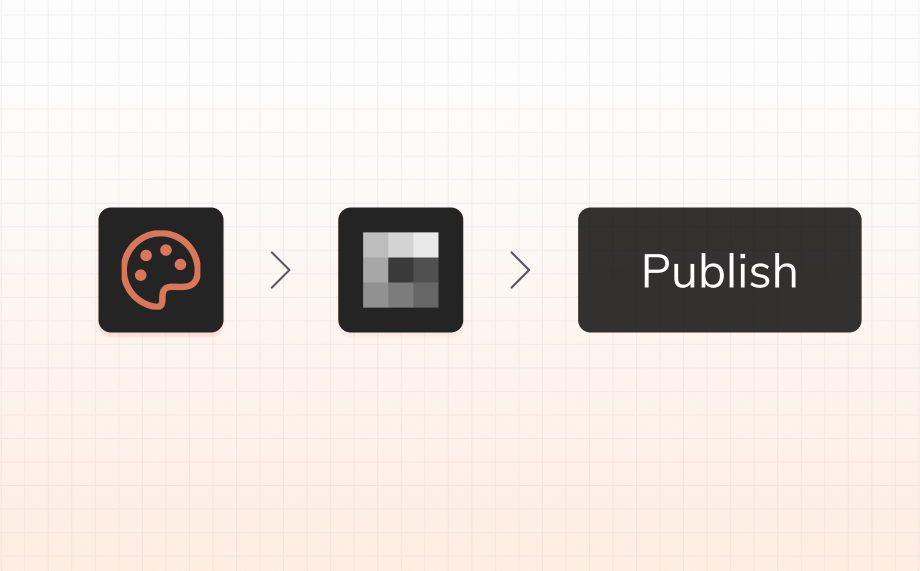
Use Anima when you want to turn the Claude Design result into an editable website, keep refining it visually through chat, add app functionality, publish on an Anima-hosted URL, or export the code for continued development. The practical flow is: open the Claude Design result in a new tab, capture it with the Anima Chrome extension, generate the site in Anima, refine it, and publish.
New to the tool? Start with what Claude Design is, or read our Claude Design review for its strengths, limitations, and alternatives.
How to publish a Claude Design website with Anima
Here is the complete workflow. You do not need to rebuild the design by hand or start a separate coding project.
- Finish the first version in Claude Design. Generate the page, review the copy and layout, and make the major visual decisions before moving it into Anima.
- Select Present, then New tab. In Claude Design, open the finished experience in presentation mode and choose New tab. This gives the Anima extension a clean browser view to capture.
- Open the Anima Chrome extension. With the presentation tab active, launch the extension and select the page or experience you want to bring into Anima.
- Select Generate now. Anima reads the page structure and visual details, then creates an editable project with a live preview and code.
- Refine the result through chat. Ask Anima to adjust layout, typography, responsive behavior, content, interactions, or page structure. You can also add forms, data, authentication, or other app functionality when the project requires more than a static page.
- Preview and test. Check desktop and mobile layouts, navigation, buttons, forms, images, and interactive states. Fix any capture or responsiveness issues before launch.
- Select Publish. Publish the project to an Anima-hosted URL. You can keep iterating in the same project and publish updates when they are ready.
This workflow is useful for landing pages, product concepts, campaign sites, demos, portfolios, and early web apps that begin as a Claude Design concept but need an editable path to launch.
Can Claude Design publish a website itself?
Yes, Claude Design can send work into publishing and development workflows. It can export ZIP, PDF, PPTX, and HTML, and it supports connectors that include Vercel, Wix, Replit, Lovable, and others. The right path depends on what you want to do after the first version is generated.
A native connector is often enough when you already use its destination, want a quick handoff, or prefer to continue inside that platform. An HTML or ZIP export can also be enough when a developer will take ownership immediately.
Anima is the better fit when the next step is continued visual editing, design-aware iteration, added functionality, code access, or an Anima-hosted publishing workflow. It is not a workaround for a missing Claude Design feature. It is a different continuation path for teams that want to keep designing and building after the initial handoff.
Claude Design native connectors vs Anima
| Need | Native connector or export | Anima workflow |
|---|---|---|
| Fast handoff to an existing platform | Best when Vercel, Wix, Replit, Lovable, or another available connector is already your destination | Best when you want to continue in Anima Playground |
| Editable visual iteration | Depends on the destination and file format | Refine the generated site through chat with a live preview |
| Website or app functionality | Depends on the connected platform and what it supports | Add interactions, forms, data, authentication, and multi-page behavior in the same project |
| Code access | HTML or ZIP export provides files for a development handoff | Inspect and edit code, then download it or continue through a code workflow |
| Hosting | Use the hosting model of the connected destination | Publish to an Anima-hosted URL and update it from the project |
| Best fit | A direct destination is already chosen and little visual iteration remains | The concept still needs visual refinement, functionality, publishing, or code handoff |
There is no need to force every Claude Design project through the same route. Use the native option when it gets you to the right destination with less work. Choose Anima when the project needs an editable bridge between design, working software, and launch.
What Anima adds after Claude Design
Claude Design is effective for getting from an idea to a polished concept. Anima focuses on what happens next.
- Editable continuation: Keep changing the layout, styles, content, and component structure instead of treating the first result as final.
- Design-aware chat: Request targeted changes in plain language while reviewing the result in a live preview.
- Responsive refinement: Check and improve how the site behaves across desktop and mobile layouts.
- Real functionality: Extend a visual concept with interactions, forms, data, user authentication, and product flows where needed.
- Code visibility and export: Inspect the generated code, edit it, or download it for a developer handoff.
- One-click publishing: Publish the project to an Anima-hosted URL, share it, and push later updates from the same workspace.
The key difference is continuity. The Claude Design concept does not have to become a static file or a one-time handoff. It can remain an editable project while the team moves toward a working website.
The exact Claude Design to Anima workflow
1. Prepare the Claude Design result
Resolve the large decisions first: page purpose, information hierarchy, primary call to action, brand direction, and core content. Small styling changes can happen in Anima, but a clear starting point produces a cleaner first generation.
2. Open Present in a new tab
Choose Present in Claude Design, then select New tab. Use this presentation tab for capture rather than the editing interface. Confirm that the complete page is visible and that any important menus, images, or states have loaded.
3. Capture with the Anima Chrome extension
Open the Anima Chrome extension while the presentation tab is active. Follow the extension prompt to capture the page, then choose Generate now. Keep the source tab open until the capture has completed.
4. Review the generated project
Compare the Anima preview with the Claude Design source. Check typography, spacing, image cropping, section order, navigation, and responsive behavior. Focus on visible differences before adding new features.
5. Refine through chat
Give Anima specific instructions with a clear scope. For example: “On mobile, stack the pricing cards in one column and keep the primary button full width,” or “Add a working contact form below the testimonials and show a success state after submission.” Specific prompts are easier to review than a broad request to “make it better.”
6. Add functionality only where it helps
A marketing page may only need navigation and a form. A product prototype may need sign-in, stored data, protected routes, or multi-step flows. Add what the launch requires, then test each path before publishing.
7. Publish and continue iterating
Select Publish to create the live Anima URL. Open that URL in a separate browser tab, test the published version, and share it with reviewers. When you make changes later, publish the update from the same project.
Troubleshooting the Claude Design to Anima workflow
The Anima extension cannot capture the page
Confirm that the Claude Design result is open through Present and New tab, not only inside the editor. Reload the presentation tab, wait for it to finish rendering, then reopen the extension. Also check that the extension has permission to access the active tab.
Part of the design is missing
Scroll through the complete page before capture so lazy-loaded images and sections can render. Open menus or states only if they should appear in the captured version. If the experience has several routes, generate the main page first and add or capture the remaining pages separately.
The generated layout does not match exactly
Start with the largest visible differences. Name the section, breakpoint, and desired result in your prompt. For example: “In the hero section on desktop, align the copy to the left and keep the product image to the right at 50 percent width.” Then review the change before moving to the next issue.
The mobile version needs work
Test at narrow widths and prompt for breakpoint-specific changes. Check text wrapping, card stacking, button width, horizontal overflow, navigation behavior, and image crops. Do not assume that a desktop-perfect capture is ready for mobile.
Buttons or forms do not work
A captured design can preserve the appearance of a control without defining its final behavior. Tell Anima what should happen on click or submission, including destination URLs, validation, success states, and stored data. Test the full interaction after generation.
The published page looks different from the preview
Make sure the latest changes were published, then open the live URL in a private window to rule out cached files or an authenticated session. Check external fonts, images, and links. If an asset requires private access, replace it with a publicly available project asset before republishing.
Which publishing path should you choose?
Use a Claude Design connector when it already points to your preferred platform and the remaining work belongs there.
Use an HTML or ZIP export when a developer wants the files and will continue in a local codebase.
Use Anima when designers, founders, marketers, or product teams want to keep refining the site visually, add working behavior, publish without setting up a separate deployment, and retain access to the code.
The first generated screen is rarely the final product. Choose the route that supports the work still ahead, not only the fastest initial handoff.
FAQ
How do I publish a Claude Design website with Anima?
In Claude Design, choose Present, then New tab. Open the Anima Chrome extension on that tab and select Generate now. Review and refine the generated site in Anima, then select Publish to create a live Anima-hosted URL.
Can Claude Design publish a website itself?
Claude Design can export ZIP, PDF, PPTX, and HTML, and it can send projects to connectors including Vercel, Wix, Replit, Lovable, and others. Whether that counts as the complete publishing workflow depends on the destination and how much editing, functionality, or development remains.
When should I use a native Claude Design connector instead of Anima?
Use a native connector when you already work in its destination platform and want to continue there. It is usually the most direct route when the design is ready and the connected platform provides the editing, development, and hosting workflow you need.
Why use Anima after Claude Design?
Anima gives you an editable, design-aware continuation of the Claude Design concept. You can refine the UI through chat, improve responsiveness, add app functionality, inspect or export code, and publish to an Anima-hosted URL.
Do I need to export HTML from Claude Design before using Anima?
No. In this workflow, open the result through Present and New tab, then use the Anima Chrome extension to capture it and select Generate now.
Can I edit the site after publishing?
Yes. Continue editing the Anima project, test the changes in preview, and publish the updated version when it is ready.
Can Anima add functionality to a Claude Design concept?
Yes. Depending on the project, you can add interactions, forms, multi-page flows, data, and authentication. Define the expected behavior clearly and test it before launch.
Can I export the code from Anima?
Yes. Anima supports code inspection and export, so a development team can continue with the generated project outside the hosted workflow when needed.
Is this workflow only for landing pages?
No. It works well for landing pages, portfolios, campaign sites, product demos, prototypes, internal tools, and early web apps. The more complex the application, the more important it is to test functionality, accessibility, security, and responsive behavior before treating it as production-ready.