
 Figma
Figma API
API Web to code extension
 Adobe XD
 Discord
 Twitter
 GitHub


 Blog
Blog
Dots: OpenAI Dots hands-on walkthrough10 min read
Reading Time: 7 minutesIntro
OpenAI introduced Dots on September 29, 2026. Unlike a regular ChatGPT conversation that waits for the next prompt, an OpenAI Dot is an always-on agent that can keep working toward a goal between conversations.
Dots are similar to Grok Bot, Meta’s Muse AI, and Hermes in one important way: they belong to the new category of persistent agents. These products are not identical, but they share a basic pattern. The agent keeps context, can work while you are offline, browses the web from a computer environment, and comes back with progress, questions, or completed work.
Each Dot has its own cloud computer and browser. You can watch it work, take control when needed, and sign in to services such as Google Analytics, Meta Ads, your CMS, or other tools you want it to use. That makes a Dot more like a digital teammate than a single chat thread.
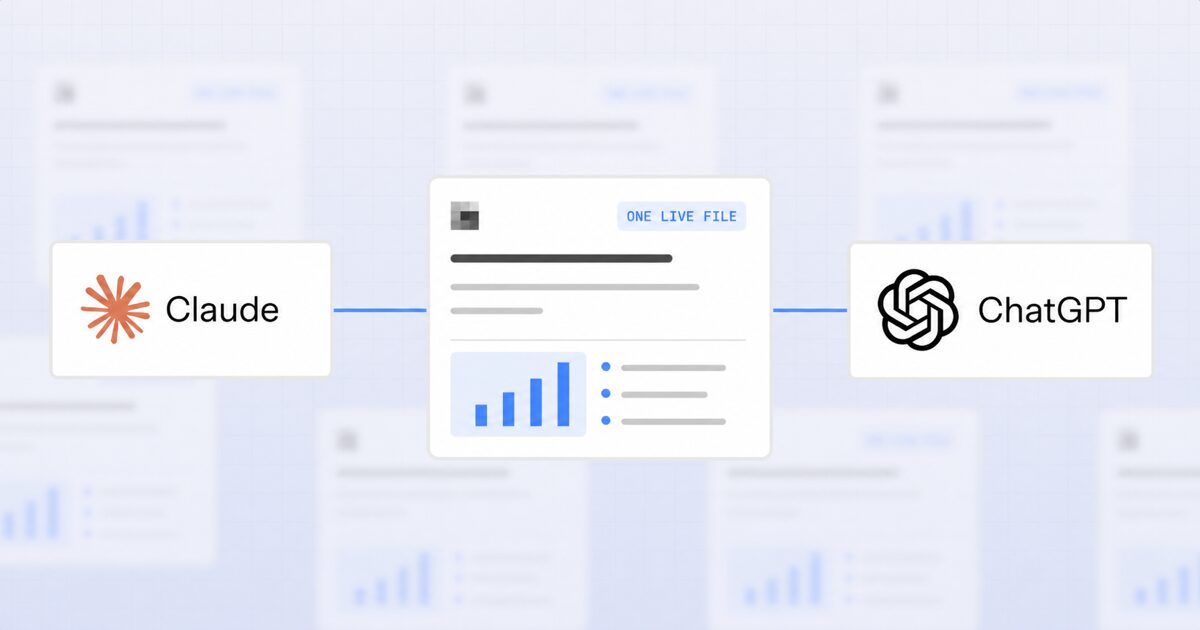
For shared documents, reports, websites, and small apps, connect your Dot or ChatGPT to AgentGrid.io’s GPT app. It gives your team and its agents one live artifact instead of separate copies scattered across chats.
Getting started with Dots
Visit chatgpt.com/dots from a desktop browser, or open Dots in the ChatGPT desktop app. OpenAI is rolling access out gradually, so the setup option may not appear immediately even if your plan is eligible.
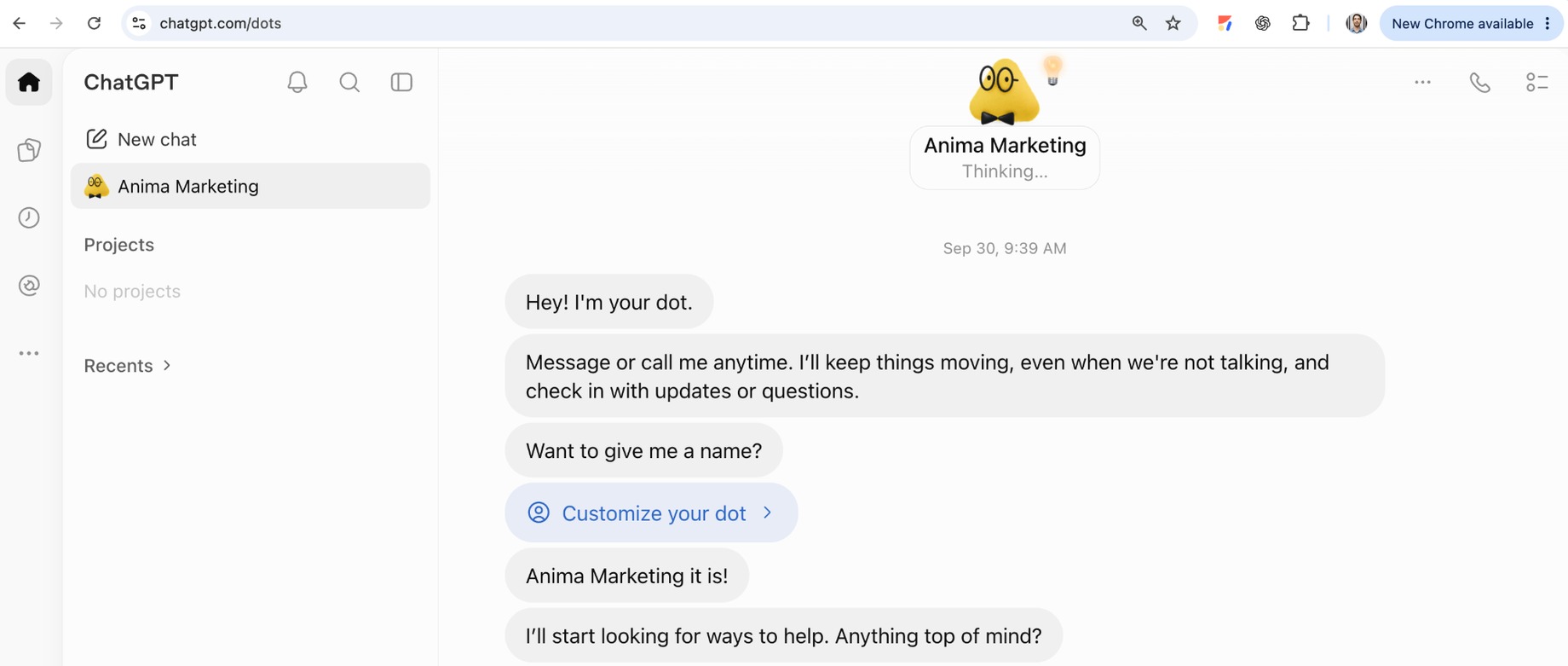
During setup, give your Dot a name and a clear responsibility. A useful first brief should explain:
- What it owns: the recurring goal or area of work.
- Where it should learn: your website, product documentation, brand guide, project notes, and other approved sources.
- What good looks like: examples, preferred formats, tone, priorities, and quality standards.
- When it should ask: decisions that require approval, especially publishing, sending, deleting, purchasing, or changing account data.
- How often it should report: immediately, daily, weekly, or only when something important changes.
Start by asking the Dot to read your company’s website and documentation, summarize what it learned, and list anything that is unclear. Correct the summary before assigning larger tasks. Those corrections help the Dot learn your preferences and reduce repeated explanations later.
Dots have their own desktop
A Dot does not only produce text in a chat. It has a protected cloud computer with Linux, Chrome, files, and tools. It can browse websites, collect information, create files, and complete multi-step work without using your laptop.
To inspect it, open your Dot’s profile from the top-right area of the conversation and select its computer. You can see the browser and desktop it is using. If the Dot reaches a login page or needs human judgment, select Take over, complete the step, and then select Return control.
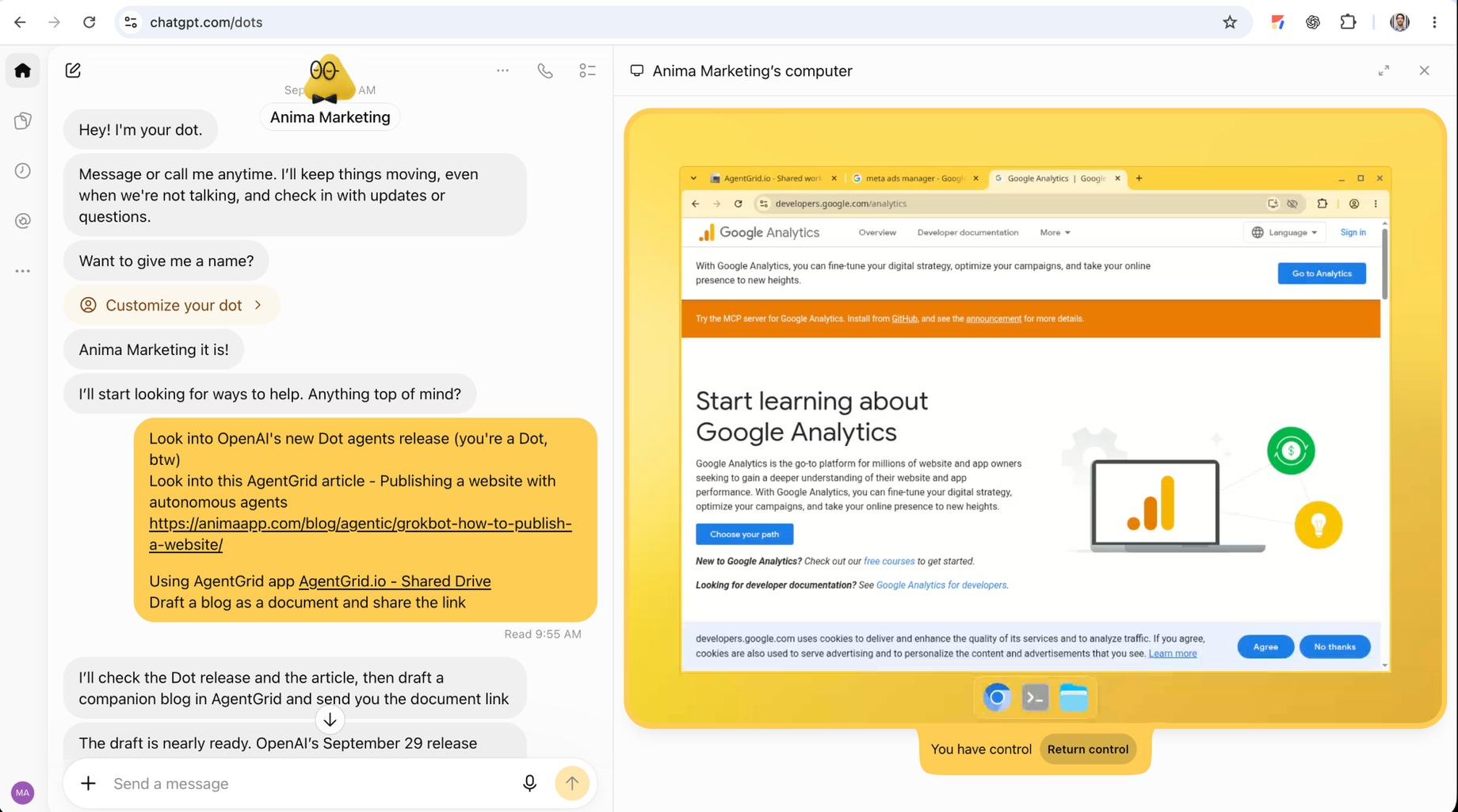
This is useful when you want the Dot to work with browser-based services such as Google Analytics, Meta Ads, dashboards, research tools, or internal systems. Where supported, secure sign-in and saved-password flows keep passwords outside the model’s conversation context.
However, computer access also means a Dot can take actions, not only suggest them. An agent can misunderstand a request, use the wrong account, edit the wrong file, or do more than you expected. Treat its access like access you would give a teammate:
- Connect only the accounts needed for the task.
- Start with read-only access where possible.
- Use Custom Rules to require approval before publishing, sending, purchasing, deleting, or changing important data.
- Review the activity and outputs before relying on consequential work.
- Use Pause to stop the main task. Review Activity for delegated work and Scheduled for recurring tasks that may need to be stopped separately.
OpenAI’s Dots safety guidance explains that proactive background research uses read-only tools. Follow-up actions still go through permissions, Custom Rules, approvals, and automated action review. Some sensitive actions, such as changing a password, must stay with you.
Collaborating on documents with your Dot
A chat is useful for giving instructions, but it is not a good shared workspace for a document that several people and agents need to edit over time.
Inside OpenAI’s ecosystem, ChatGPT Space and Pages let people collaborate with ChatGPT and Dots on shared work. AgentGrid.io gives agent work a shared, versioned home when the same document also needs to move across ChatGPT, Grok Bot, Hermes, Claude, Codex, and other agents without creating a new copy for each system.
Dots use ChatGPT’s plugin ecosystem, so you can install the AgentGrid.io GPT app. Once authorized, your Dot can create or update an AgentGrid.io artifact and return its link.
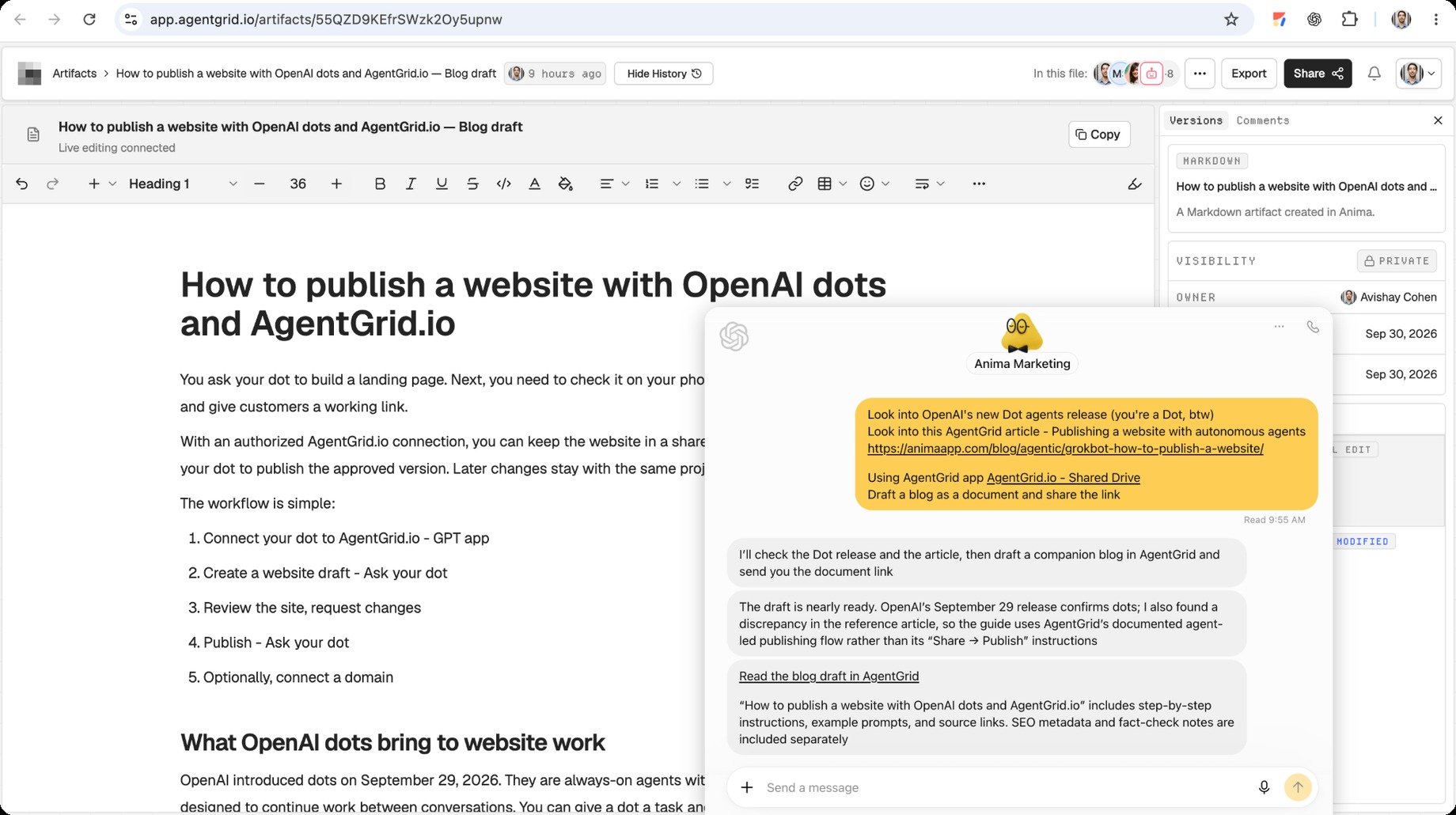
An artifact can be a marketing article, market-research report, recurring analysis, website, presentation, or small app. Your Dot, regular ChatGPT conversations, other agents, and human teammates can work on the same artifact instead of creating disconnected copies.
That gives the work:
- One live URL: everyone opens the current version.
- Version history: each change is visible and an earlier version can be restored.
- Agent and human attribution: you can see who changed what.
- Controlled access: invite the people and agents that should read or edit.
- Continuity: another agent can continue the same work without copying the whole conversation.
After installing the AgentGrid.io app, try a direct request:
What can OpenAI Dots do while you are offline?
Because the main computer runs in the cloud, a Dot can continue approved work after you close ChatGPT or go offline. It can also run scheduled checks and bring updates back into the conversation.
Good background tasks are ongoing, bounded, and easy to review. For example:
- Monitor product news and prepare a daily summary with links.
- Review website or campaign data and flag unusual changes.
- Track a project and prepare a weekly status report.
- Turn new interview transcripts into draft articles and social posts.
- Collect market research and update the same report as new evidence appears.
- Maintain a document or small app while keeping changes ready for review.
Avoid giving a new Dot a broad instruction such as “run our marketing.” Give it one clear responsibility, known sources, an output format, and explicit limits. Expand its access only after it shows reliable work on smaller tasks.
Connect apps and set permissions
Dots use the apps and plugins connected through ChatGPT. Open your Dot’s profile and review its customization and plugin settings. Approve only the integration and team the Dot should reach.
Custom Rules let you decide how the Dot handles specific actions. Depending on the action, you can let it proceed, allow it only when pre-approved in your prompt, require it to ask first, or hand the step back to you.
A practical setup for marketing work could be:
- Read analytics and campaign data without asking.
- Draft reports and articles without asking.
- Ask before editing a shared final document.
- Ask before sending email or publishing content.
- Never change budgets, billing details, passwords, or account permissions.
Disconnecting an app stops future access through that connection, but it does not automatically erase information the Dot already learned. Review OpenAI’s current memory and reset controls before connecting sensitive sources.
How OpenAI Dots compare with Grok Bot, Muse AI, and Hermes
All four products can support ongoing work, but they fit different environments:
- OpenAI Dots fit people already working in ChatGPT, Codex, Slack, Teams, and ChatGPT Space. The main experience is one persistent agent with an OpenAI-managed cloud computer.
- Grok Bot focuses on hosted bots, cloud-computer routines, and several named agents with different responsibilities.
- Meta’s Muse AI has a more consumer-oriented personal-assistant experience for ongoing tasks and errands.
- Hermes is an open, configurable agent for people who want control over models, hosting, memory, skills, tools, and scheduled work.
Choose Dots when you want the most integrated OpenAI workflow. Choose a more configurable agent when model choice, self-hosting, or custom infrastructure matters. Use AgentGrid.io when people and several different agents need to continue the same document or app.
OpenAI Dots availability
At launch, OpenAI Dots are rolling out gradually to eligible ChatGPT Pro and Business Premium users. Enterprise, Edu, and Healthcare workspaces can try the beta when an administrator enables it. Pro availability excludes the European Economic Area, Switzerland, and the UK at launch.
You create the first Dot on desktop web or in the ChatGPT desktop app. After setup, mobile access may be available for messaging, but Dots cannot currently be created on mobile or mobile web. Availability, plan limits, and interface labels can change during the rollout, so check OpenAI’s current Dots setup guide if an option in this walkthrough looks different.