 Figma
Figma Adobe XD


 Blog
Blog

Figma를 HTML로 추출하는 법2 min read
Reading Time: 4 minutesFigma to HTML converter를 찾고 있나요? Anima를 사용하면 Figma 디자인, 단일 frame, component, landing page 또는 전체 flow를 몇 분 안에 responsive HTML 및 CSS로 변환할 수 있습니다. 수동 coding을 건너뛰고, Figma plugin 또는 Anima Playground에서 바로 깔끔하고 semantic하며 편집 가능한 코드를 얻을 수 있습니다.
Anima는 designers, developers, product teams가 디자인에서 코드로 더 빠르게 이동할 수 있도록 돕고, export된 HTML을 읽기 쉽고 responsive하며 developer handoff에 실용적인 형태로 유지합니다.
Figma to HTML converter: 선택할 때 봐야 할 것
좋은 Figma to HTML converter는 단순히 static code를 export하는 것 이상이어야 합니다. layout 구조를 유지하고, responsive behavior를 지원하며, assets를 포함하고, 읽기 쉬운 CSS를 생성하고, export 이후에도 developers가 계속 코드로 작업할 수 있어야 합니다.
- Responsive output: Auto Layout과 breakpoints가 실제 responsive behavior로 반영되어야 합니다.
- 깔끔한 HTML과 CSS: 코드는 읽기 쉽고 구조화되어 있으며 쉽게 편집할 수 있어야 합니다.
- Asset handling: images, icons, fonts가 프로젝트와 함께 export되어야 합니다.
- Live preview: 코드를 다운로드하기 전에 결과를 확인할 수 있어야 합니다.
- Developer handoff: export된 코드는 구현에 실용적이어야 하며, HTML로 다시 만든 visual screenshot에 그쳐서는 안 됩니다.
Figma를 HTML과 CSS로 변환하는 방법
Anima는 Figma 디자인을 HTML로 export하는 두 가지 간단한 방법을 제공합니다. 빠른 code snippets, responsive landing pages 또는 multi-screen flows가 필요한 경우 모두 사용할 수 있습니다.
1. Figma 디자인을 Anima Playground에 붙여넣고 HTML export하기
- Anima Playground로 이동합니다.
- Cmd/Ctrl + L로 원하는 Figma frame을 복사해 붙여넣습니다.
- 선호하는 framework 또는 styling options를 선택합니다.
- Playground에서 live HTML output을 preview합니다.
- 깔끔하고 편집 가능한 front-end code를 즉시 다운로드합니다.
적합한 용도: Responsive layouts, 빠른 prototypes, Figma plugin을 열지 않는 빠른 export, vibe coding.
2. 선택한 Figma frame을 HTML로 export하기
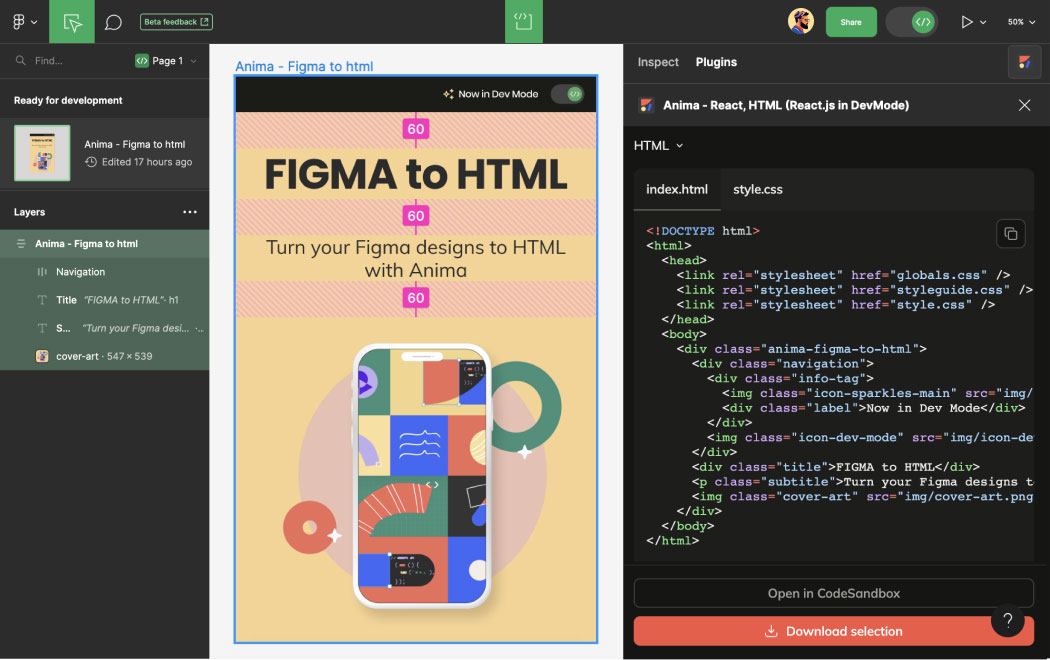
- Figma에서 Anima plugin을 엽니다. Edit Mode 또는 Dev Mode에서 사용할 수 있습니다.
- component, section 또는 frame을 선택합니다.
- 생성된 HTML/CSS 코드를 복사하거나 live preview로 확인합니다.
- 필요하다면 전체 code package를 다운로드합니다.
적합한 용도: Handoff 또는 export: multi-screen flows, single pages, buttons, icons, forms, cards, sections 같은 작은 UI components.
왜 Figma를 HTML로 변환해야 할까요?
Figma는 design과 prototyping에 훌륭하지만, 실제로 사용할 수 있는 HTML을 export하는 단계에서 많은 팀이 시간을 잃습니다. 수동 coding은 지연, 불일치, bugs를 만들 수 있습니다. Anima를 사용하면 design에서 semantic HTML과 깔끔한 CSS로 바로 이동할 수 있습니다.
- layouts를 수동으로 다시 만들지 않고 live HTML을 preview할 수 있습니다.
- Developers를 위한 responsive code를 생성할 수 있습니다.
- Stakeholders와 실제 code-based prototypes를 공유할 수 있습니다.
- 반복적인 layout 작업을 줄여 MVP delivery를 가속화할 수 있습니다.
- Developers가 static UI 재구축이 아니라 business logic에 집중할 수 있습니다.
- Figma 디자인을 실제 development workflows에 맞는 편집 가능한 HTML/CSS로 변환할 수 있습니다.
code package에는 무엇이 포함되나요?
Anima로 Figma 디자인을 HTML로 export하면, 다운로드한 package에는 코드에서 계속 작업하는 데 필요한 structure, styles, assets가 포함됩니다.
| 파일 | 설명 |
|---|---|
index.html |
구조화된 semantic HTML layout으로 디자인 출력 |
styles.css |
Responsive CSS, styling rules, layout behavior |
/assets |
Fonts, images, icons. Playground exports에는 hosted assets가 포함됩니다 |
/scripts |
Project settings에 따라 포함되는 선택적 JavaScript interactions |
AI로 HTML 커스터마이즈하기
Figma를 HTML로 변환한 후에도 Anima Playground의 AI로 결과를 계속 편집하고 다듬을 수 있습니다. layout, class, style을 하나씩 수동으로 바꾸는 대신, Anima에 코드 조정을 요청하고 결과를 live preview로 확인할 수 있습니다.
- Semantic HTML과 ARIA tags를 자동으로 추가합니다.
- Framework naming conventions에 맞게 코드를 정렬합니다.
- Logic-based snippets 또는 animation hooks를 생성합니다.
- Output을 Tailwind, Bootstrap 또는 vanilla CSS에 맞게 조정합니다.
- Anima에 코드 확장, 정리 또는 개선을 요청할 수 있습니다.
Figma에서 email 호환 HTML로
Gmail, Outlook 및 기타 email clients에서 작동하는 HTML이 필요한가요? Anima는 email용 inline CSS output을 지원하므로, Figma 디자인을 email 호환 HTML로 더 쉽게 변환할 수 있습니다.
- Export settings에서 “Email-compatible”을 선택합니다.
- Anima Playground 안에서 layouts를 preview합니다.
- 주요 email platforms와의 호환성을 높이기 위해 inline CSS를 생성합니다.
- Figma 디자인에서 email-ready HTML을 export합니다.
Figma에서 HTML로 수동 변환 vs Anima 사용
Figma를 HTML로 수동 변환할 수도 있지만, 보통 각 layout, asset, style, responsive behavior를 모두 직접 다시 만들어야 합니다. Anima는 이런 반복 작업의 상당 부분을 자동화하여 팀이 생성된 HTML/CSS에서 시작하고 필요한 부분을 다듬을 수 있게 합니다.
| Workflow | 수동 coding | Anima |
|---|---|---|
| Layout 재구성 | Developer가 각 화면을 처음부터 다시 만듭니다 | Figma 디자인에서 HTML/CSS를 생성합니다 |
| Responsive behavior | 수동 CSS와 media queries가 필요합니다 | Auto Layout과 breakpoints를 사용해 responsive output을 생성합니다 |
| Assets | 수동으로 export하고 정리해야 합니다 | Export된 code package에 포함됩니다 |
| 속도 | 복잡도에 따라 몇 시간 또는 며칠이 걸릴 수 있습니다 | 많은 designs는 몇 분 안에 처리할 수 있습니다 |
| 가장 적합한 use case | Custom production engineering 및 복잡한 app logic | 빠른 prototypes, landing pages, MVPs, websites, developer handoff |
Anima를 사용하는 장점
| Feature | 장점 |
|---|---|
| Responsive code | Auto Layout과 breakpoints를 responsive HTML 및 CSS로 변환합니다 |
| 깔끔한 output | Developers를 위한 읽기 쉽고 구조화된 HTML 및 CSS |
| 속도 | Figma design에서 동작하는 front-end code로 더 빠르게 이동합니다 |
| AI customization | Frameworks, accessibility requirements, styling preferences, product requirements에 맞게 코드를 조정합니다 |
| 유연한 workflow | Figma plugin에서 export하거나 Anima Playground에서 계속 편집할 수 있습니다 |
| Vibe coding | Anima Playground에 변경을 요청하고 각 update를 HTML code에 반영합니다 |
팀들이 Figma to HTML에 Anima를 사용하는 이유
Anima는 designers, developers, product teams가 Figma 디자인에서 코드로 더 빠르게 이동하기 위해 사용합니다. Figma plugin workflows, Anima Playground의 browser-based editing, responsive HTML/CSS export, downloadable code 또는 GitHub를 통한 developer handoff를 지원합니다.
Figma 디자인을 실제 front-end code로 변환하고 싶을 때, code-based live prototypes를 공유하고 싶을 때, 또는 developers에게 static design specs보다 더 깔끔한 starting point를 제공하고 싶을 때 Anima를 사용하세요.
Figma에서 HTML로 변환 시작하기