
 Figma
 API
 Web to code extension
 Adobe XD
 Discord
 Twitter
 GitHub


 Blog

How to Publish a Website with Claude Cowork: Files, Review, and Hosting10 min read
Reading Time: 7 minutesClaude Cowork can help make a website, but a completed Cowork task is not a public deployment. Start with a brief and an output folder, review the resulting site in a browser, then choose where it will live. Share a Claude artifact if your audience has Claude accounts and needs to comment on a prototype. Deploy the approved files with a web host if visitors need an ordinary public URL. A shared AgentGrid.io artifact is another route when several people and agents need one reviewable draft before publication.
This guide is for a marketer, founder, or designer who has copy and assets but wants a repeatable launch process. The decision is less about whether Claude can generate HTML and more about who can access the result, who owns the domain, and how changes reach the live site. Start a shared AgentGrid.io workspace if review and approval are the bottleneck, but keep the first draft private.
How to make a website with Claude Cowork and AgentGrid.io
Start with a private workspace, then let Cowork make the files.
Step 1: Set up the AgentGrid.io destination
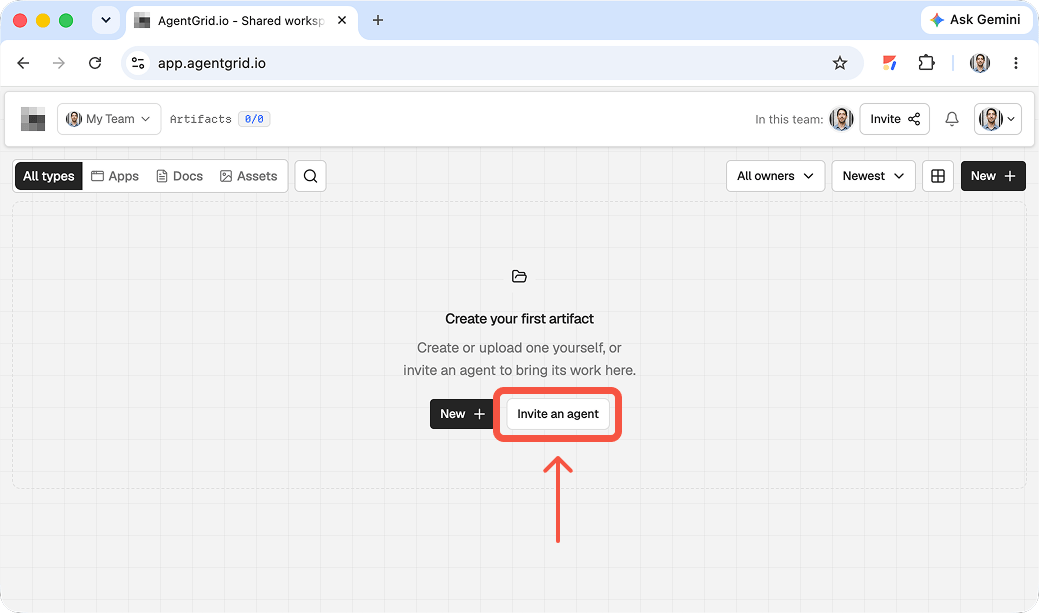
Sign in at app.agentgrid.io and select the team that should own the site. Choose a workspace your reviewers can access. Team membership alone does not open every workspace. Use an app artifact for the website and keep it private until reviewed.
Step 2: Give Cowork a scoped way in
Open Cowork in the Claude desktop app and give it a project folder containing the brief, copy, images you may use, and any existing site files. If shell commands are available in this session, tell it: Run npx @animaapp/cli@latest login to connect to AgentGrid.io. Return the verification URL and code; do not ask for my password or publish yet. Approve the verification yourself with the intended workspace and Read and Write, not Publish. Ask Cowork to run npx @animaapp/cli@latest workspaces and confirm the destination appears. If shell access is unavailable or blocked by your environment, do not claim Cowork is connected: let it produce the files and use the manual import in Step 3.
Step 3: Build and inspect the app artifact
Give Cowork a specific request: Build a responsive one-page site for our neighborhood repair clinic. Use the supplied logo and copy, add services, hours, and a contact section, and put the project files in the folder I provided. Do not deploy or publish it. Ask it to check mobile layout and missing assets. A connected Cowork can run npx @animaapp/cli@latest create -t import --from ./project --artifact-type app --workspace <workspace-id> for the finished folder, using its actual path and the ID from workspaces. Ask for the artifact URL. If it cannot connect, use AgentGrid.io’s New → Upload Folder or New → Import from ZIP and select app. Include index.html; omit secrets and dependencies. Importing creates a copy, not a live sync with Cowork’s local folder. Open the artifact and inspect its rendered page and files before calling it done.
Step 4: Review, publish, and verify the public page
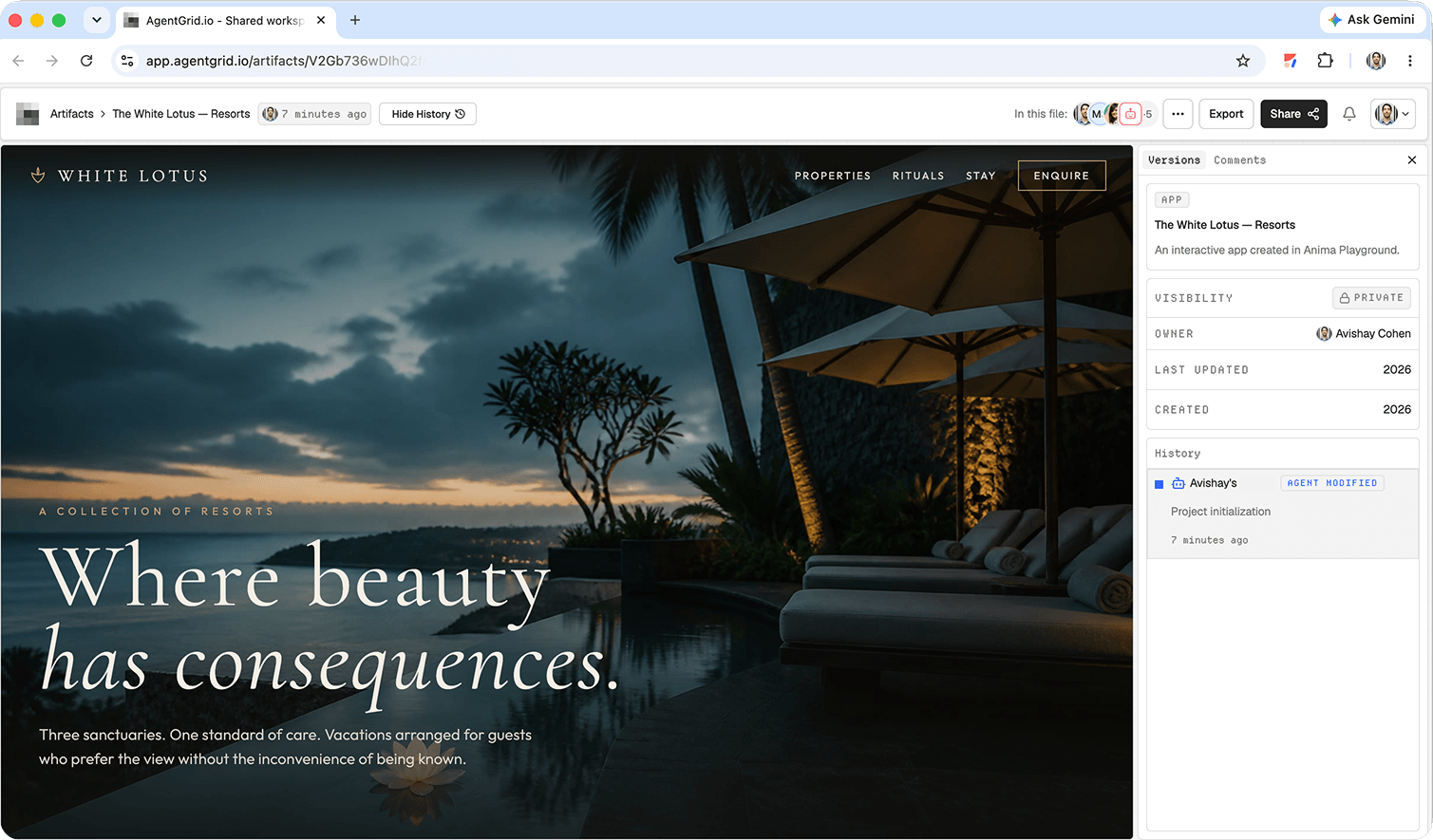
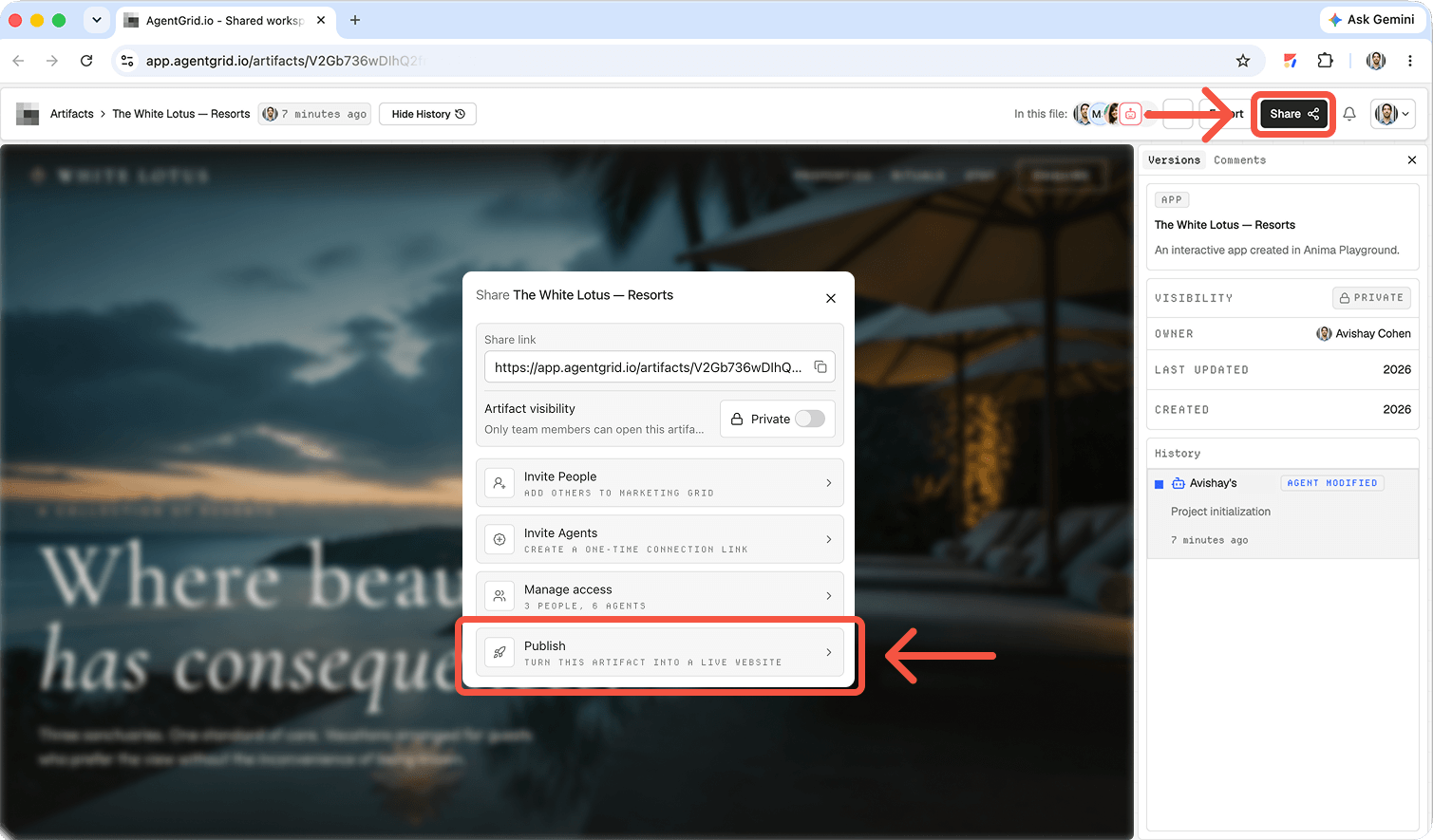
Ask connected Cowork to revise the existing artifact by URL; otherwise edit it yourself in AgentGrid.io. Check History and preview. When you explicitly decide the site is ready for everyone, use the artifact’s Publish control, confirm the public state, and open the returned URL in a signed-out browser. The private artifact URL is not the public website. Later edits remain unpublished until you publish the update; unpublish if the page should go offline. Share the private artifact URL only with reviewers who have workspace access.
Can Claude Cowork publish a website?
Cowork works on tasks and, on desktop, can work with local files. Claude’s Cowork guide explains the experience and its limits: sessions themselves cannot be shared, although individual artifacts can. A generated HTML file on your computer is not a hosted site. Likewise, current artifact sharing generally requires viewers to sign into Claude; a legacy artifact published from chat is a distinct exception. Pick the delivery route before promising a public website.
Step 1: Give Cowork a scoped website brief
Choose a folder for approved source material and a separate output folder. Give Claude only the files it needs: licensed photos, logo, approved wording, addresses, hours, and brand rules. Ask it to list unknown facts instead of improvising prices, testimonials, or a privacy policy. If a form is required, state whether it is a visual prototype or name the approved form provider and destination.
Example task: “Build a responsive, three-page website for Harbor Field, a ceramics studio. Use Home, Classes, and Visit pages. Work in a new harbor-field-site folder. Use only the approved logo and classes document. Add unique titles and descriptions, a keyboard-operable mobile menu, descriptive image alternatives, and working booking links from the brief. Leave missing prices clearly marked. Include instructions to preview and build the site. Do not share, deploy, or publish.”
A small static site with HTML, CSS, and JavaScript is easier to inspect and move when there is no login or backend. If Claude selects a framework, ask for the package manifest, build and start scripts, dependency lockfile, expected output directory, and a short README. Ask which links point outside the project. Paths that work only inside Claude’s temporary environment will break after transfer.
Step 2: Run the site and inspect the actual pages
Ask Cowork for the exact output path and preview instructions. Open each page in a browser rather than relying on a chat screenshot. For a static project, opening a local file may be enough for initial layout review, but use a local server when modules, routing, or fetch calls require HTTP. For a framework project, install dependencies and use its documented development command; then run its production build. If a command fails, fix the error before discussing hosting.
Check desktop and narrow screens. Test the menu with keyboard and touch, tab order and visible focus, links, images, headings, page titles, and calls to action. Check names and facts against the provided brief. A success message on a mock form does not mean inquiries reach the business. Submit a test through the real integration and confirm receipt, or label the form as a demo.
Correction task: “Keep the approved visual direction. On a narrow screen, make class cards single-column and keep the booking button visible. Replace the placeholder booking addresses with the URLs from the source document. Tell me which files changed and what I still need to test. Do not publish.” Request an updated preview and repeat the checklist on the changed version.
Step 3: Choose between a Claude artifact, a web host, and a shared workspace
- Claude artifact: Good for a prototype whose reviewers can sign into Claude. Open Share, set the intended audience and access level, and test the link in a reviewer account. Team or Enterprise settings can restrict external sharing. Do not describe this as an unrestricted customer-facing website.
- Conventional host: Best when you need an independent domain, production routing, analytics, or long-term site ownership. Put the approved project in source control or upload only the built output according to your host’s instructions. Set framework preset, build command, output folder, environment variables, and domain there. The host supplies the public address.
- AgentGrid.io: Useful when multiple reviewers and agents must work on a single website artifact before someone publishes it. A desktop Cowork agent may be able to connect through an approved command-capable route; do not assume a browser-only session can. Otherwise use a manual folder or ZIP import and inspect the resulting files and preview.
These are different delivery mechanisms, not interchangeable labels. A Cowork conversation, Claude artifact, imported project, and hosted website each have their own access controls and update path. Keep a named owner for source files and publication so fixes do not get stranded in one copy.
Step 4: Prepare a safe release
Remove private briefs, local paths, draft copy, API keys, and unused assets from the deployable project. Check image licenses and consent requirements for any tracking or form. Produce a clean build, inspect its output folder, and identify the exact commit or artifact version approved by the reviewer. If the host needs secrets, enter them in the host’s protected environment settings, never in browser code or a public ZIP.
For a standard host, create a preview deployment and let the owner approve it before switching the production domain. For AgentGrid.io, keep the artifact unpublished while teammates inspect the preview and history; then a person with the correct permission uses the Publish control on the reviewed artifact. A private share link is not itself a public release. Do not grant publication access to an agent that only needs to edit files.
Step 5: Verify the public site, not just the publish dialog
Open the final URL while signed out, including on a phone. Confirm the address loads over HTTPS, navigation and booking links resolve, images appear, metadata is correct, and a real form reaches the intended inbox. If you configured a custom domain, test that domain as well as the deployment URL. Compare the live page to the approved preview. If the two differ, pause the announcement and identify whether an older build, wrong branch, missing environment setting, or cached asset was deployed.
Record where edits should happen next time. A change to the Cowork folder will not automatically update a separately imported artifact or deployed site. Repeat the review, build, release, and logged-out check for every revision.
Make the next update deliberate
Record the approved version and public URL. New edits are drafts until reviewed and published again.
Frequently asked questions
Is a Cowork artifact the same as a website?
No. A current shared artifact is a Claude experience for authenticated viewers. If you need a public page under your own domain, deploy the site through a web host or a publishing workspace. Claude’s legacy chat artifact Publish flow has different access rules; check which type you have before sending the link.
Can Cowork work on my local website folder?
Desktop Cowork can work with local files when you give it the appropriate access. Review the folder boundary, inspect every changed file, and keep deployment credentials outside the project. A task’s ability to edit files does not imply it has hosting or domain access.
What if Claude only made a mockup?
Ask for source files, an entry point, and preview/build instructions. Test the result as a standalone project. If it uses fake data or a form without a backend, fix or clearly label those limitations before launch.
Should I connect Cowork to AgentGrid.io?
Only if shared artifacts, permissions, and review history solve a real team need. Confirm the particular Cowork environment supports the connection and approve the scope. Manual import is a viable alternative, but it creates another copy that must be updated deliberately.
For a comparison of the handoff, see our guide to how to share and publish Claude HTML artifacts. The publish a Claude Design website covers another starting point, while the Muse website publishing walkthrough shows a reviewed artifact moving to publication. These are different workflows, not interchangeable product features.