 Figma
 API
 Web to code extension
 Adobe XD
 Discord
 Twitter
 GitHub


 Blog

Codex: How to Publish a Website10 min read
Reading Time: 7 minutesCodex can build a website, but building and publishing are different steps. OpenAI’s Sites can host a compatible project through ChatGPT. Codex can also deploy with a cloud-host skill, or collaborate on an AgentGrid.io app artifact when a team needs one reviewable version. Choose the destination before asking the agent to “ship it,” so you know what it should change and who will approve the public result.
Bring your Codex website to AgentGrid.io
How to publish a website with Codex and AgentGrid.io
1. Connect Codex before handing off the project
Codex is a coding agent with a shell, not an ordinary ChatGPT conversation. Give Codex this instruction in its working environment: npx @animaapp/cli@latest login. It should return a verification link and short code; open the link yourself and approve the named identity, destination workspace, and only the capabilities needed for drafting. Do not paste passwords or tokens into the conversation. You can also invite it from Agent administration if you need to set the scope before it starts, but creating an invite alone does not connect it; Codex must redeem the one-time link.
2. Turn the working code into an AgentGrid.io app artifact
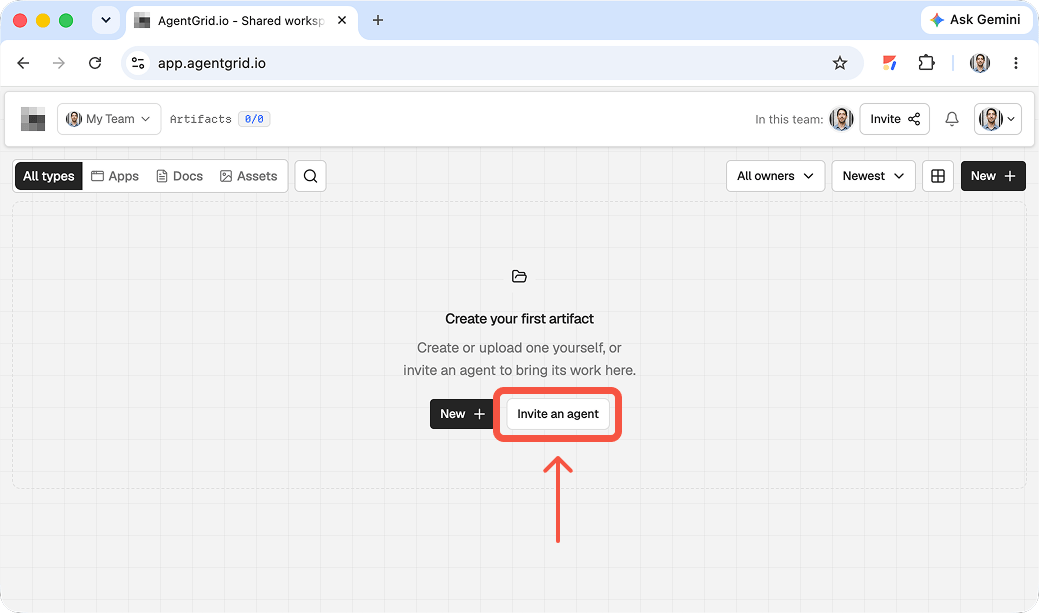
After Codex has built the local site, ask: “Put this project’s source and assets on AgentGrid.io as an app in the approved workspace, return the artifact URL, and do not publish it.” Have it exclude dependencies, build output, and secrets. If you prefer to transfer files yourself, AgentGrid.io can import a folder or ZIP as a new app artifact; that import is a copy, not a live sync with the local repository. Open the returned artifact to check that the entry point, images, navigation, and layout render correctly. Do not confuse a passing local build with a functioning shared preview.
3. Review the deployed-looking draft, then revise the same artifact
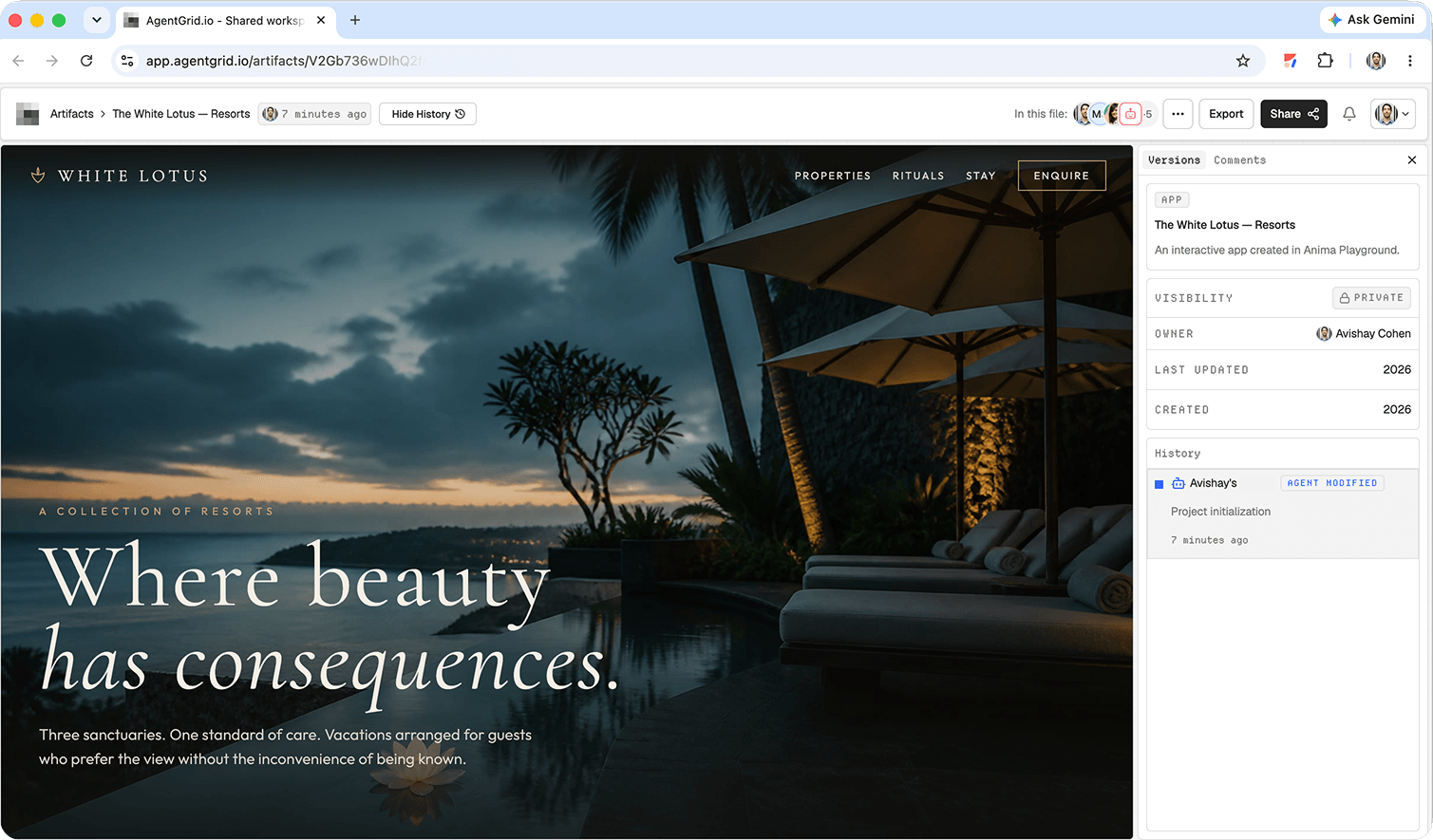
Invite the reviewers to its workspace and send them the private artifact URL. Ask them to comment on concrete elements in Review, such as a broken mobile menu or an inaccessible form label. Give Codex that exact artifact URL and a bounded list of fixes so it updates the existing artifact instead of importing another independent copy. Inspect History for the new version under Codex’s approved identity, then rerun relevant site checks and open the preview yourself. An artifact link is not a public launch and does not bypass workspace permissions.
4. Publish from AgentGrid.io when the team approves
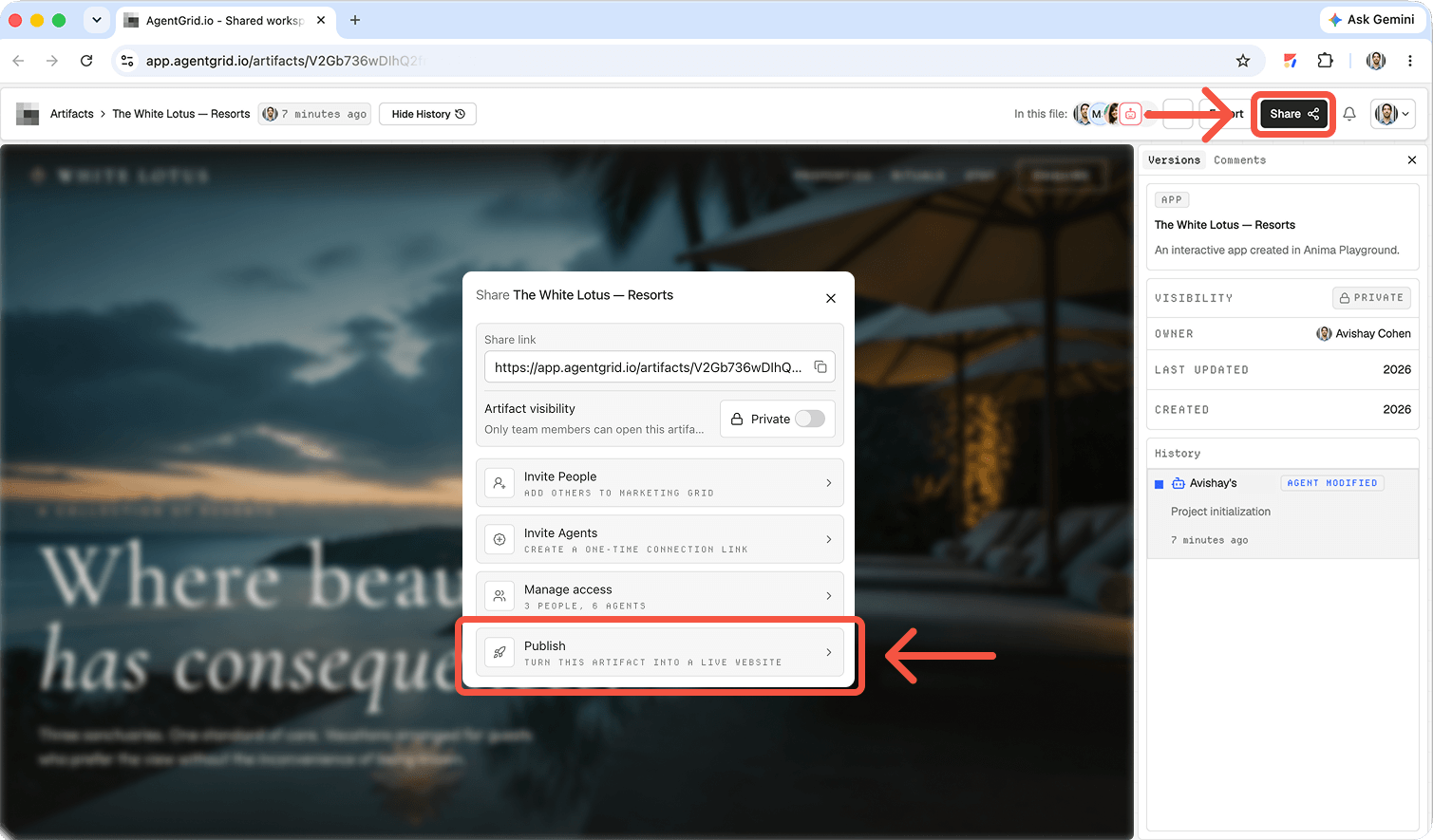
Use the artifact’s publish control to confirm the public deployment, or explicitly authorize a connected Codex with publish capability to do so. Do not infer that “share the draft” means “publish the site.” Open the returned public URL and test the key path on desktop and mobile. Later code changes create unpublished changes in the artifact; the public version changes only after another deliberate publish. If a regression appears, inspect History, restore or correct the draft, and publish the approved revision. You can unpublish the public copy while retaining the artifact.
How to publish a website with Codex
1. Write the brief in the right project
State the audience, required pages, voice, visual direction, and content sources. Identify the project directory. Supply real copy and brand assets. Do not let an agent invent prices, testimonials, business hours, or legal promises merely to fill the layout.
2. Test the actual experience
Open the running project, not just a diff or a chat summary. Check every route at desktop and mobile widths. Test navigation, links, image loading, labels, keyboard navigation, and forms. Ask Codex to fix defects and rerun checks. A passing build is not proof that a visitor can book a class or reach the right contact address.
3. Pick a hosting route
ChatGPT Sites: In ChatGPT Work on the web, or Work or Codex in the desktop app, ask Sites to prepare your compatible local project. Review it and save a version without deploying. When the version is approved, deploy it and check who can access it. The Codex CLI and IDE extension can edit and test local code, but do not provide a standalone Sites management view. Use ChatGPT on web or desktop to create, save, deploy, and manage the Site. Every Sites deployment URL is a production URL.
Existing cloud host: If your team already uses Vercel, Netlify, Cloudflare, or Render, Codex can use an appropriate deployment skill where available. Check the target account, project, environment, and credentials before allowing deployment. Review a preview if available, then check the production URL. A code push is not proof the site is live.
AgentGrid.io: If people and other agents need to iterate together, put the website in an app artifact. Codex is shell-capable, so it uses AgentGrid’s CLI connection route rather than the ordinary ChatGPT plug-in. Ask Codex to run npx @animaapp/cli@latest login. It should present a verification link and short code. Approve the agent identity, reachable workspace, and capabilities. Never paste a password or token into the chat. Ask it to create or update the right artifact and return its URL.
4. Approve the shared version, then publish
Open the AgentGrid artifact and inspect the rendered website. Give feedback against the same artifact so its version history stays meaningful. A workspace artifact is not automatically a public site. Restrict publish permission, then use AgentGrid’s publication flow only after approving the version. Open the resulting public URL as a visitor, including on mobile, and confirm the latest changes appear.
Codex deployment example: repository to preview URL
Suppose Codex has updated a three-page marketing site in your repository. Give it the deployment target and a limited outcome: “Run the project’s test and build commands, then deploy a preview to the approved Vercel project. Return the preview URL, build status, and any missing environment variables. Do not promote to production.” The official Codex deployment walkthrough uses the build-web-apps and Vercel plugins for this pattern and recommends preview deployment by default. Confirm those plugins are available to your account before using those exact handles.
Open the preview yourself. Look beyond a green build: try each route, inspect narrow-screen navigation, click the primary action, and check whether images and fonts loaded. If deployment fails, ask Codex for the host build logs and the exact failed command, not a guess about what happened. Resolve missing credentials or environment choices through the authorized host account. Only after the preview passes should you explicitly request a production deployment and verify the production URL.
What changes when you choose ChatGPT Sites?
Sites is managed hosting inside ChatGPT, whereas a Vercel deployment uses your cloud project. In ChatGPT web Work or the desktop app, ask Sites to build or prepare a compatible project, inspect the private preview, save the version, and deploy it when approved. OpenAI’s Sites instructions say new Sites are private by default; review the Share audience after deploying. Do not assume a repository commit updates a Site, or that deploying a Site changes a separate Git-based host.
Before choosing Sites, ask whether your website needs an existing domain, infrastructure integration, or host-specific release policy. If so, validate those needs against the actual Sites feature set or keep your established cloud pipeline. If the hard problem is review across people and agents instead of hosting, use a shared artifact for that stage, then publish it only through its own permissioned route.
Which path should you choose?
Choose Sites when you want ChatGPT-managed hosting and your account and project qualify. Choose your existing cloud host if domain, infrastructure, and release policies are already established there. Choose AgentGrid.io when the hard part is human-agent collaboration around an editable artifact. They are alternatives, not a one-click synchronized stack. A project handoff between them needs actual files or a supported import and another review pass.
If your starting point is a visual concept rather than a repository, compare the Claude Design publishing workflow. Our Muse and AgentGrid walkthrough shows a review-first artifact flow. For the broader autonomous-agent story, see how OpenAI dots coordinate ongoing work; Codex handles the code-specific tasks here.
Production handoff checklist
- Confirm the repository, branch, and target hosting project before the agent changes release settings.
- Review a preview with the right environment variables, without putting secrets in source or chat.
- Check real content, metadata, mobile layouts, links, forms, and accessibility basics.
- Identify who approves production and who owns rollback if the deployed page is wrong.
- Visit the final public URL and confirm the current version, not a stale preview or local development server.
Frequently asked questions
Can Codex publish a Site directly from its CLI?
Not through a standalone Sites management view in the CLI or IDE extension. Use ChatGPT on web or desktop to create, save, deploy, and manage Sites.
Does the ChatGPT AgentGrid plug-in connect Codex?
No. Ordinary ChatGPT uses the plug-in. A shell-capable Codex agent uses the AgentGrid CLI and explicit human approval.
Can Codex deploy a website to Vercel?
Yes, when the Vercel plugin is available, connected to the correct account, and authorized for the requested action. Start with a preview deployment and inspect its URL. Ask for production explicitly after approval; do not equate a preview with a production launch.
Is a successful build a launch?
No. A build is a technical milestone. Publication also requires a deployed version, appropriate audience access, and a visitor-side check of the live page.
Ship the version you reviewed
Codex can move quickly, but speed does not replace a reviewable release. Keep the approved version visible, choose its actual host, and verify the public result after deployment.