 Figma
 API
 Web to code extension
 Adobe XD
 Discord
 Twitter
 GitHub


 Blog

ChatGPT: How to Publish a Website10 min read
Reading Time: 7 minutesCan ChatGPT publish a website? Yes, if your account has ChatGPT Sites. Describe the site in Work, review a preview, save a version, then deploy and choose who can visit. A shared chat link is not a hosted website. If several people and agents need to work on the same draft before launch, AgentGrid.io offers a separate shared-artifact route. This guide explains both without claiming they automatically sync.
Build a reviewable website on AgentGrid.io
How to publish a website with ChatGPT and AgentGrid.io
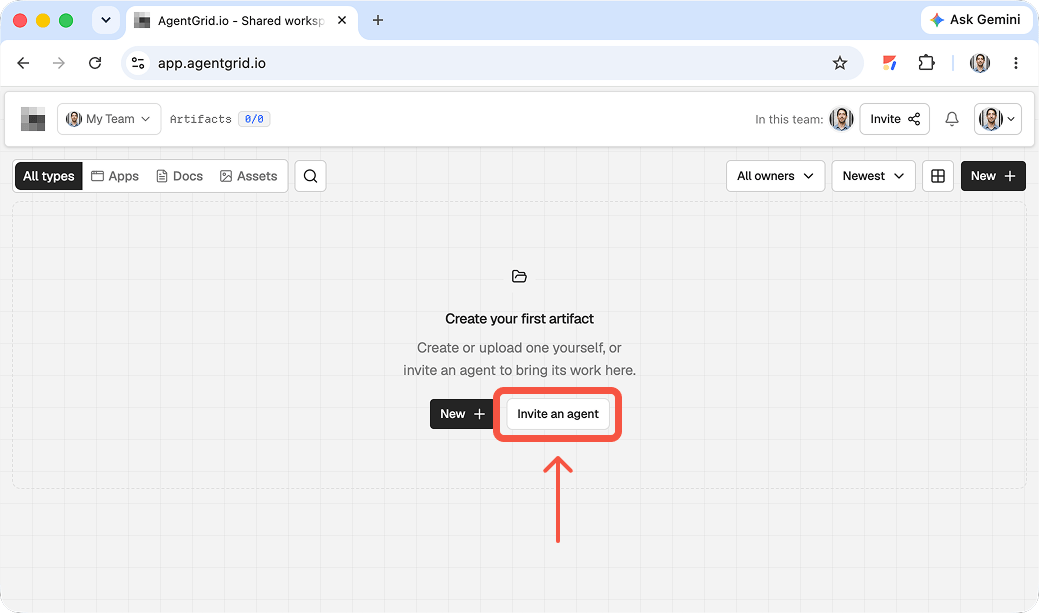
1. Connect ChatGPT to AgentGrid.io
Create or open an AgentGrid.io workspace, then add the official AgentGrid.io plug-in from ChatGPT’s integration directory. Depending on your plan and interface, look under Settings for Plug-ins or Apps & Plug-ins. Complete the sign-in and approve the team identity, workspace access, and capabilities. For a draft-first workflow, give ChatGPT the access it needs to create and revise, not permission to publish unless you deliberately want it to deploy. Ordinary ChatGPT chat cannot connect itself by running a terminal command; this plug-in is different from the CLI route used by Codex.
2. Put the website draft in a shared artifact
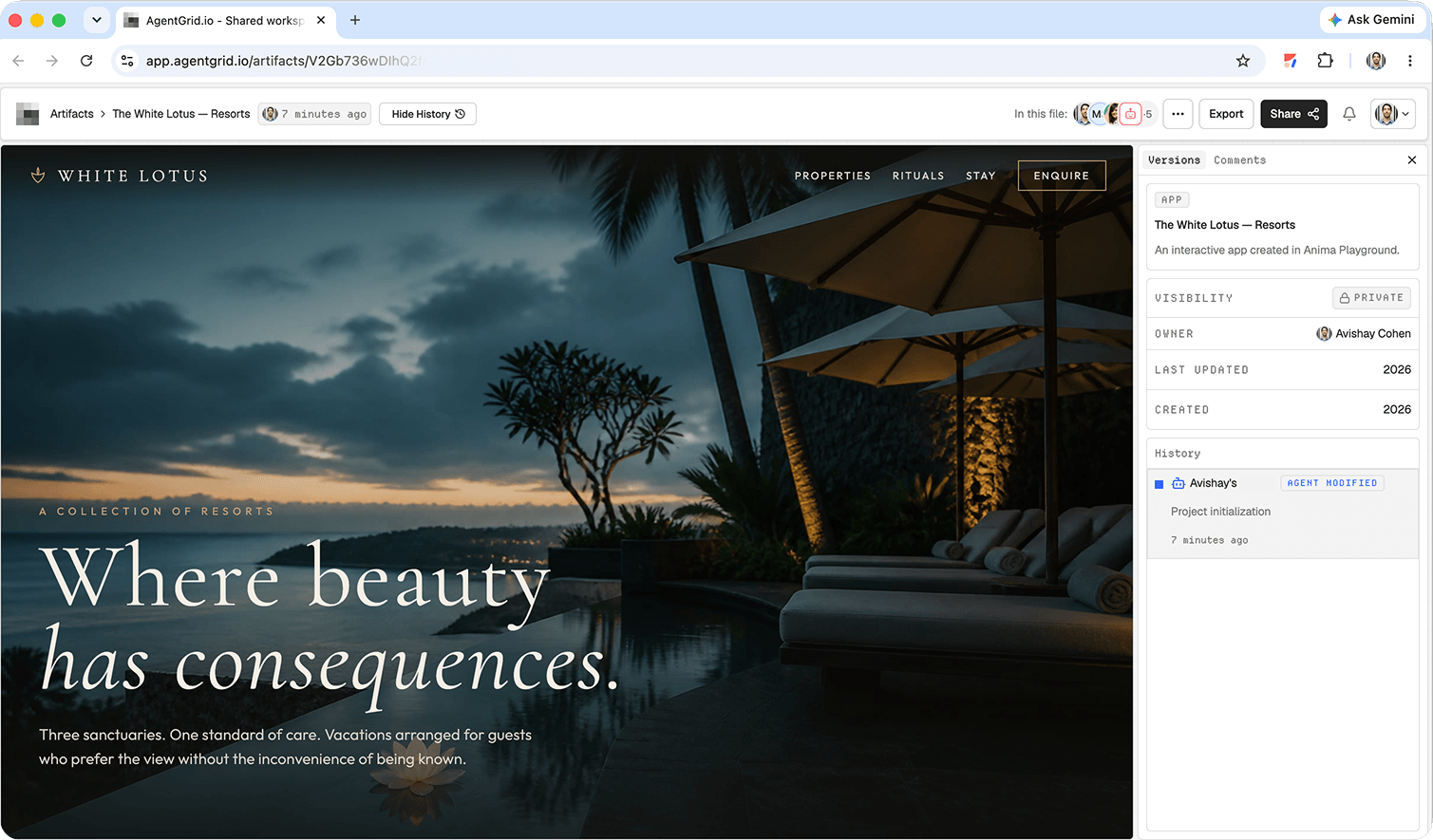
Once ChatGPT has prepared the site’s copy and implementation, ask: “Use the AgentGrid.io plug-in to put this website in my project workspace as an app. Return the artifact link, and do not publish it.” Open the returned link and confirm that it is a rendered site with the intended pages and assets, not merely a pasted description of the site. Connected ChatGPT creates directly in an authorized workspace; there is no separate claim step. If it cannot find that workspace, check its grants rather than assuming that signing in gave it access to every team project.
3. Review the draft with the people who will approve it
Send the private artifact URL to teammates who already have workspace access. The URL identifies the draft but does not itself grant entry. Use Review to comment on a specific element, such as a confusing call to action, and ask ChatGPT to update that same artifact by pasting its URL into the conversation. Check navigation, mobile layout, forms, links, image rights, and any factual claims in the rendered preview. Compare the new version in History before signing off; a chat response saying “done” is not a substitute for opening the actual site.
4. Publish the approved version
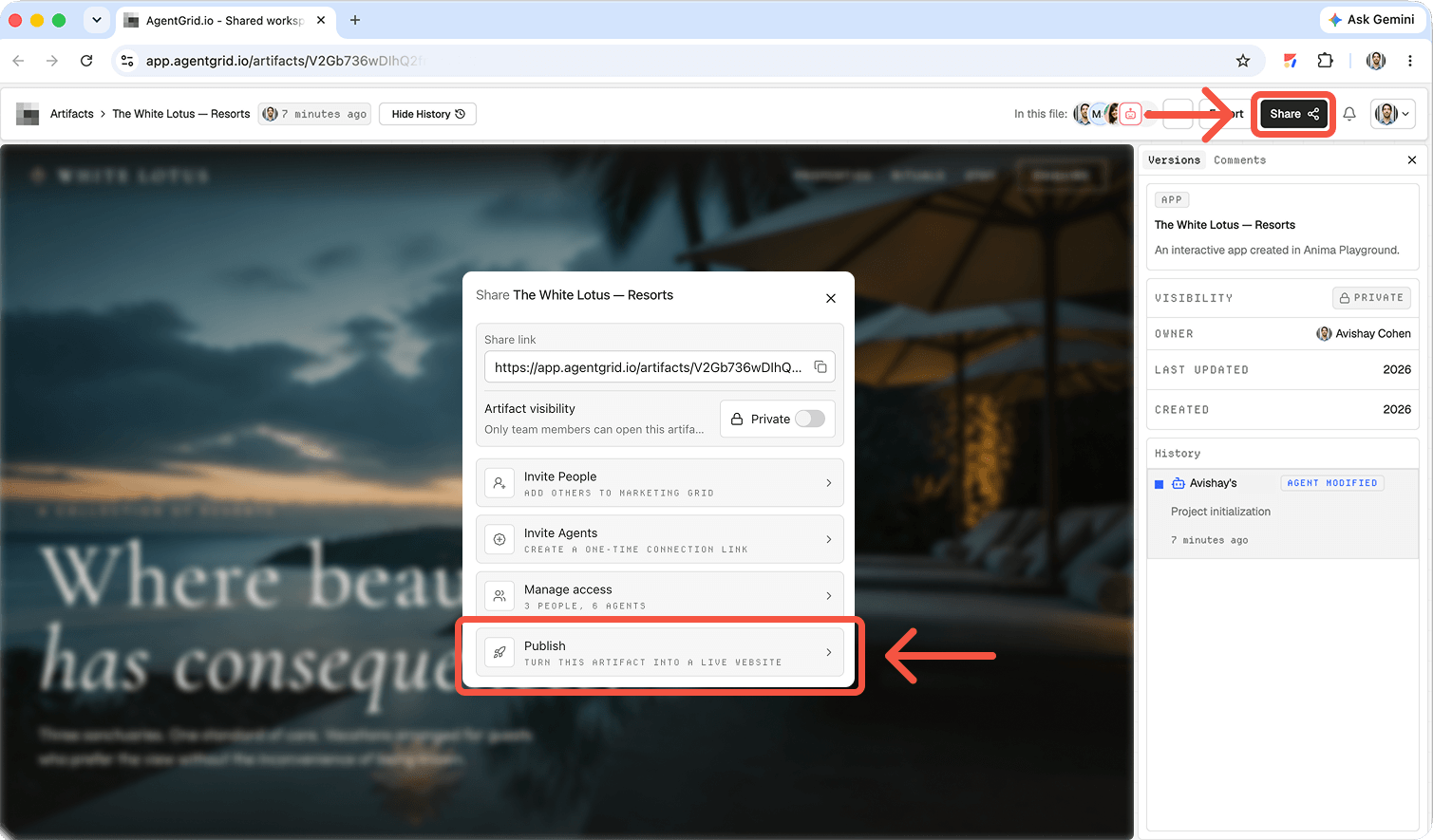
When the review is complete, open the artifact’s publish control in AgentGrid.io and confirm the first public deployment yourself. Publishing is a separate privacy decision from sending a private artifact link: the resulting website URL is accessible without an AgentGrid.io account. Visit that public URL on desktop and mobile to check the live result. If ChatGPT later edits the draft, the public site remains on the last published version until you explicitly publish an update. Use Unpublish if the deployment needs to be taken offline without deleting the artifact and its history.
How to publish a website with ChatGPT Sites
1. Describe the visitor and the job
Open Work in ChatGPT on the web, or Work in the desktop app, if Sites is available to you. Include “website” in your request or mention @Sites. Give ChatGPT your audience, offer, required pages, brand assets, and what each call to action should do. Supply only content you have permission to use. A good brief explains the visitor’s task, not merely a preferred color.
2. Review the preview, not just the chat answer
Open the generated preview. Click every page and inspect navigation, images, legibility, mobile layout, keyboard access, and the destination of each booking button. If a form appears, decide where its submissions should go and test that behavior. Ask for specific changes, such as shorter hero copy or clearer mobile navigation. An attractive preview is not evidence that payments, analytics, or email have been connected.
Ask ChatGPT to save a version without deploying while you review. In Sites, saving a version and deploying it are distinct stages. Each deployment URL is production. If the website needs persistent visitor data, specify the access rules and test them with appropriate accounts.
3. Deploy, choose the audience, verify
After approval, ask ChatGPT to deploy the saved version. Choose the narrowest sharing setting that fits the launch. Public publishing depends on account, region, and workspace controls; an Enterprise administrator may need to enable it. Open the resulting URL as an intended visitor and repeat the key checks. Look for draft text and broken links.
What does a ChatGPT Site need before you publish?
A Site can be more than a static landing page, but start with the smallest visitor journey that proves your idea. For a service business, that might mean a home page, a clear services explanation, and a booking link. For an internal resource hub, it might mean search, filters, and permissions for connected data. Ask for a preview with real supplied copy rather than placeholder claims. Record the intended audience before building, since a private team tool and a public marketing page require different content and access checks.
Try a brief like this: “Build a website for our neighborhood repair shop using the services and approved photos I attach. Add a home page and service details, but do not invent prices, reviews, or opening hours. Show me a private preview. Do not deploy until I approve the copy, links, and mobile layout.” That instruction gives ChatGPT a bounded task and makes the publication checkpoint explicit. OpenAI’s Sites guide documents the preview, refinement, deployment, and sharing sequence.
Save a version or deploy: what changes for visitors?
For a new Site, deployment creates a URL, with private access as the initial setting. Review the complete URL and the Share audience before making the page available to others. After the Site is live, a saved revision is not automatically the version visitors see. Save changes for review, compare the new result with the current page, then deploy the revision when it is approved. Send the public URL, not a private preview link, to stakeholders who need to test visitor access.
If the Site uses connected apps, test with an account that has the access a real visitor will have. OpenAI says each visitor uses their own connected accounts and existing permissions; your successful owner-side preview does not establish that every visitor can see the same data. If a visitor should not access internal data, do not use a public audience setting as a substitute for permissions review.
When a shared AgentGrid.io artifact makes sense
Sites is the direct ChatGPT hosting path. AgentGrid.io solves a different problem: a versioned website artifact that people and authorized agents can inspect and revise together. It does not automatically import or mirror a ChatGPT Site. To move an existing project, you need actual project files or another supported import, not just a conversation link or screenshot.
For an AgentGrid-first approach, install its ChatGPT plug-in from the ChatGPT directory. Authorize the correct team, reachable workspace, and capabilities. The plug-in is for ordinary ChatGPT chat, not Codex’s shell connection. Menus and availability can vary by plan. Ask ChatGPT to create an artifact in the approved workspace and return its URL. Inspect that artifact before you call it a website draft.
If the plug-in is unavailable, create an artifact yourself and give a capable agent the URL after arranging access. A URL by itself does not grant permission to edit. A private team artifact is also not automatically a public deployment: keep it private for feedback, update the same artifact after revisions, then publish only with an account or agent that has publish permission. Open the public page as a visitor afterward.
Choose the workflow, then keep it consistent
Use Sites when you want ChatGPT to host and manage the site in one place. Use AgentGrid when the work needs a shared review surface across assistants and humans. If you choose both, decide which project is authoritative. Edits in one do not silently propagate to the other. Our Muse publishing walkthrough shows the shared-artifact pattern. The Claude Design publishing guide covers a different design handoff. For assistants collaborating across chats, read how to transfer ChatGPT context to Claude without confusing conversation context with a live project.
Launch checklist for a public ChatGPT website
- Content: verify business names, claims, contact details, image rights, page titles, and any required disclosures against approved material.
- Behavior: try the main call to action, navigation, search, forms, and empty states. If a feature is only a visual mockup, say so before launch.
- Access: open the deployed URL in a signed-out browser or with the intended visitor account. A workspace-only Site should not be described as public.
- Maintenance: keep a record of the approved version and who will review updates. After every deploy, test the live page again rather than trusting the editor preview.
Frequently asked questions
Is a ChatGPT share link a published website?
No. A chat link shares a conversation. A Sites deployment hosts the visitor-facing experience. An AgentGrid artifact is a separate shared workspace object that can be reviewed and published through its own workflow.
Can ChatGPT Sites use a custom domain?
OpenAI documents custom domains in Site settings, but available controls can depend on your plan and workspace. Check your account’s Site settings and coordinate domain ownership before promising a branded launch. The initial deployment provides a Sites URL.
Can anyone publish a ChatGPT Site?
No. Sites is in public beta, with availability controlled by plan, region, and workspace settings. Check your access before promising a launch date or public URL.
Can AgentGrid edit my ChatGPT Site automatically?
No automatic synchronization is implied. If you want multi-agent edits, give authorized agents access to an AgentGrid artifact and verify any project transfer or import separately.
Make the reviewed draft real
Whether you deploy from Sites or publish through AgentGrid, the final step is the same: inspect the version your visitor will actually see. Do not substitute a chat message saying “done” for that check.