 Figma
 API
 Web to code extension
 Adobe XD
 Discord
 Twitter
 GitHub


 Blog

How to Publish a Website With Grok Build10 min read
Reading Time: 7 minutesTo publish a website with Grok Build, describe the page in Grok, review the working preview, use the app’s Publish control, choose who can open it, and test the resulting grok.me URL. xAI documents web and mobile building, a hosted link, access choices, and custom domains. A preview inside your chat is not the public site, and publishing a convincing design is not the same as validating every button or claim.
Coordinating a review team? Open AgentGrid.io to keep the brief and decisions alongside the live link. Grok Build remains the creation and native publishing tool.
How to publish a website with Grok Build and AgentGrid.io
1. Pick the destination before leaving Grok Build
Grok Build can create a working app in the Grok conversation and publish it to a grok.me address with an access choice. That is Grok’s own hosting, not an AgentGrid artifact. To work with colleagues in AgentGrid, first sign in at app.agentgrid.io, select the correct team, and choose a workspace for this app. Check its access before moving private work. AgentGrid’s quickstart covers that choice. Keep the Grok preview for comparison. Neither product updates the other.
2. Set up a collaborator or connected agent deliberately
If a cloud agent or script needs advance access, invite it through AgentGrid agent administration. Interactive coding agents usually self-connect with the CLI. Name the agent clearly and grant Read and Write only if needed. Share and Publish are separate capabilities; do not give them merely to make the import work. Deliver the one-time invite to the agent and confirm it connected. The agent invitation guide describes this consent flow. For a human reviewer, add the person with the appropriate team role and workspace grant instead. Do not paste an AgentGrid agent invite into Grok Build expecting Grok’s hosted app to migrate automatically. You can import yourself instead.
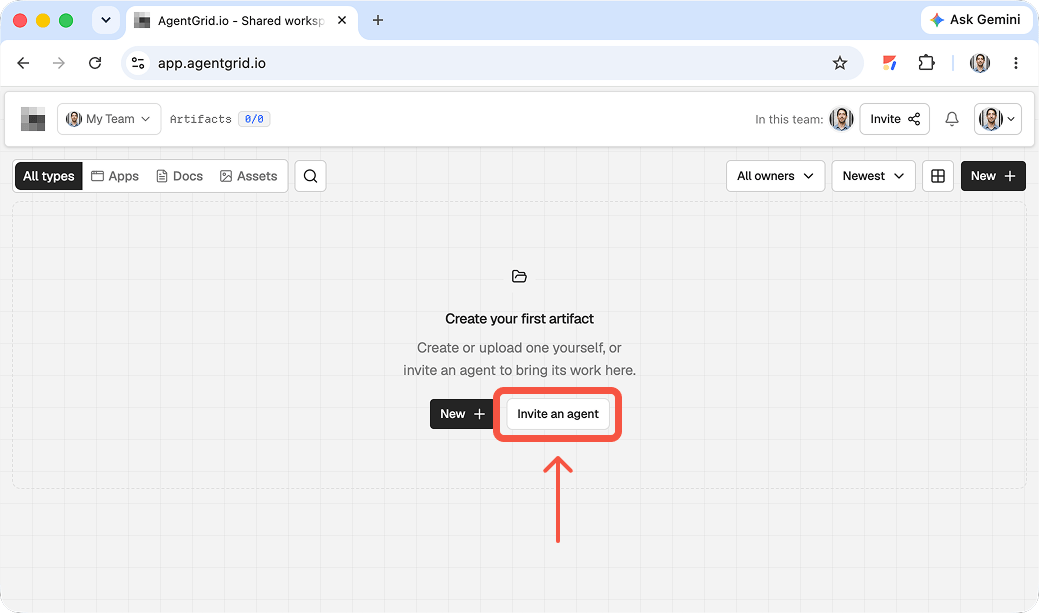
3. Export the Grok project and import a copy
In Grok Build, finish an iteration and use Export to GitHub to push the project to a repository. xAI’s Grok Build announcement documents that export, along with Grok’s grok.me publish controls. Download or clone the exported repository, check what files and assets are actually present, and remove secrets or services that should not travel. Put the runnable source and assets in one folder; include the required entry point, such as index.html, or the appropriate project files for its runtime. Then use AgentGrid New → Upload Folder or New → Import from ZIP, select app, and inspect both the file tree and rendered preview. The import instructions explain the structure and limits. Grok-specific APIs, connectors, secrets, or backend features may require separate configuration or replacement in the imported environment; test behavior rather than assuming a visual preview proves parity. An exported GitHub repository and an AgentGrid import are independent copies, not continuous synchronization.
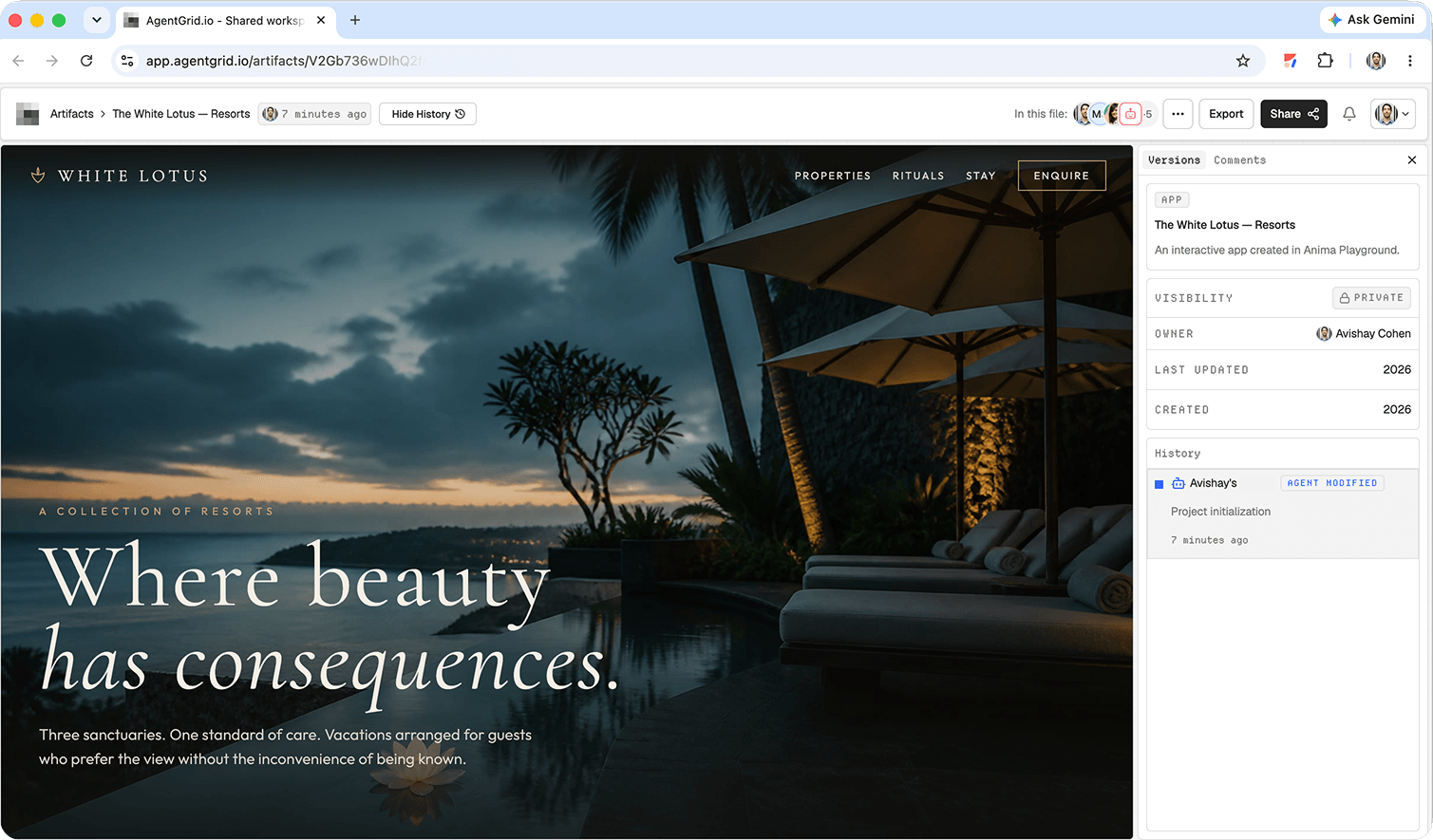
4. Choose which kind of link to send
Grok’s publish sheet can create a grok.me link visible only to you, to anyone with the link, or to the public internet. In AgentGrid, Share copies the artifact’s private working link, which only authorized workspace users can open. Use that for review and further edits; the sharing guide explains the access boundary. If you have workspace publish permission and want anyone to open the AgentGrid copy, explicitly publish that artifact and verify its returned public URL. AgentGrid’s publish guide notes that subsequent edits require republishing. Label each review or public link clearly. Publishing one does not publish or update the other.
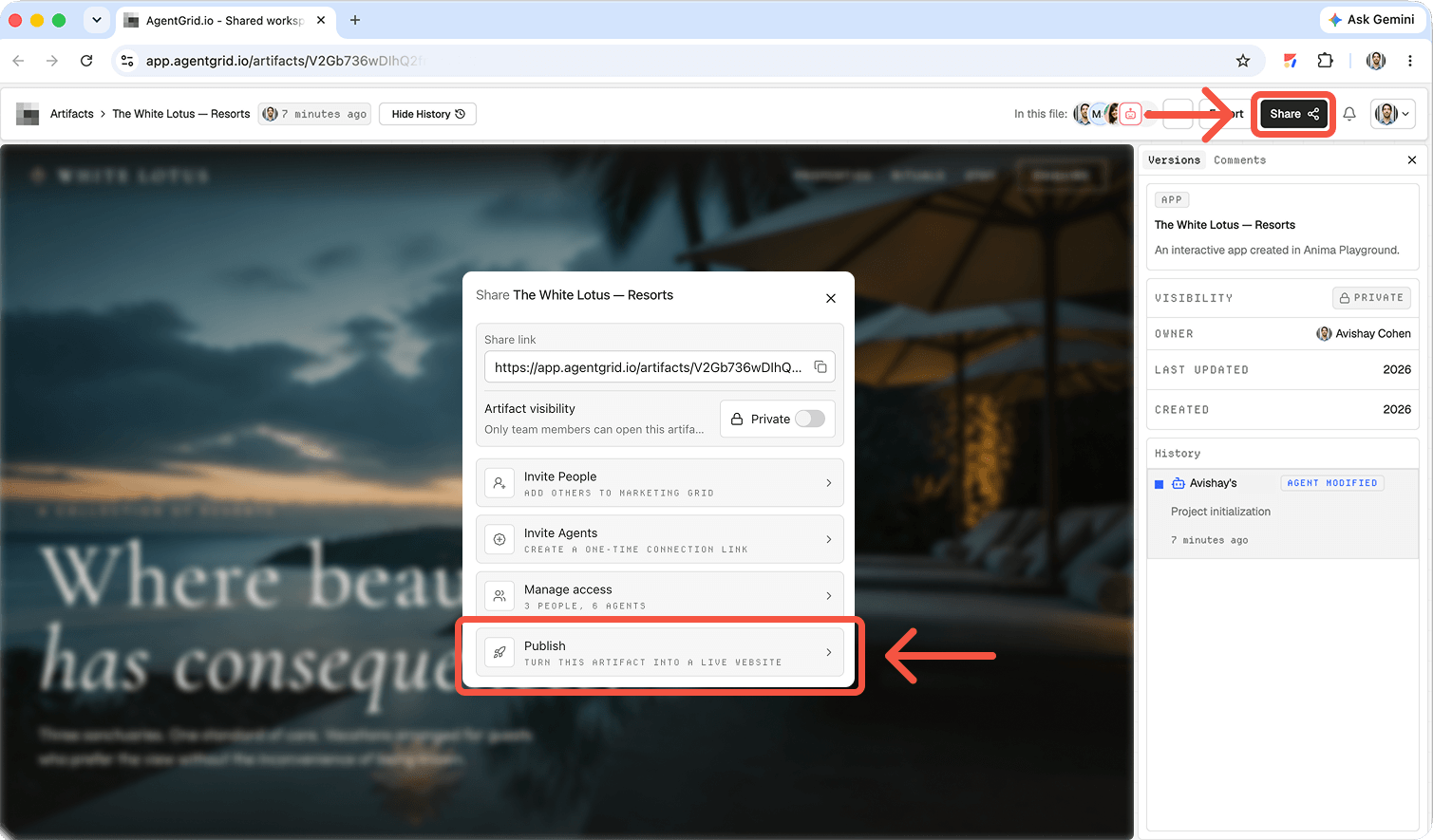
What is Grok Build for websites?
In xAI’s announcement of Grok Build on web and mobile, you can describe a website or app in Grok and see a working version in the conversation. Published apps receive their own grok.me address. The publishing sheet offers access for just you, anyone with the link, or the whole internet, and the product supports a domain you own. These are specific to the Grok web/mobile app-building experience. Do not confuse it with the separately documented Grok Build terminal coding agent, which works in a local repository and does not make your local files public by itself.
Choose a first version that a visitor can understand and complete. A ceramics studio landing page with a schedule and a booking link is easier to review than an entire membership system. Have your real logo, approved copy, class dates, photos, and booking destination ready. Mark anything you have not verified as a placeholder.
How to build and publish a website in Grok Build
1. Start with a concrete visitor journey
Open Grok Build in the web experience and describe the visitor, purpose, sections, visual style, and primary action. A good prompt specifies what the button should do and forbids invented business facts. Grok may produce working interactions, but you remain responsible for confirming their actual destinations.
Example prompt: “Build a responsive one-page ceramics studio website for adults looking for beginner classes. Include an introduction, class schedule, instructor section, location, and Book a class action linked to [approved booking URL]. Use our supplied copy and imagery. Do not invent testimonials, prices, dates, or a working checkout. Make the mobile menu and keyboard focus easy to use.”
Replace the bracketed URL and attach assets only when you have rights to them. If your request names a contact form but you have no destination for submissions, ask for a link to an existing service instead. A generated interface can hide an incomplete workflow behind attractive styling.
2. Review the working preview
Read the site from the viewpoint of a first-time customer. Inspect the hero, section order, pricing language, dates, and footer. Narrow the screen to phone width and check whether text overlaps or navigation becomes inaccessible. Click each link and booking button. Test keyboard focus and image descriptions. If a form is present, use safe test data and verify what receives it rather than assuming a success message proves delivery.
Request targeted edits so you can tell what changed. For example: “Keep the layout and colors. Replace the class schedule with the approved dates below, link both booking buttons to our real booking page, and fix the mobile overflow at 375px.” Reinspect after every material change. If the draft cannot be safely launched, keep it in preview while the owner resolves missing content or implementation.
3. Publish with the right access setting
Open the Publish control for the app. Review the proposed site address and select the intended access level. “Just you” is not a public launch; “anyone with the link” and “the whole internet” have different discovery expectations. Choose deliberately before copying a URL into a customer announcement. xAI’s publishing announcement also shows an app cover for link previews that can be regenerated or replaced, so inspect what people see when the link is shared.
If your launch requires a branded domain, configure the supported custom-domain flow for a domain you own and verify the resulting address. Do not assume buying or pointing a domain automatically approves the content. For teams moving implementation into a repository, xAI also describes exporting the project to GitHub, but that export is a separate code handoff from the hosted grok.me publication.
4. Verify the live version from outside the editor
Open the published address in a private or signed-out browser session. Confirm the access choice works for the intended audience. Repeat your mobile, navigation, and primary-action checks on that actual address. Check the page title, preview card, and images. If you revise the project later, verify that the published site reflects the intended changes rather than assuming the editor preview and public version are identical.
Record the public URL, access choice, review date, approver, and outstanding issues. That small handoff note prevents a private demo link from being mistaken for a launch and tells the next contributor what “done” means.
When to use Grok Build’s hosted link or a code handoff
Use the native link when you want a quick working demo or a site that visitors can open without entering your editing session. A repository export may be preferable when developers need ownership of the code, release checks, and deployment on existing infrastructure. Those are different outcomes. Exporting code does not migrate a hosted domain or validate an external deployment, and publishing a grok.me app does not prove that a GitHub project was deployed elsewhere.
For an alternative prompt-to-page path, read the Muse AI website-publishing walkthrough. A design-first starting point calls for publishing a Claude Design website. For an agent-led design-to-live workflow, see how agents design and publish apps with Anima.
Move from a live demo to a team-owned workflow
A live URL lets teammates review the result, but it does not capture why the copy was changed, who owns the domain, or which conversions were tested. In AgentGrid.io, maintain a shared artifact with the approved brief, asset locations, Grok Build link, access setting, review notes, and next actions. This is a manual collaboration pattern, not a claim that AgentGrid.io automatically imports or synchronizes a Grok Build project.
Troubleshooting a Grok Build website launch
Other people cannot open the link
First confirm you copied the published app address, not an editor or chat URL. Review the app’s access setting: a site limited to you will not work for an external reviewer. Test the same URL while signed out before changing the setting or sending it again.
The booking button looks finished but does nothing
Inspect its destination in the preview and public version. Give Grok the exact approved URL and ask it to update every instance of that button. If the action requires a payment, database, or authentication workflow, test that underlying service independently before promising visitors it works.
A change appears in the editor but not on the published site
Check the current public address and publishing state, then follow the product’s update or publish flow for the revised app. Reload the live page in a fresh session and compare the specific changed text or action. Do not announce the revision based only on the editing preview.
FAQ
Does Grok Build host published websites?
Yes, xAI says apps published through the Grok web/mobile building experience receive grok.me addresses. You still need to choose access and test the live result.
Can I connect my own domain?
xAI lists custom domains for published apps. Set up a domain you control through the current product flow and verify that it resolves to the intended app.
Is anyone-with-the-link the same as a public launch?
Not necessarily. The publishing options distinguish link access from visibility to the whole internet. Decide which audience should be able to reach the site, then test that choice in a signed-out browser.
Is Grok Build for the terminal the same workflow?
No. xAI also documents a terminal coding agent called Grok Build. That tool edits a local codebase; deployment of that local project needs its own hosting workflow. This article covers publishing an app built in Grok on web or mobile.
Next step: Publish the checked page with the intended access setting, then create the AgentGrid.io handoff before the next round of changes.